Testing AI Noise Reduction Software for Astrophotography


AI-based noise reduction programs continue to improve, to provide remarkable results on many images. But โ€ฆ how well do they work on star-filled astrophotos? 

In late 2022 I published a comparison of noise reduction programs current at that time. Itโ€™s here on my Amazing Sky blog. 

As we know, software evolves rapidly. So hereโ€™s my latest look at versions of those programs current of as May 2024, plus new entries into the category, all with a focus on how well they perform on a variety of astrophotos. Only two programs tested here, NoiseXTerminator and GraXpert, are specifically designed to be used on astrophotos, primarily telescopic images of deep-sky objects. 

The other programs on test are general purpose, for use on noisy images such as wildlife photos shot at high ISOs to freeze motion, or any photos shot under low light. But the latter includes nightscapes. 

I tested programs in three categories, defined primarily by how they are used in a processing workflow:

  1. General programs usable only on Raw files at the start of a workflow: 
  • Adobe DeNoise AI from within Adobe Camera Raw (v16.3) or Lightroom (v13.3)
  • DxO PureRAW 4 (v4.1), a stand-alone app only
  1. General programs usable as stand-alone apps on Raw files, but also as plug-ins for Photoshop for use later in a workflow (I tested both workflows):
  • Luminar Neo (v1.19.1) and its Noiseless AI filter
  • ON1 NoNoise AI 2024 (v18.3)
  • Topaz Photo AI (v3.02) 
GraXpert stand-alone app
  1. Programs specialized for astro work:
  • RC-Astro NoiseXTerminator (v1.1.3), usable only as a Photoshop plug-in
  • GraXpert (v3.0.2), usable only as a stand-alone application 

(The latter two can also be installed as โ€œprocessesโ€ accessed from within the specialized astrophoto program PixInsight; I did not test that workflow.) 

Comparing ACR’s standard noise reduction to 5 AI-based noise reduction programs

MY METHODS (โ€œBUT WHAT ABOUT โ€ฆ?โ€)

I tested the five general-purpose programs on four types of astrophotos:

  • Nightscapes 
  • Aurora images
  • Total solar eclipse images
  • Deep-sky images, both wide-field and telescopic 

I tested the two specialized programs only on sample deep-sky photos, the types of images they are designed and trained for. 

In all cases, the test images are single frames. I did not stack any images for these examples, as I wanted to show what the programs could do with noisy originals.

I tested only on Raw files from mirrorless cameras. I did not test on FITS files from specialized cooled astronomy cameras, as those require a quite different workflow and software. 

Anticipating the โ€œWhat about โ€ฆ?โ€ question โ€” no, I did not test Topaz DeNoise AI. While popular among astrophotographers, both it and its companion program, Sharpen AI, were discontinued in 2023, in favor of Topaz concentrating on their single program, Photo AI, that can de-noise, sharpen, and upscale. 

I also did not test other Raw developer programs that contain noise reduction panels. (For example, DxO PhotoLab includes a version of PureRAW, and ON1 PhotoRAW contains a version of NoNoise.) For my most recent comparison of those programs see my test from January 2023

I made an exception for Luminar Neo. While it includes general processing functions, it is used more often (certainly by me!) just as a plug-in for its AI-driven effects and filters, noise reduction being one. 

PLEASE NOTE: 

  • All the test images are full-resolution JPGs (6,000 to 8,000 pixels wide) that you can download (by right-clicking) for detailed inspection. You will often need to do so, to see the pixel-level differences I refer to.
  • But the sizes of the images make the blog page slow to load initially. Patience, please! 
  • All images are ยฉ Alan Dyer, so any publication or posting elsewhere requires my permission, please and thank you! Just link to this blog if you wish to share the review.

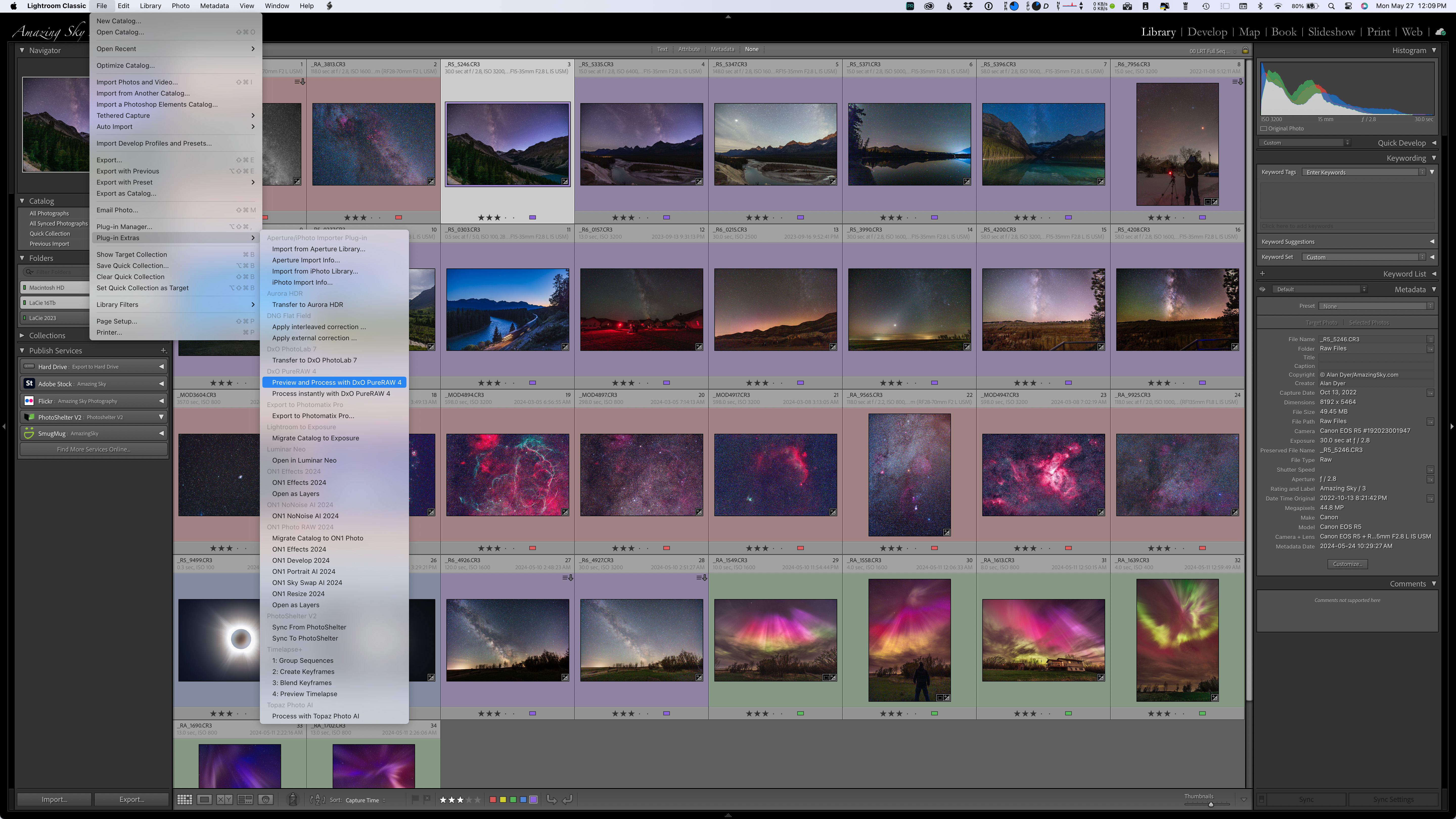
DxO PureRAW can be called up from within Adobe Bridge by going to File>Open With โ€ฆ and choosing DxO PureRAW.
In Lightroom, the route to send images to PureRAW is File>Plug-In Extras>Process and Preview with DxO PureRaw 4. You cannot choose Photo>Edit In โ€ฆ as you might do to send images to other programs. 

TL;DR SUMMARY (with links to the software websites)

  • Of the two Raw-only programs, Adobeโ€™s DeNoise AI and DxOโ€™s PureRAW 4, both worked well, with v4 of PureRAW much improved over its earlier artifact-prone v2 I tested and dismissed in 2022. Similarly, unlike its early version, Adobe DeNoise AI did not invent structures, such as auroral arcs. 
  • Adobeโ€™s DeNoise AI brought out details in the shadows much better than DxOโ€™s PureRAW 4, which blocked up shadows. But PureRAW produced sharper details in illuminated landscapes, yielding less of the plastic appearance that Adobe DeNoise is still prone to. However, both programs turned star trails into wiggly worms. 
  • Each of the three other general-purpose programs failed as stand-alone apps when importing Raw files, then exporting them as either Raw DNG (Digital Negative) files (ON1 NoNoise AI and Topaz Photo AI), or as TIFF files (Luminar Neo). Their exported images were either dark, vignetted, or hugely shifted in color or tonal balance. Results with that Raw-to-DNG/TIFF workflow were often unusable. 
  • However, the same three programs (Luminar Neo, ON1 NoNoise AI and Topaz Photo AI) worked well as plug-ins from within Adobe Photoshop. Images now looked fine, with ON1 NoNoise producing what I thought was the best overall noise reduction with the fewest artifacts and โ€œpatchinessโ€ in most examples. Luminar Neoโ€™s Noiseless AI was consistently the poorest performer in all cases. Itโ€™s the program I can rule out of the running for noise reduction. 
  • The two specialized astro programs, NoiseXTerminator and GraXpert, did a fine  job on deep-sky images, reducing fine-grained noise without eliminating stars, just what they are โ€œtrainedโ€ to do. However, I felt NoiseXTerminator did the better job, with the new (as of May 2024) GraXpert 3.0 softening stars or leaving residual mottled artifacts. Neither worked well on nightscapes โ€” while they didnโ€™t harm detail too much, other programs performed better on what are often detailed but dark and noisy foregrounds.

My main takeaway โ€” No one piece of AI software works best on all astrophotos. A program that provides great results on one image or class of image might perform poorly on another image. That’s the nature of AI-driven processing.

So … my overall conclusion and personal workflow picks? โ€”

  • Adobe DeNoise AI would be my first choice for noisy nightscape images, where it has to be applied early in the workflow. It will be worth trying on deep-sky images.
  • DxO PureRAW might work better on some nightscapes with lots of ground textures.
  • ON1 NoNoise AI works well on many images when applied as a plug-in later in the workflow, but its sliders often need adjusting from the defaults.
  • NoiseXTerminator remains my preferred plug-in for deep-sky images.

PLEASE NOTE: 

  • I have not provided prices and explained buying options, as frankly some can be complex! 
  • For those details, go to the softwareโ€™s website by clicking on the links in the names above. With the exception of Luminar Neo, all are available as free trial copies. 
  • All programs are available for Windows and MacOS. I tested the latter versions, on an M1 Max MacBook Pro. 
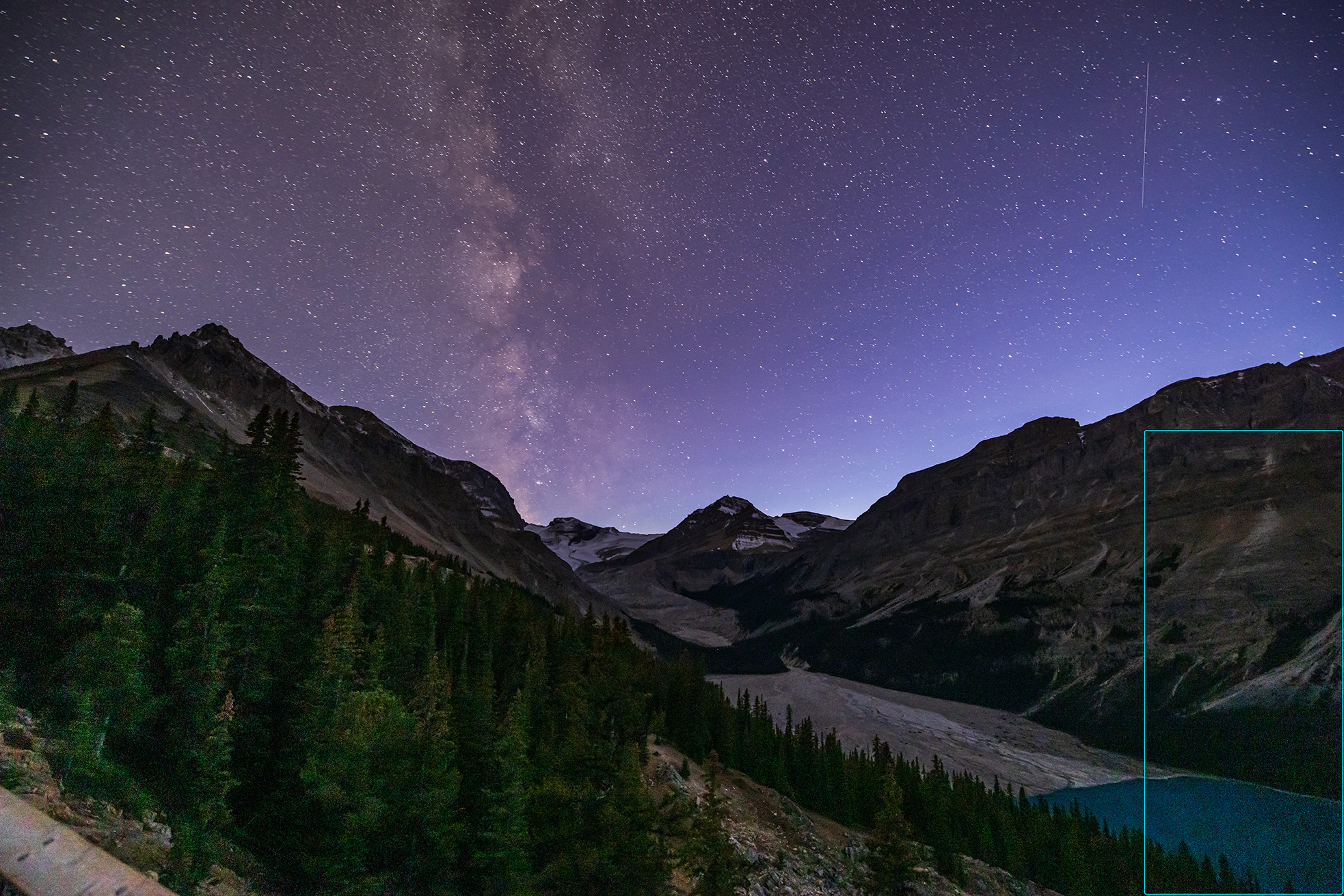
A typical test image, showing the small section that the comparison examples zoom in on. This is the first image shown below in detail.

RAW-ONLY PROGRAMS โ€” NIGHTSCAPES 

To provide evidence for my conclusions, I focus first on the two Raw-only programs, Adobe DeNoise AI and DxO PureRAW 4, as they produced by far the best results of all the programs on demanding nightscapes, often remarkably so. They not only reduce noise, they also recover fine details with AI sharpening you cannot turn off. How well that works is what I demonstrate below.

In each of the following examples, I show the two programs compared to an image processed in Adobe Camera Raw (ACR) using the Detail panelโ€™s old non-AI adjustments for sharpening and noise reduction. 

I developed all the images in ACR, then sent them through Adobeโ€™s DeNoise AI option or into DxO PureRAW. Both options produce new raw DNG files, with all the develop settings intact and accurate, with some exceptions with PureRAW as shown below.

Peyto Lake Nightscape

Peyto Lake corner closeup โ€” with Canon R5 at ISO 3200

In most cases I show only a section of images blown up by 250% to 500%. Here, in the first example of a nightscape shot I zoom in on a corner, as illustrated above, where noise often lurks due to lens vignetting. (I shot this and many of the nightscape examples with the 45-megapixel Canon R5. See my test of it for astrophotography here.)

The standard ACR noise reduction leaves a blizzard of fine noise and large color blotches. The Adobe DeNoise AI version (with it at 60%, the setting I used for all the DeNoise images) shows much less noise and somewhat reduced color blotches. The PureRAW version shows even better noise reduction, but the trees turn very dark with no detail. 

But compare the mountainside. Adobe turns the rock layers into artificial-looking ropey bands; PureRAWโ€™s detail recovery looks much more natural for texture. 

Lake Edith Nightscape 

Lake Edith corner closeup โ€” with Canon R5 at ISO 5000

In this example, I again zoom in on a badly underexposed corner. The standard ACR version looks awful, riddled with color splotches and banding. The Adobe DeNoise version has cleaned up most of the mess. But the PureRAW version is better, eliminating even more noise and artifacts. 

So is PureRAW better? Not so fast! 

Storm Mountain Nightscape

Storm Mountain corner closeup โ€” with Canon R5 at ISO 100

In this close-up of the Storm Mountain twilight image (that I show in full farther down the page), the normal image shot at ISO 100 isnโ€™t marred too much by noise. But it does exhibit the magenta discoloration often seen in underexposed frame corners when the shadows are โ€œliftedโ€ brighter, as I show in the inset of the Basics panel. 

The Adobe DeNoise version automatically corrected the color back to normal (I made no manual adjustments) and brought out the fine details. By comparison, PureRAW turned the trees completely dark, a lazy way to reduce noise! I tried further lifting the shadows with some reverse vignetting (as shown), but the result was a muddy mess. PureRAW crushed the shadows to the point no detail was recoverable. 

So is Adobe better? Not necessarily ….

Lake Louise Nightscape

Lake Louise close-up โ€” with Canon R5 at ISO 1600

Here I zoom in on famous Mount Victoria at the end of Lake Louise in Banff, in a one-minute exposure taken for the ground. As before, I think PureRAW has done a better job at recovering details in the mountain, though maybe to the point of over-sharpening? Adobe DeNoise perhaps looks more natural here. 

But look at the star trails, which we sometimes want in our nightscapes, or have whether we want them or not! Yes, the sky in the AI-processed images looks less noisy, but the star trails now look like wiggly irregular streaks. PureRAW is a little worse, but both programs suffer from the same AI misinterpretation of the content. Both ruined the sky. 

Will this always be the case? 

Sierra Cabins Nightcape

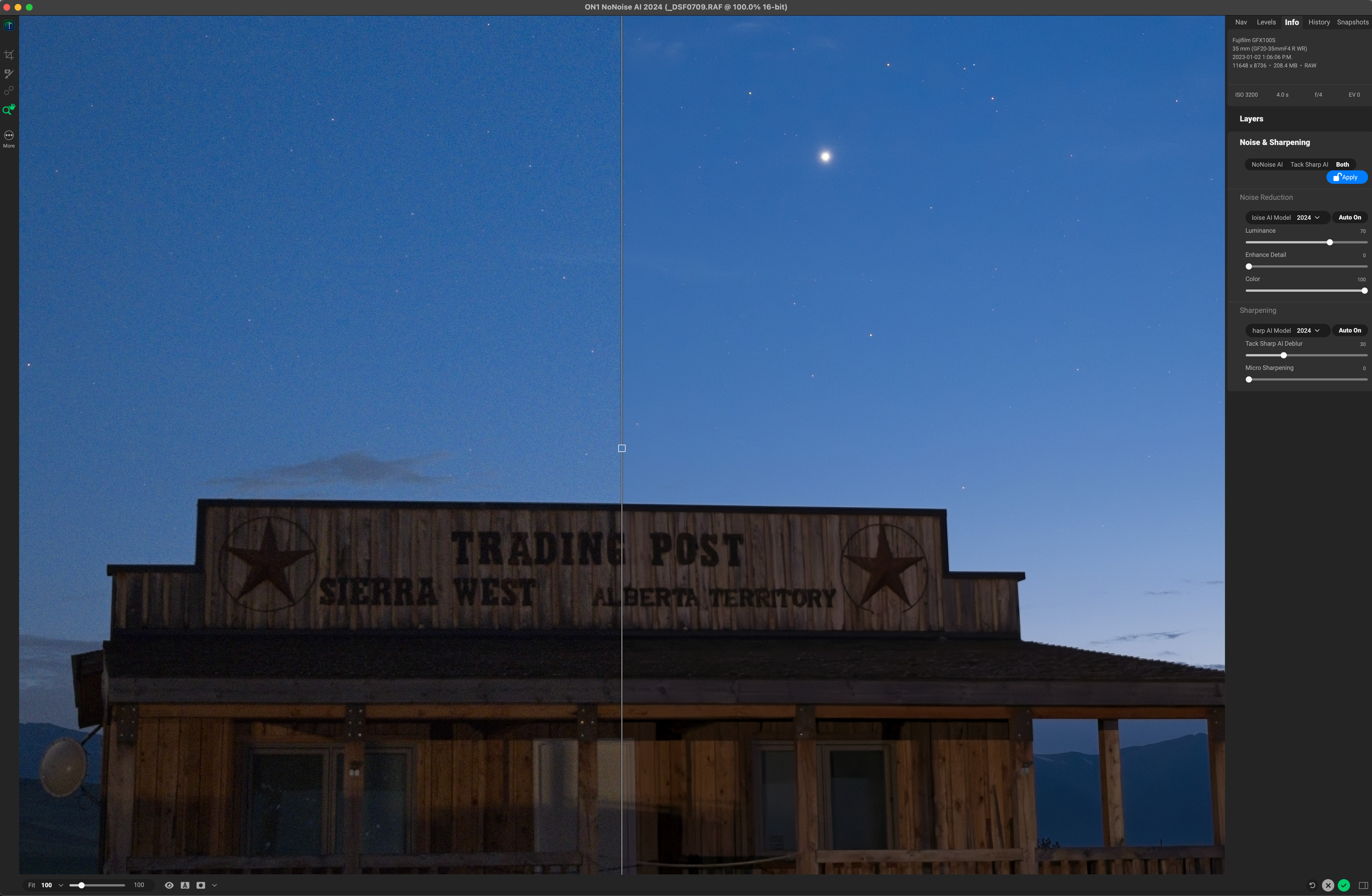
Sierra Cabins close-up โ€” with Fuji GFX100S at ISO 3200

All the other image examples are from Canon mirrorless cameras: the EOS R, Ra or R5. But this is a blow-up of a 100-megapixel photo from a medium-format Fuji GFX100S. The rustic cabin and the sky is less noisy in the AI images, with PureRAW the better performer here by a small margin. Stars look fine, and the AI sharpening of both programs has brought out the faint stars without any artifacts, a welcome improvement I think.ย 


RAW-ONLY PROGRAMS โ€” AURORA 

I include this as a separate example, as an aurora photo provides a sky with a different type of content. In the past Iโ€™ve seen Adobe AI invent aurora rays.

Aurora Curtain
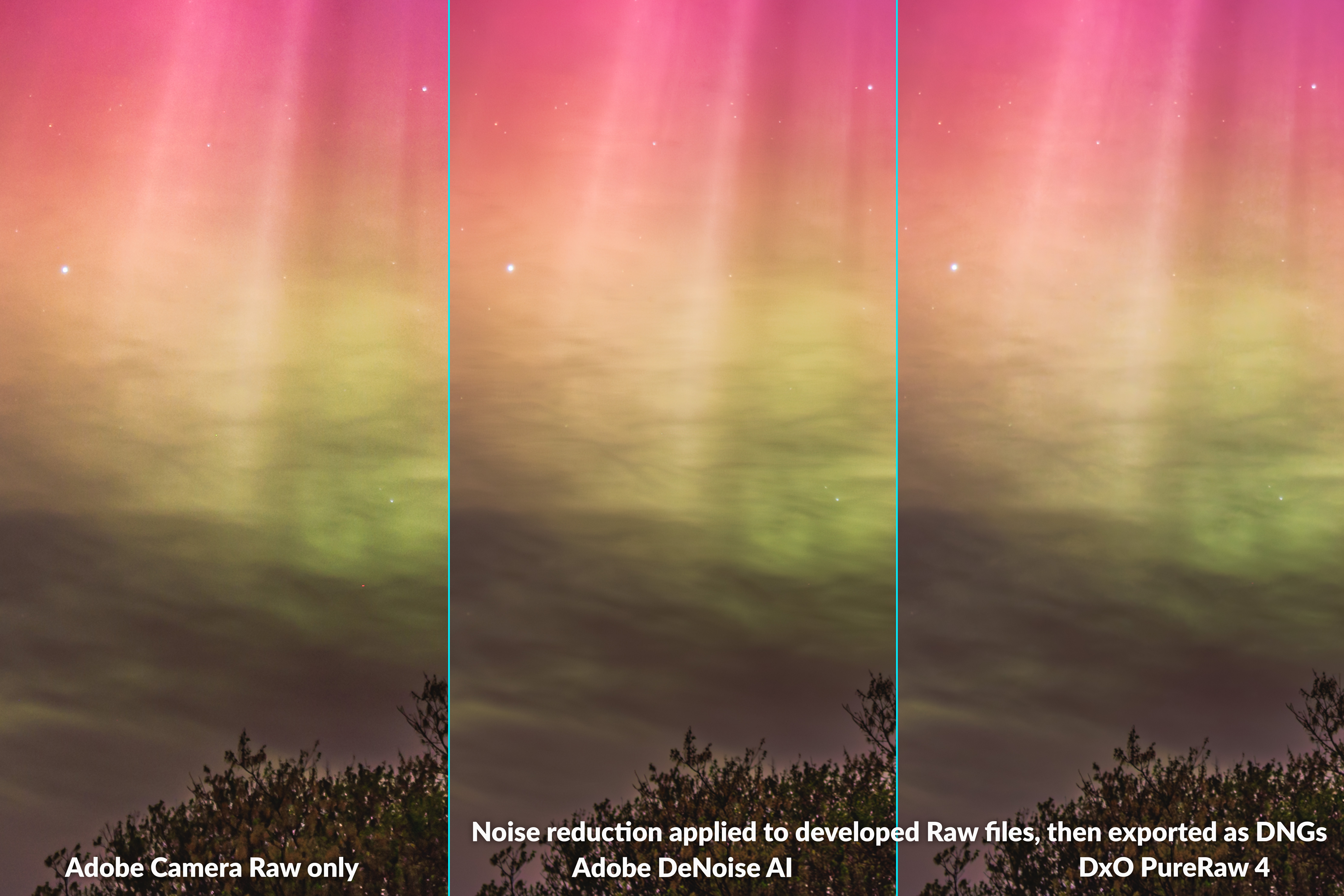
Aurora close-up โ€” with Canon Ra at ISO 1600

This is an image from the Great Aurora show of May 10, 2024. Thereโ€™s less noise in the AI versions of this example, and both programs also eliminated the errant hot red pixel at lower right in the ACR image. Iโ€™ve found these two AI programs can correctly identify and eliminate some hot pixels, though hot pixel removal can be hit or miss. 

In all, I found the AI routines of Adobe and DxO did a fine job on auroras, reducing noise without introducing artifacts such as banding or posterized color gradations. Neither overly sharpened foreground details, nor added structures into the aurora or clouds that shouldnโ€™t be there or that look unrealistic.


RAW-ONLY PROGRAMS โ€” SOLAR ECLIPSE 

Many of us have close-ups of the April 8, 2024 total eclipse of the Sun. Even though you might have shot them at a low ISO (even when eclipsed, the Sun is bright), you might have been surprised to see how much fine noise remains in the corona and sky. 

Solar Eclipse Corona Close-Up 

Corona close-up โ€” with Canon R5 at ISO 100

This is a close-up of a frame taken through a 105mm f/6 refractor at a focal length of 630mm. Even at ISO 100, thereโ€™s a pixel-level granulation visible, but in this case I donโ€™t think either Adobe DeNoise or PureRAW provided much of an improvement, likely because this is a low-ISO original.

In fact, I think Adobe DeNoise AI made noise worse, as its inherent sharpening added some dark flecks throughout the corona. But neither program introduced any banding, unlike Topaz was guilty of below. 


RAW-ONLY PROGRAMS โ€” DEEP-SKY

Here I compare the two Raw-only programs on several examples of deep-sky images โ€” photos of the Milky Way and nebulas taken with tracking mounts so the stars remain pinpoints, ideally! These examples are tough tests, as the AI models have likely received little training on what these are supposed to look like! And faint stars can look like noise. 

Orion Portrait 

Orion close-up โ€” with Canon Ra at ISO 800

First is a wide-angle portrait of Orion, blowing up the center of a tracked exposure with a 28-70mm zoom lens set to 46mm. (See my test of Canon RF zoom lenses here.) Shot at ISO 800, low for deep-sky images, this single frame is fairly clean to begin with. The AI programs do smooth the noise, without wiping out stars. Nice! 

But they do accentuate the residual chromatic aberration (the blue haloes) on stars. PureRAW looks a little worse as it seems to have shifted the color to more magenta. All three Raw files have identical settings and profiles applied, yet PureRAW looks slightly different. 

Cygnus H-alpha Monochrome 

Cygnus close-up โ€” with Canon Ra at ISO 3200 with Astronomik 12nm H-a clip-in filter

This is a more demanding example, shot with the same lens but at 70mm, and with the red-sensitive Canon Ra. It is rendered in monochrome as it was shot through a deep-red hydrogen-alpha filter to isolate the red light from the nebulas, here in Cygnus. 

This is a single frame (you would normally stack lots of these!), very noisy due not only to the high ISO used, but also because only the red pixels (one quarter of the total on the sensor) recorded any signal. 

Both Adobe DeNoise AI and DxO PureRaw have cleaned up the noise well. PureRAW has added more sharpening, tightening the stars and enhancing fine structure. Whether this is good or not depends on your goals and tolerance for AI-induced changes. In this case, I donโ€™t think it has invented details.

But then thereโ€™s this example โ€ฆ.

Vela Supernova Remnant 

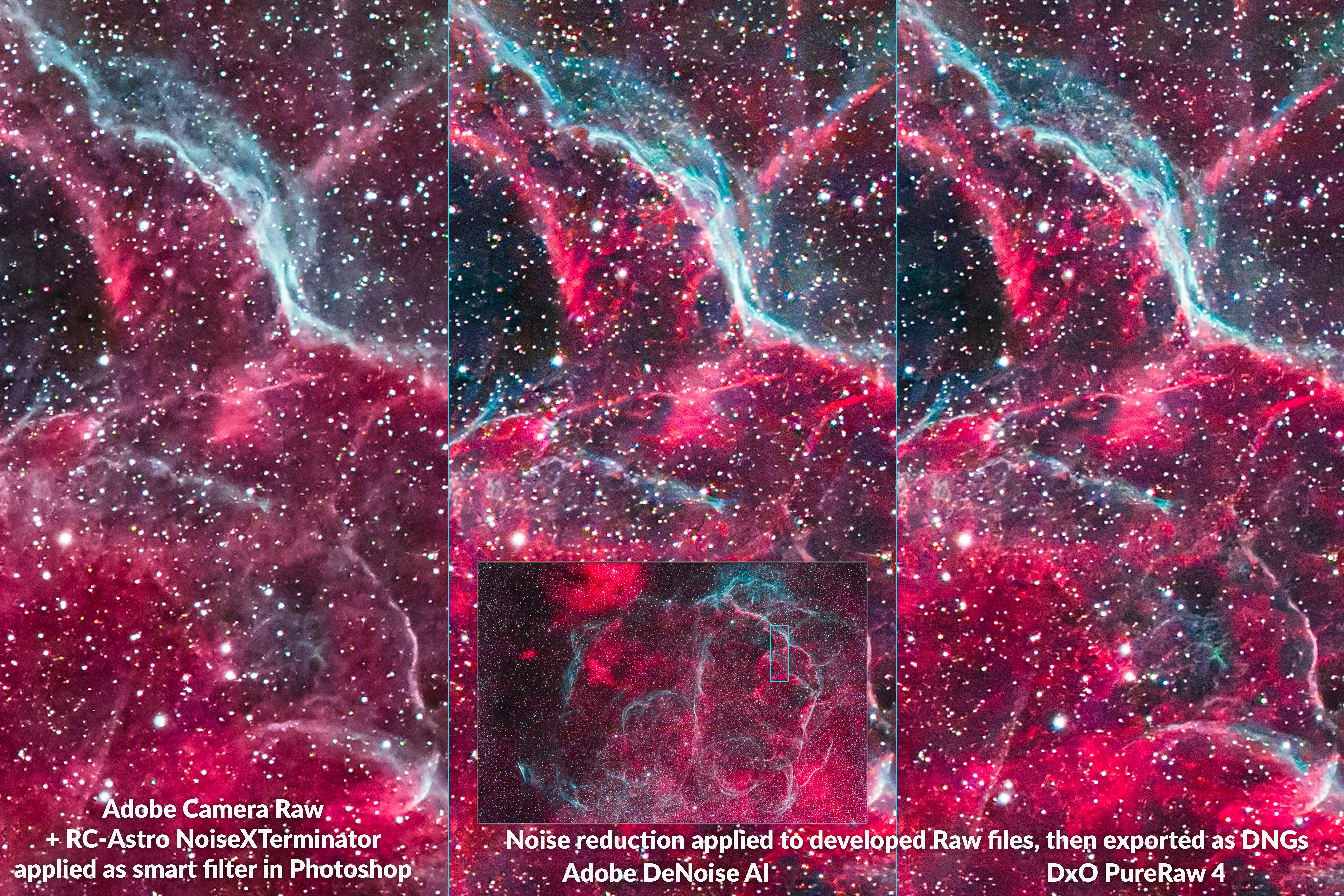
Vela SNR close-up โ€” with modified Canon R at ISO 3200

This, too, is a filtered single frame, taken through a 61mm-aperture telescope equipped with a โ€œdual narrowbandโ€ filter which isolates the red H-alpha wavelength, but also the cyan Oxygen emission lines prominent in supernova remnants like this one in Vela. The deep filter requires shooting at a high ISO. So thereโ€™s lots of noise. 

In this trio, I also applied NoiseXTerminator to the left image, an AI-based noise reduction program designed for just such images. I show more examples with โ€œNoiseXโ€  at the end. 

I donโ€™t think Adobe DeNoise or PureRAW have done any better job than NoiseX at reducing noise. If anything, each might have added some additional texturing that looks artificial, and accentuated chromatic aberration haloes on the stars. NoiseX wins here, right? 

Well โ€ฆ look at the fine structures of the wisps of nebulas in all three panes. In the two panels at center and right, you can see more structure in the nebulosity, such as the protruding red fingers at top, that are not there in the NoiseX version at left. Is this real? Might other sharpening routines later in the workflow have brought it out anyway? Or are these details the products of AI imagination!? 

Before purists dismiss the Adobe and DxO AI programs for fabricating details, hereโ€™s another example.

Crab Nebula

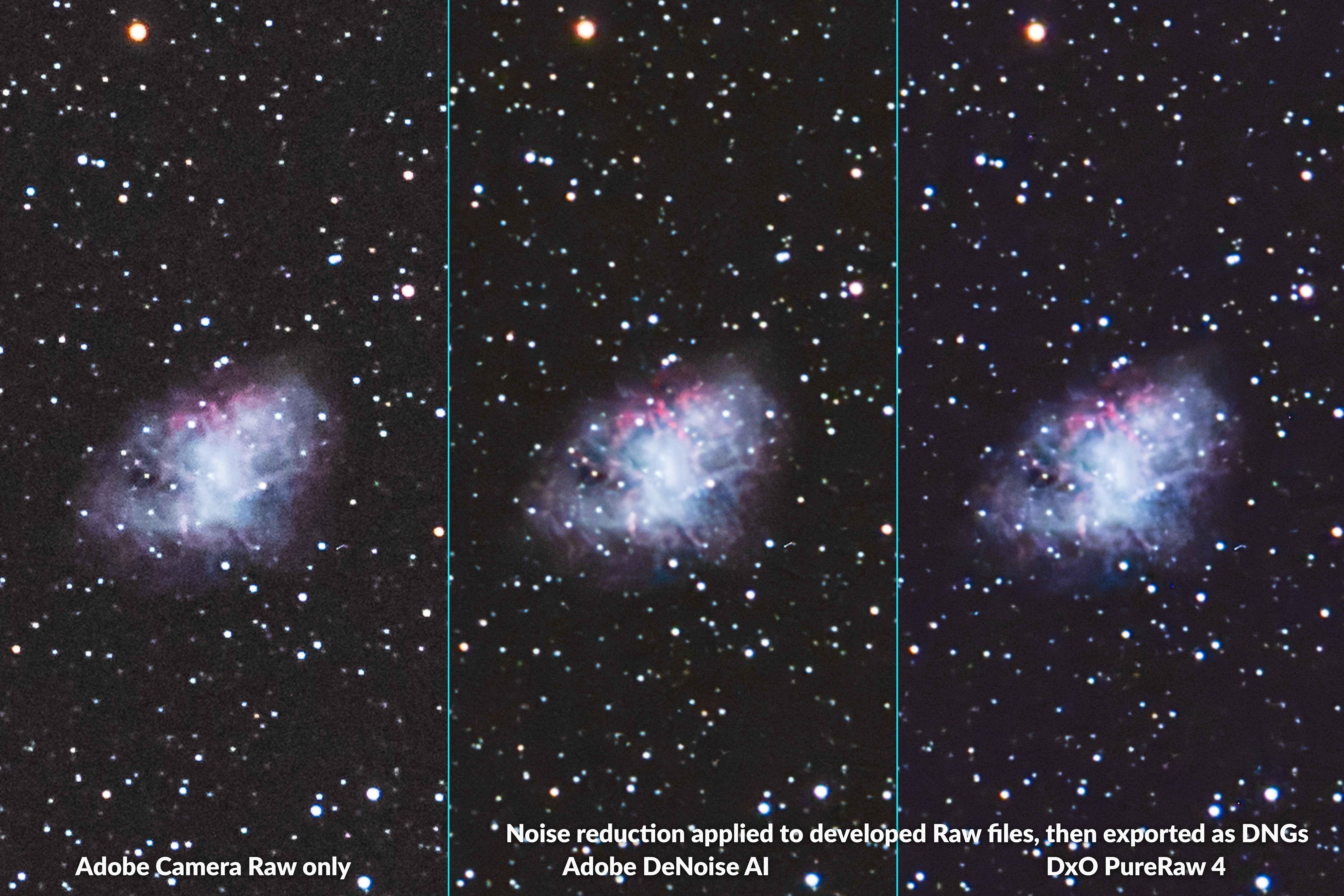
Crab Nebula close-up โ€” with modified Canon R at ISO 800

This is another supernova remnant, the famous Crab Nebula in Taurus. It is a 500% blow-up of the center of a single exposure with a modified Canon R on a 120mm f/7 refractor.

In this case, the โ€œnormal” image on the left has had just ACRโ€™s old-style noise reduction applied, nothing else. In the middle and on the right, the Adobe and DxO AI versions are noticeably less noisy. 

But โ€ฆ the small red tendrils are also more obvious with AI enhancement โ€” and they are real (as comparisons to other more detailed astrophotos showed me). So here the AI has helped bring out subtle details while smoothing noise. I think PureRAW has sharpened stars a little too much, and shifted the colors, again to magenta. 


Summary Points:

  • Both Adobe DeNoise AI and DxO PureRAW 4 can work wonders on nightscapesโ€ฆ
  • โ€ฆ Except on star trails! Both programs ruin star trails. 
  • Their improvements to low ISO images is not so great, if minimal.
  • In its conversion of Raw to DNG, PureRAW sometimes introduced minor and unwelcome changes to imagesโ€™ brightness and color. Adobe DeNoise did not. 
  • But PureRAW recovered details in textured landscapes much better than DeNoise, which can suffer from plastic looking artifacts. 
  • Both programs are worth trying on deep-sky images, if your workflow allows working with Raw files.
  • But you have to look carefully at the details โ€“ pixel peep! โ€“ as you might see oddities introduced by either program that you feel are unacceptable. Or you might see welcome sharpening, saving you more work later in processing.

Recommendations: 

  • Adobe DeNoise AI has the advantage that if you are an Adobe Cloud subscriber you already have it. It is included with Lightroom and Camera Raw. So try DeNoise AI; you might like the results. Or not! But as with DxO PureRAW, it can be applied only to Raw files and only at the start of a workflow. 
  • Download the trial copy of DxO PureRAW and test it on your own images. You might prefer it in your workflow. 

OTHER PROGRAMS โ€” WORKING STAND-ALONE ON RAW FILES

Now I test Luminar Neo Noiseless AI, ON1 NoNoise AI, and Topaz Photo AI โ€” three AI noise reduction programs that can work not only on Raw files but on other file formats, allowing them to be applied at various points in a workflow. 

All three programs can read Raw files from a wide range of cameras. Like PureRAW, ON1 and Topaz can also export DNG files, Adobeโ€™s universal version of a Raw file. The best format Luminar can export to is a 16-bit TIFF. 

I sent all the raw images Iโ€™ve shown above, plus a dozen more Iโ€™m not showing, through all three programs working as stand-alone apps, similar to how PureRAW operates. I usually applied their default or auto settings for noise reduction, and also for sharpening, as both Adobe and DxO also sharpen โ€” you canโ€™t have them not sharpen. I wanted to compare like to like. 


Aurora Curtain 

Aurora Curtain with three programs as stand-alone apps

The exported files from all three programs showed noticeable differences in brightness and color on this aurora example from the May 10, 2024 display. Again, all have had the same develop settings applied to them as were applied to the original file in Camera Raw. Topaz shows over-sharpening, but that can be turned down from the usually excessive level chosen by its โ€œAuto Pilotโ€ routine. 

Aurora over House

Aurora over House with three programs as stand-alone apps

Another aurora example also shows significant differences in brightness, color and contrast. Auroras are particularly sensitive to shifts in white balance and to the camera profile chosen. In this case the profile was Camera Neutral. Only Luminar honored that profile; ON1 and Topaz offered only a generic Color profile in their DNGs. Luminar did not apply the lens correction for the Venus Optics 15mm lens used here, as it was not in its database. So its image looks dark and vignetted, requiring manual adjustments. 

Peyto Lake Nightscape

Peyto Lake nightscape with three programs as stand-alone apps

The differences became even more marked on some of my test nightscapes. In this ISO 3200 Canon R5 image from Peyto Lake in Banff only Topazโ€™s exported DNG succeeds in resembling the original developed Raw file from ACR. Luminarโ€™s TIFF is far too dark and ON1โ€™s DNG is way too bright and contrasty. What happened there? 

Storm Mountain Nightscape 

Storm Mountain twilight scene with three programs as stand-alone apps

Another example, shot at ISO 100 with the Canon R5, also shows major disparities between the original Raw files and the exported images, with Luminarโ€™s now looking the closest, ON1 still too bright and contrasty, and Topazโ€™s way too dark. There is no predicting what youโ€™ll get. 

I think the differences might be due to how each program interprets the camera profile used, but the reason is a mystery.


Summary Points: 

  • Unlike DxO PureRAW 4, none of these three programs can be used in practice as stand-alone noise reduction apps, at least not with reliable results. 

Recommendations: 

  • Use Luminar Neo, ON1 NoNoise AI and Topaz Photo AI only as plug-ins, at least for noise reduction. Thatโ€™s what I test next. 

THE SAME TRIO โ€” AS PLUG-INS WITHIN PHOTOSHOP 

Thankfully, when I used the same three programs called up from within Photoshop as filter plug-ins, all worked well, though with varying levels of noise reduction quality. 

All three can also be called up from within Adobe Lightroom.

Sending images to Plug-Ins with Lightroom, using Edit in ….

However, for the latter, do not use the route I advised at the beginning for DxO PureRAW. Do not send images to them via File>Plug-In Extras โ€ฆ. While that will work, youโ€™ll get the same bad results I show in the previous section when using the programs as stand-alone apps.ย 

Instead, as I show immediately above, from Lightroom, use Photo>Edit Inโ€ฆ and choose your plug-in. That will produce the same good results I show below.ย 

An even better method is to choose Photo>Edit In>Open as Smart Object in Photoshop. You can then apply these or any plug-in as a non-destructive โ€œsmart filter,โ€ with settings you can re-adjust at any time, rather than being โ€œbaked intoโ€ the resulting TIFF file. Thatโ€™s what I did for the tests below. 

I can hear the anti-Adobe faction clamouring! For those who do not use Photoshop, all three programs will also install as plug-ins into Affinity Photo 2, a very Photoshop-like layer-based editor available under a perpetual license at low cost. However, I did not test that workflow variation. 

Peyto Lake Nightscape 

Peyto Lake close-up โ€” with Canon R5 at ISO 3200

Here, on blow-ups of a noisy frame corner, I show the settings I used. Most are default, except for ON1 where I backed off its Tack Sharp Deblur from the 100 it had picked. While ON1 NoNoise ostensibly has an Auto function for detecting and applying an amount of noise reduction and sharpening suitable for each photo, it often picks 100%. 

However, ON1 NoNoise AI did the best job. Topaz Photo AI still left noise in the foreground. Luminar Noiseless AI wasnโ€™t bad, but left a noisier sky with some patchy artifacts. 

Aurora Curtain

Aurora Curtain โ€” with Canon Ra at ISO 1600

On the aurora example, I also applied Photoshopโ€™s old Reduce Noise filter to the image brought in from Camera Raw. It can do a good job smoothing fine-scale noise. 

With that conventional filter applied I found there wasnโ€™t a big difference among the four versions. The three AI programs did a good job, with ON1 and Topaz better than Luminar, which still left some noise. Topaz over-sharpened the stars and trees, leaving colorful ringing artifacts on the latter. And that was with its Sharpen filter backed off to 30 from the 50 the Auto Pilot routine suggested using. 

Vela Supernova Remnant Deep-Sky

Vela SNR close-up โ€” with modified Canon R at ISO 3200

Luminar Noiseless AI improved this noisy frame by only a small degree. ON1 and Topaz were much better, providing good noise reduction without adding significant artifacts or odd โ€œinventedโ€ structures. As usual, Topaz sharpened stars by default, and perhaps a little too much. 

Cygnus Starfield Deep-Sky

Cygnus close-up โ€” with Canon Ra at ISO 1600

This star-rich field taken with a 70mm lens tests how well the programs can retain tiny stars while smoothing noise. Luminar left stars intact but didnโ€™t provide much better noise reduction over what Camera Rawโ€™s old manual noise sliders produced. 

ON1 did provide a smoother background sky. But retaining faint stars required backing off Luminance noise reduction and increasing Enhance Detail to bring back the faint stars it wiped out with its default settings. Boosting Deblur and Micro Contrast can add ugly haloes on stars. So, with a deft touch to the sliders the results with ON1 can be very good, with the added benefit that it appears to reduce residual chromatic aberration around stars without affecting star colors. 

With Topaz, sliding up Original Detail helped bring back stars lost to noise smoothing. However, there was an odd general reduction in contrast over the image.

Solar Eclipse Corona Close-Up 

Corona close-up โ€” with Canon R5 at ISO 100

Each program handled this low-ISO file a little differently. Luminar seemed to actually increase noise, adding coarser structures and some banding. ON1 was the smoothest, with noticeably less noise than the original Camera Raw image. Topaz left (or added?) some fine scale color noise. It sharpened the lunar limb very well, though with a slight dark halo. 

But the real revelation was when I zoomed out to look at the darker sky beyond the brightest parts of the corona. 

Solar Corona Banding Artifacts

Corona sky close-up โ€” with Canon R5 at ISO 100, showing Topaz banding artifacts

Topaz Photo AI introduced very noticeable banding in the form of square blocks, an artifact of how AI programs analyze images in โ€œtiles.โ€ I did see this in other photos processed with Photo AI, in areas that should look smooth. The culprit is the noise reduction; turn it off and the banding goes away, but now you have noise! 

In this case, Topazโ€™s noise reduction ruined the image, though its sharpening was useful. Overall, I think ON1 NoNoise AI 2024 was the winning plug-in for noise reduction. But Iโ€™ve used Photo AI to sharpen solar prominences. 


Summary Points: 

  • All three programs worked well as plug-ins, with none of the extreme shifts in color or tone shown in the previous section in the stand-alone app exports. 
  • However, even as a plug-in I felt Luminar Neoโ€™s Noiseless AI filter consistently produced the worst results, or often little benefit at all.
  • Topaz Photo AI can produce good results, but watch for banding artifacts and over-sharpening. I also found that Topaz was prone to crashes and lock-ups, requiring force-quitting. 
  • ON1 NoNoise AI 2024 provided the best overall noise reduction among these three plug-ins. The 2024 version is much improved over the 2023 version which had a High Detail mode that was awful! Even so, watch for loss of stars, or sharpening haloes. Play with the sliders. 

Recommendations: 

  • While Topaz Photo AI is popular among nature photographers, I would suggest ON1โ€™s NoNoise AI 2024 is the better choice for astrophotographers looking for a noise reduction plug-in. 
  • I canโ€™t dismiss Luminar Neo. I like it for some of its other special effect filters, such as Orton glows, Magic Light, Sky Enhancer AI, and Accent AI. I find it a useful plug-in for effects and finishing touches. However, I would not recommend Luminar for noise reduction. 

SPECIALIZED PROGRAMS โ€” NOISE XTERMINATOR and GRAXPERT 

No review of AI programs for astrophotography can leave out RC-Astroโ€™s XTerminator plug-ins. Here I show Russell Cromanโ€™s NoiseXTerminator which uses AI trained on star-filled astrophotos. I tested it as a filter plug-in for Photoshop.

Also becoming popular in the last year is the free stand-alone application GraXpert. Developed first to eliminate nasty gradients of tone and color across deep-sky images due to light pollution, GraXpert now also includes AI-based noise reduction. I tested it as a stand-alone application; it does not install as a plug-in, though like NoiseXTerminator, it can install as a process accessible from within the popular astrophoto program PixInsight. 

As a stand-alone app, GraXpert can only import and work on TIFFs, JPGs, or FITS files, the latter format produced by dedicated astro cameras. 

I show only deep-sky image examples, as thatโ€™s the domain of these two programs. 

Crab Nebula with NoiseXTerminator vs. ON1 and Topaz

Crab Nebula close-up โ€” with modified Canon R at ISO 800

First I show a comparison of the Crab Nebula test image with ACRโ€™s standard non-AI noise reduction applied plus Photoshopโ€™s old Reduce Noise filter. I compare this to the same image but with NoiseXTerminator also applied at 60% strength. Now compare this to versions with ON1 NoNoise and Topaz Photo AI. 

NoiseXTerminator produced the smoothest result with no detrimental affect on the stars or nebulosity. ON1 is a good second place for noise reduction, with slightly sharper stars, which may or may not be desirable. Topaz produced subtle patchy artifacts and added tiny structures that may or may not be real. 

NGC 1763 with NoiseXTerminator vs. ON1 and Topaz

NGC 1763 in LMC โ€” with modified Canon R at ISO 3200

This is a single-frame close-up of the second best nebula in the Large Magellanic Cloud (after the Tarantula), taken at ISO 3200 through a dual-narrowband filter. So it is noisy. 

The left panel is again with ACR and Photoshopโ€™s Reduce Noise. But applying NoiseXTerminator cleaned the image up a lot. ON1 looks almost as good. Topaz sharpened detail to the point of revealing pinprick faint stars that are just blurs in the other images. These may indeed be real! 

Vela Supernova Remnant with Noise XTerminator and GraXpert

Vela SNR close-up โ€” with modified Canon R at ISO 3200

The same Vela SNR image I used earlier shows excellent noise reduction from NoiseXTerminator, with star colors and nebula structures left alone. GraXpert at 50% strength (the developers have suggested backing off the settings) did not produce as smooth a sky. Applying GraXpert at 100% strength did yield noise reduction on par with NoiseX, but produced a slightly softer overall image. 

Crab Nebula with Noise XTerminator and GraXpert

Crab Nebula close-up โ€” with modified Canon R at ISO 800

Processing the Crab Nebula image shows much the same results. Though I think here even at 100% GraXpert isnโ€™t producing as good a level of noise reduction as NoiseX, leaving some patchiness amid the nebula, and a mottled texturing to the background sky. 


Summary Points: 

  • For the best noise reduction on deep-sky images, especially telescopic close-ups, the dedicated programs NoiseXTerminator and GraXpert trained on such images can do a better job than general-purpose AI programs. 
  • I find NoiseXTerminator the better of the two, but GraXpert is new and evolving. 

Recommendations: 

  • GraXpert has the great benefit of being free! But on Macs it runs very slowly, something the developers admit and seem resigned to, as their market is Windows users. My test images each took 2 to 2.5 minutes to process, some 5 to 10 times slower than any of the other programs. And it runs only as a stand-alone app, yet it cannot read Raw files from DSLRs or mirrorless cameras, unlike PureRAW. But if you are a deep-sky imager, try it, as its main purpose โ€“ gradient removal โ€“ might prove indispensable. 
  • As I prefer to accomplish as much of my editing as possible within one program, I prefer NoiseXTerminator as it can be applied from within Photoshop, and as an editable smart filter. I use it on most of my deep-sky images. I highly recommend it and RC-Astroโ€™s other plug-ins. 

YOUR MILEAGE MAY VARY! 

The nature of AI means that results with any program can vary from image to image. Thatโ€™s why no one, me included, can claim that one program is โ€œthe best!โ€ Best for what? And with what workflow? 

As some programs, such as Topaz Photo AI, offer multiple AI models and settings for strength and sharpening, results on the same image can be quite different. In most of my testing I used either the programโ€™s auto defaults or backed off from those defaults where I thought the effect was too strong and detrimental to the image.

This is all by way of saying, your mileage may vary! In fact, it certainly will. 

So donโ€™t take my word for it. Most programs (Luminar Neo is an exception) are available as free trial copies to test out on your astro-images and in your preferred workflow. Test for yourself. 

But do pixel peep. Thatโ€™s where youโ€™ll see the flaws. And the benefits. We are fortunate to have such a great arsenal of tools at our disposal. They will only get better as the AI models improve. 

I hope my review โ€“ as lengthy as it is! โ€“ has helped you make an informed decision on what to buy. 

โ€” Alan, May 29, 2024 / AmazingSky.com  

Testing Noise Reduction Programs for Astrophotography


In a detailed technical blog I compare six AI-based noise reduction programs for the demands of astrophotography. Some can work wonders. Others can ruin your image. 

Over the last two years we have seen a spate of specialized programs introduced for removing digital noise from photos. The new generation of programs use artificial intelligence (AI), aka machine learning, trained on thousands of images to better distinguish unwanted noise from desirable image content.

At least thatโ€™s the promise โ€“ and for noisy but normal daytime images they do work very well. 

But in astrophotography our main subjects โ€“ stars โ€“ can look a lot like specks of pixel-level noise. How well can each program reduce noise without eliminating stars or wanted details, or introducing odd artifacts, making images worse. 

To find out, I tested six of the new AI-based programs on real-world โ€“ or rather โ€œreal-skyโ€ โ€“ astrophotos. Does one program stand out from the rest for astrophotography? 

NOTE: All the images are full-resolution JPGs you can tap or click on to download for detailed inspection. But that does make the blog page slow to load initially. Patience! 


TL;DR SUMMARY

The new AI-trained noise reduction programs can indeed eliminate noise better than older non-AI programs, while leaving fine details untouched or even sharpening them. 

  • Of the group tested, the winner for use on just star-filled images is a specialized program for astrophotography, NoiseXTerminator from RC-Astro.
  • For nightscapes and other images, Topaz DeNoise AI performed well, better than it did in earlier versions that left lots of patchy artifacts, something AI programs can be prone to. 
  • While ON1โ€™s new NoNoise AI 2023 performed fine, it proved slightly worse in some cases than its earlier 2022 version. Its new sharpening routine needs work.
  • Other new programs, notably Topaz Photo AI and Luminarโ€™s Noiseless AI, also need improvement before they are ready to be used for the rigours of astrophotography. 
  • For reasons explained below, I would not recommend DxOโ€™s PureRAW2.ย [See below for comments on the newer DxO PureRaw3, which suffers from the same issues.]

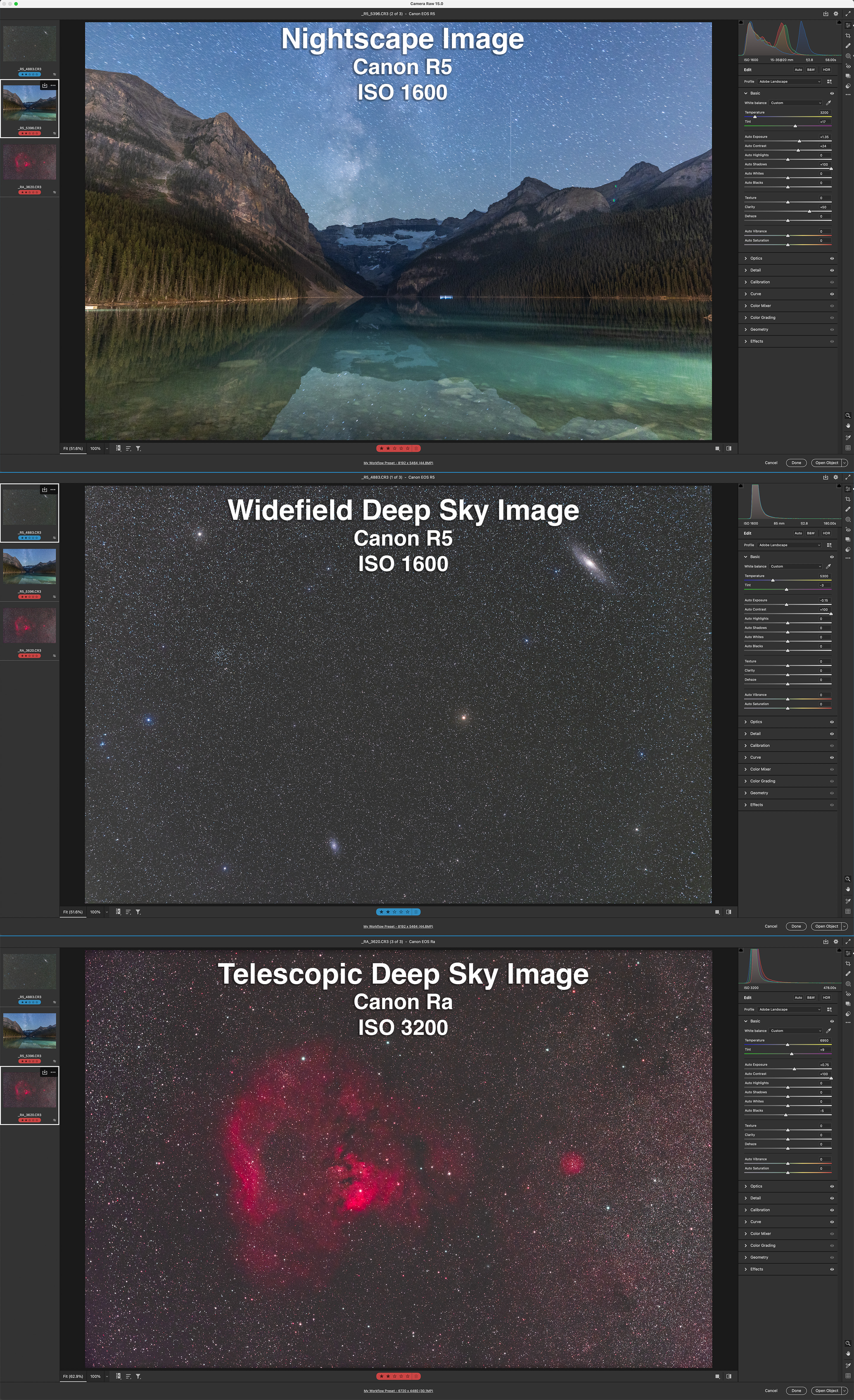
The three test images in Adobe Camera Raw showing the Basic settings applied.

METHODOLOGY

As described below, while some of the programs can be used as stand-alone applications, I tested them all as plug-ins for Photoshop, applying each as a smart filter applied to a developed raw file brought into Photoshop as a Camera Raw smart object. 

Most of these programs state that better results might be obtainable by using the stand-alone app on original raw files. But for my personal workflow I prefer to develop the raw files with Adobe Camera Raw, then open those into Photoshop for stacking and layering, applying any further noise reduction or sharpening as non-destructive smart filters. 

Many astrophotographers also choose to stack unedited original images with specialized stacking software, then apply further noise reduction and editing later in the workflow. So my workflow and test procedures reflect that. 

However, the exception is DxOโ€™s PureRAW2. It can work only on raw files as a stand-alone app, or as a plug-in from Adobe Lightroom. It does not work as a Photoshop plug-in. I tested PureRAW2 by dropping raw Canon .CR3 files onto the app, then exporting the results as raw DNG files, but with the same settings applied as with the other raw files. For the nightscape and wide-field images taken with lenses in DxO’s extensive database, I used PureRAW’s lens corrections, not Adobe’s.

As shown above, I chose three representative images: 

  • A nightscape with star trails and a detailed foreground, at ISO 1600.
  • A wide-field deep-sky image at ISO 1600 with an 85mm lens, with very tiny stars.
  • A close-up deep-sky image taken with a telescope and at a high ISO of 3200, showing thermal noise hot pixels. 

Each is a single image, not a stack of multiple images. 

Before applying the noise reduction, the raw files received just basic color corrections and a contrast boost to emphasize noise all the more. 


THE CONTENDERS

In the test results for the three images, I show the original raw image, plus a version with noise reduction and sharpening applied using Adobe Camera Rawโ€™s own sliders, with luminance noise at 40, color noise at 25, and sharpening at 25. 

I use this as a base comparison, as it has been the noise reduction I have long applied to images. However, ACRโ€™s routine (also found in Adobe Lightroom) has not changed in years. It is good, but it is not AI.

[See below for an April 2023 update with a comparison of Adobe’s new AI Denoise with DxO DeepPrimeXD and Topaz PhotoAI.]

The new smart AI programs should improve upon this. But do they?

PLEASE NOTE: 

  • I have refrained from providing prices and explaining buying options, as frankly some can be complex! 
  • For those details and for trial copies, go to the softwareโ€™s website by clicking on the link in the header product names below. 
  • All programs are available for Windows and MacOS. I tested the latter versions. 
  • I have not provided tutorials on how to use the software; I have just reported on their results. For trouble-shooting their use, please consult the software company in question. 
ON1 NoNoise 2023’s control interface.

ON1 NoNoise AI 2023

ON1โ€™s main product is the Lightroom/Photoshop alternative program called ON1 Photo RAW, which is updated annually to major new versions. It has full cataloging options like Lightroom and image layering like Photoshop. Its Edit module contains the NoNoise AI routine. But NoNoise AI can be purchased as a stand-alone app that also installs as a plug-in for Lightroom and Photoshop. Itโ€™s what I tested here. The latest 2023 version of NoNoise AI added ON1โ€™s new Tack Sharp AI sharpening routine.

Version tested: 17.0.1

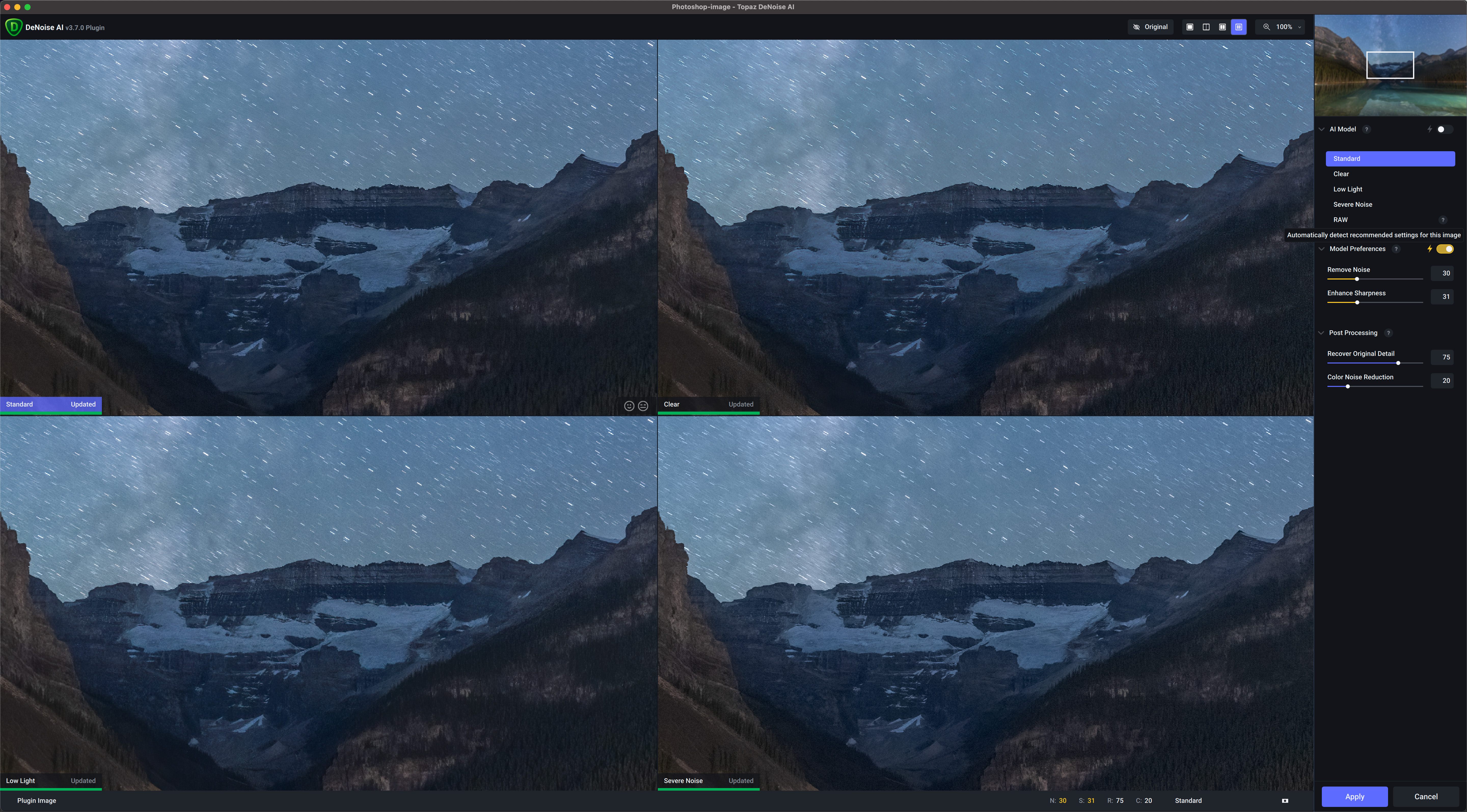
Topaz DeNoise AI’s four-pane view to select the best AI model.

Topaz DeNoise AI 

This program has proven very popular and has been adopted by many photographers โ€“ and astrophotographers โ€“ as an essential part of an editing workflow. It performs noise reduction only, offering a choice of five AI models. Auto modes can choose the models and settings for you based on the image content, but you can override those by adjusting the strength, sharpness, and recovery of original detail as desired.

A separate program, Topaz Sharpen AI, is specifically for image sharpening, but I did not test it here. Topaz Gigapixel AI is for image resizing.

Version tested: 3.7.0

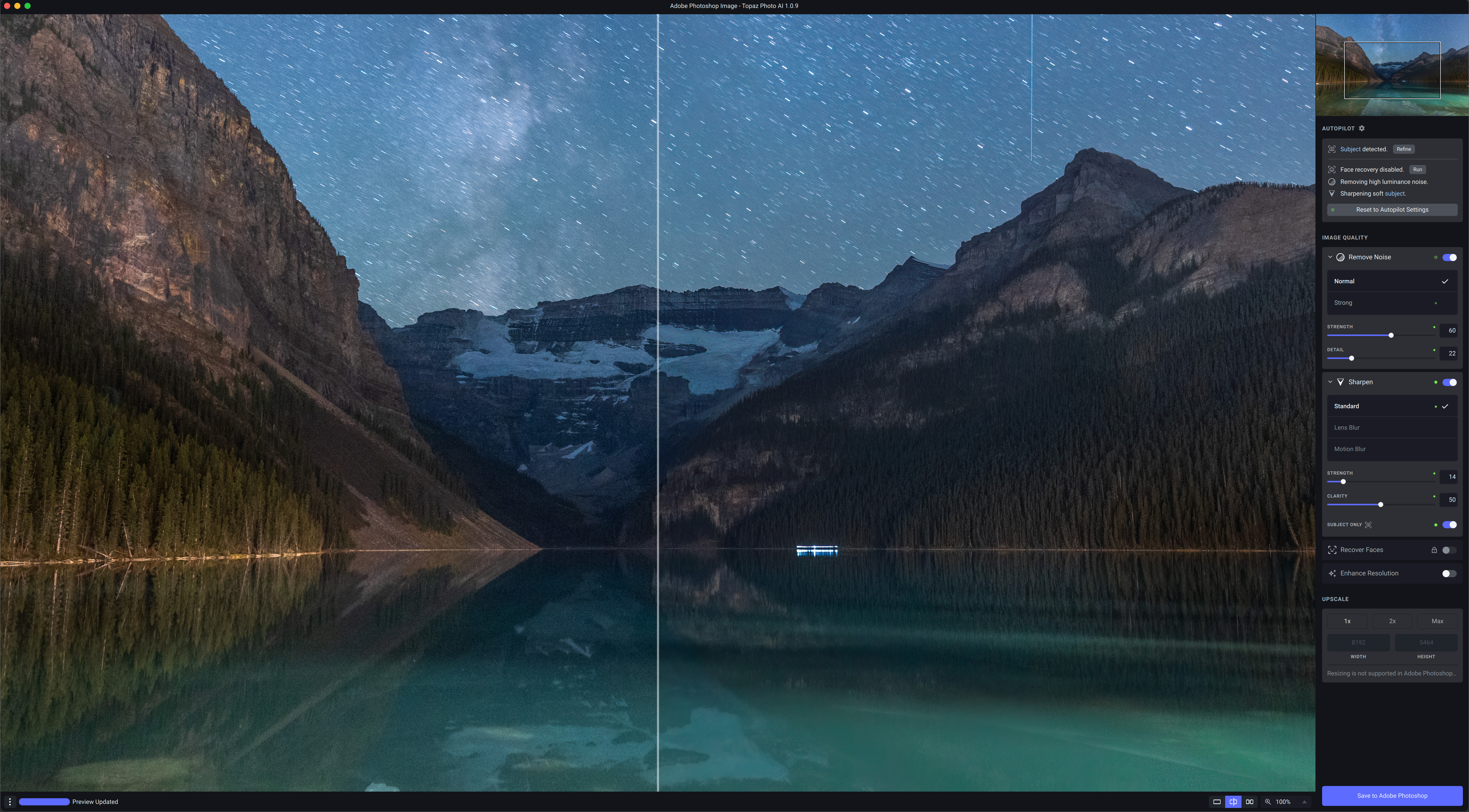
Topaz Photo AI’s control interface for its three main functions: noise, sharpening and upscaling.

Topaz Photo AI

In 2022 Topaz introduced this new program which incorporates the trio of noise reduction, sharpening and image resizing in one package. Like DeNoise, Sharpen and Gigapixel, Photo AI works as a stand-alone app or as a plug-in for Lightroom and Photoshop. Photo AIโ€™s Autopilot automatically detects and applies what it thinks the image needs. While it is possible to adjust settings, Photo AI offers much less control than DeNoise AI and Topazโ€™s other single-purpose programs. 

As of this writing in November 2022 Photo AI is enjoying almost weekly updates, and seems to be where Topaz is focusing its development and marketing effort.ย [See below for a test of PhotoAI v1.3.1, current as of April 2023.]

Version tested: 1.0.9

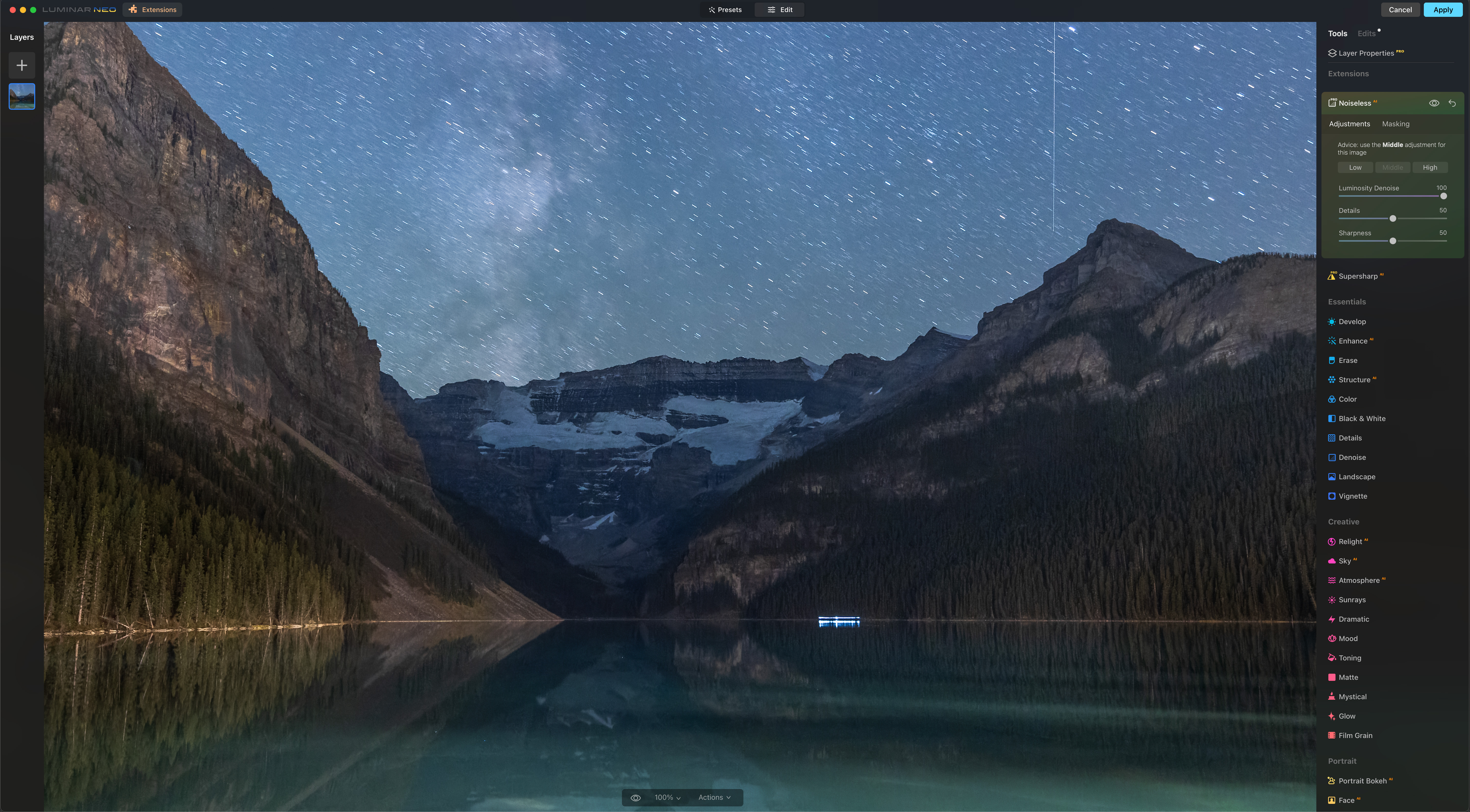
Luminar Neo’s Edit interface with choices of many filters and effects, including Noiseless AI.

Luminar Neo Noiseless AI

Unlike the other noise reduction programs tested here, Luminar Neo from the software company Skylum is a full-featured image editing program, with an emphasis on one-click AI effects. One of those is the new Noiseless AI, available as an extra-cost extension to the main Neo program, either as a one-time purchase or by annual subscription. Noiseless AI cannot be purchased on its own. However, Neo with most of its extensions does work as a plug-in for Lightroom and Photoshop. 

Being new, Luminar Neo is also updated frequently, with more extensions coming in the next few months. 

Version tested: 1.5.0

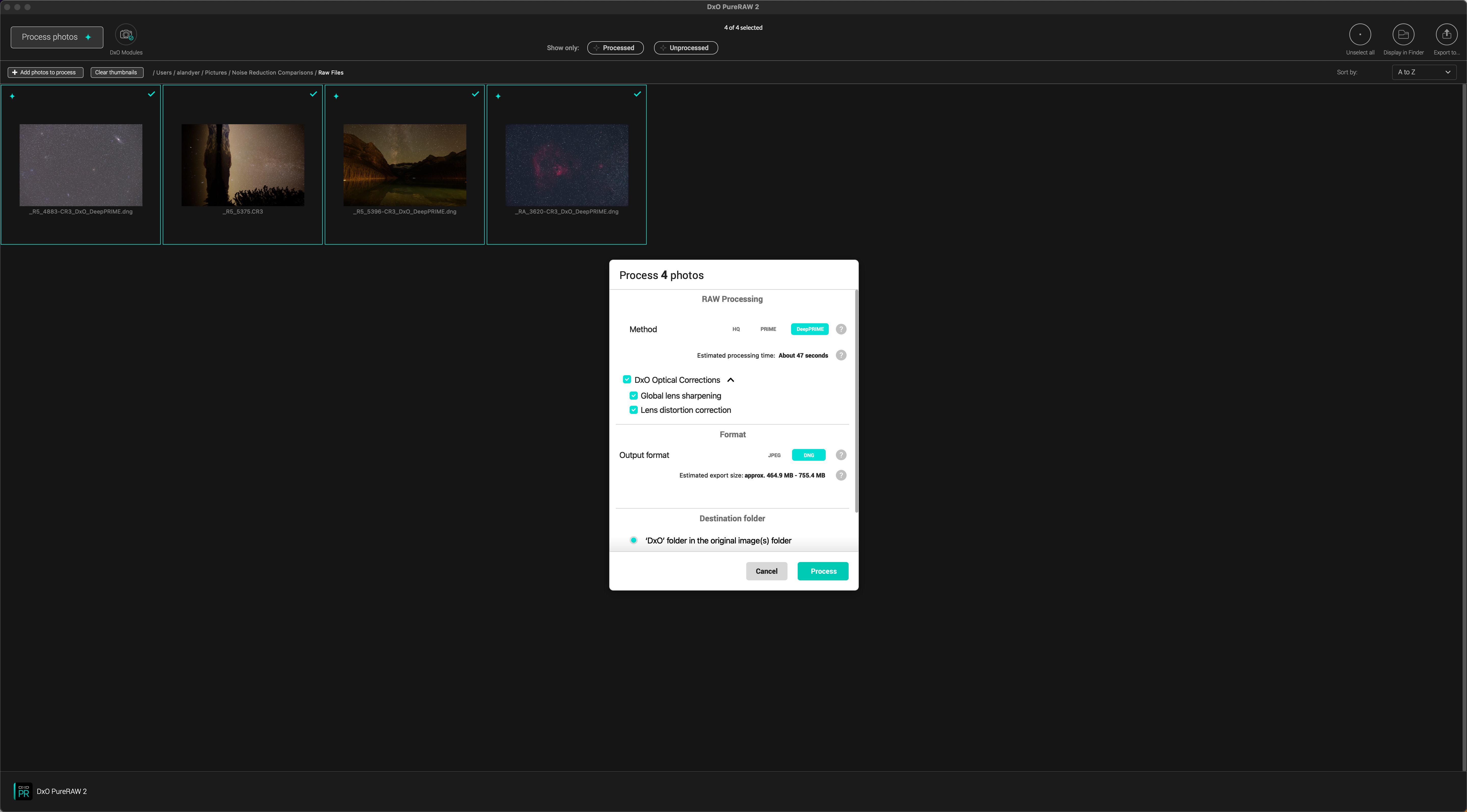
DxO PureRAW’s simple interface with few choices for Noise Reduction settings.

DxO PureRAW2

Like ON1, DxO makes a full-featured alternative to Adobeโ€™s Lightroom for cataloging and raw developing called DxO PhotoLab, in version 6 as of late 2022. It contains DxOโ€™s Prime and DeepPrime noise reduction routines. However, as with ON1, DxO has spun off just the noise reduction and lens correction parts of PhotoLab into a separate program, PureRAW2, which runs either as a stand-alone app or as a plug-in for Lightroom โ€“ but not Photoshop, as PureRAW works only on original raw files. 

Unlike all the other programs, PureRAW2 offers essentially no options to adjust settings, just the option to apply, or not, lens corrections, and to choose the output format. For this testing I applied DeepPrime and exported out to DNG files.ย [See below for a test of DeepPrimeXD, now offered with PureRaw3.]

Version tested: 2.2

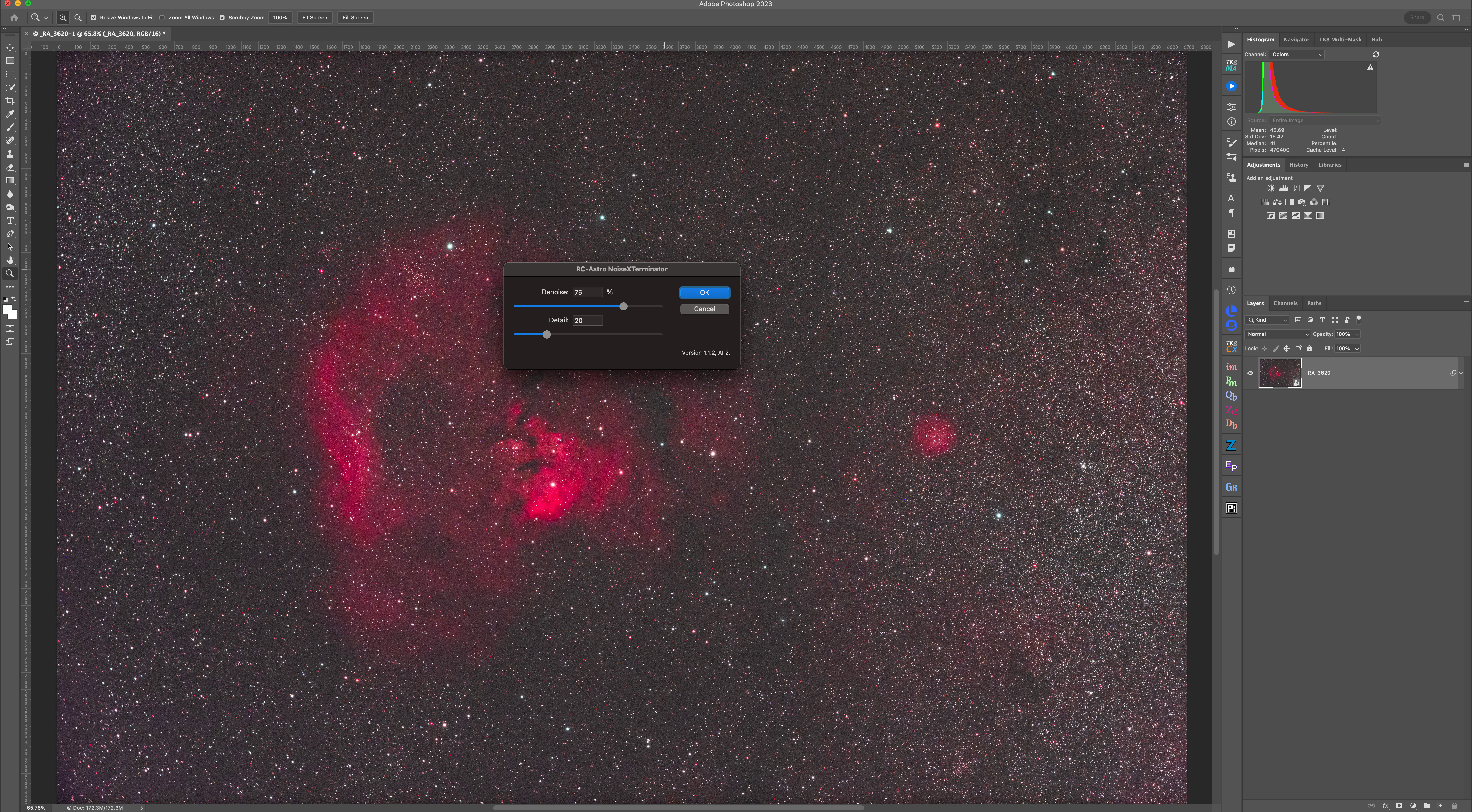
Noise Terminator’s controls allow adjusting strength and detail.

RC-Astro NoiseXTerminator

Unlike the other programs tested, NoiseXTerminator from astrophotographer Russell Croman is designed specifically for deep-sky astrophotography. It installs as a plug-in for Photoshop or Affinity Photo, but not Lightroom. It is also available under the same purchased licence as a โ€œprocessโ€ for PixInsight, an advanced program popular with astrophotographers, as it is designed just for editing deep-sky images. 

I tested the Photoshop plug-in version of Noise XTerminator. It receives occasional updates to both the actual plug-in and separate updates to the AI module.  

Version tested: 1.1.2, AI model 2 


NIGHTSCAPE TEST

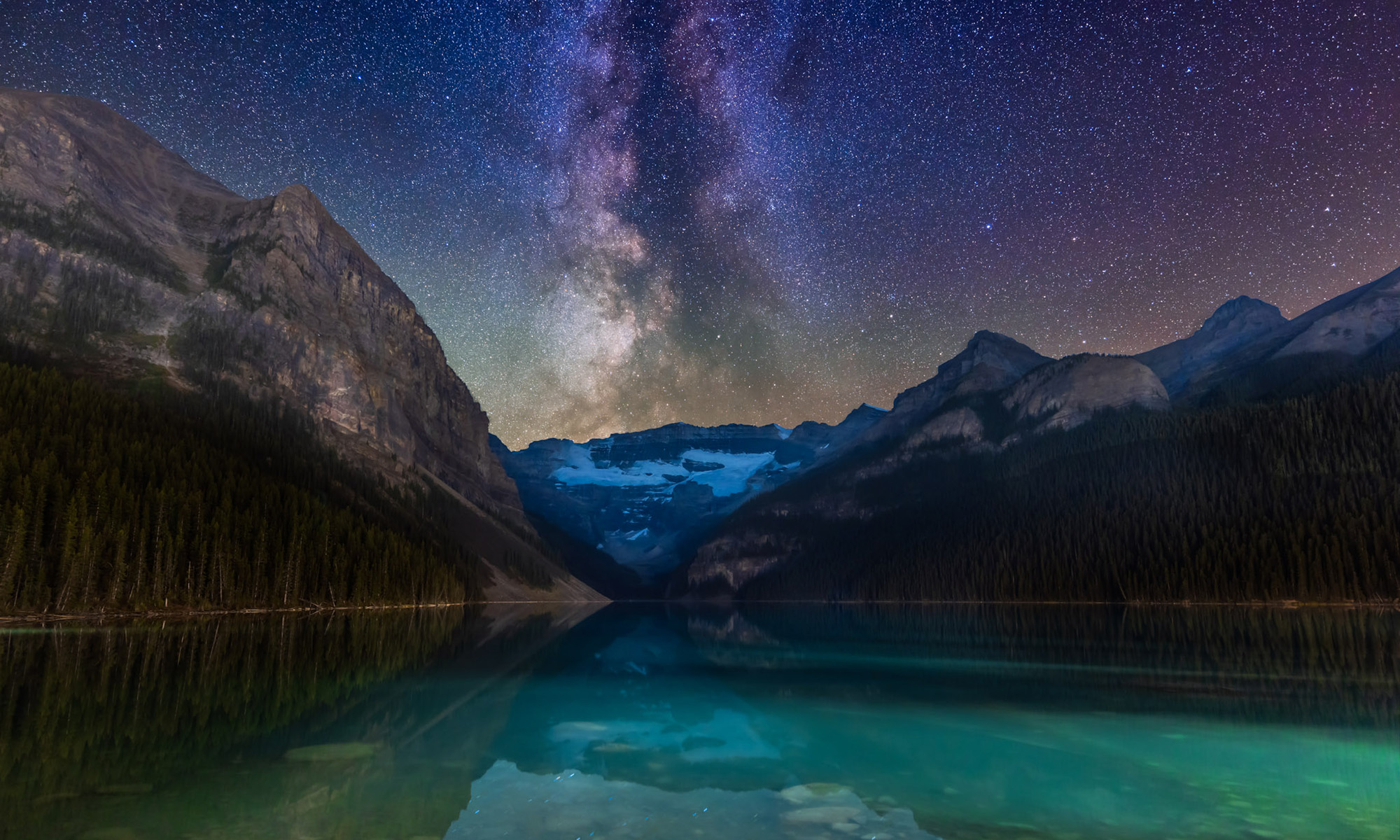
As with the other test images, the panels show a highly magnified section of the image, indicated in the inset. I shot the image of Lake Louise in Banff, Alberta with a Canon RF15-35mm lens on a 45-megapixel Canon R5 camera at ISO 1600. 

The test results on a sample nightscape.
  • Adobe Camera Rawโ€™s basic noise reduction did a good job, but like all general routines it does soften the image as a by-product of smoothing out high-ISO noise.
  • ON1 NoNoise 2023 retained landscape detail better than ACR but softened the star trails, despite me adding sharpening. It also produced a somewhat patchy noise smoothing in the sky. This was with Luminosity backed off to 75 from the auto setting (which always cranks up the level to 100 regardless of the image), and with the Tack Sharp routine set to 40 with Micro Contrast at 0. It left a uniform pixel-level mosaic effect in the shadow areas. Despite the new Tack Sharp option, the image was softer than with last yearโ€™s NoNoise 2022 version (not shown here as it is no longer available) which produced better shadow results.
  • Topaz DeNoise AI did a better job than NoNoise retaining the sharp ground detail while smoothing noise, always more obvious in the sky in such images. Even so, it also produced some patchiness, with some areas showing more noise than others. This was with the Standard model set to 40 for Noise and Sharpness, and Recover Details at 75. I show the other model variations below. 
  • Topaz Photo AI did a poor job, producing lots of noisy artifacts in the sky and an over-sharpened foreground riddled with colorful speckling. It added noise. This was with the Normal setting and the default Autopilot settings.
  • Noiseless AI in Luminar Neo did a decent job smoothing noise while retaining, indeed sharpening ground detail without introducing ringing or colorful edge artifacts. The sky was left with some patchiness and uneven noise smoothing. This was with the suggested Middle setting (vs Low and High) and default levels for Noise, Detail and Sharpness. However, I do like Neo (and Skylum’s earlier Luminar AI) for adding other finishing effects to images such as Orton glows.
  • DxO PureRAW2 did smooth noise very well while enhancing sharpness quite a lot, almost too much, though it did not introduce obvious edge artifacts. Keep in mind it offers no chance to adjust settings, other than the mode โ€“ I used DeepPrime vs the normal Prime. Its main drawback is that in making the conversion back to a raw DNG image it altered the appearance of the image, in this case darkening the image slightly. It also made some faint star trails look wiggly!  
  • Noise XTerminator really smoothed out the sky, and did so very uniformly without doing much harm to the star trails. However, it smoothed out ground detail unacceptably, not surprising given its specialized training on stars, not terrestrial content. 

Conclusion: For this image, Iโ€™d say Topaz DeNoise AI did the best, though not perfect, job. 

This was surprising, as tests I did with earlier versions of DeNoise AI showed it leaving many patchy artifacts and colored edges in places. Frankly, I was put off using it. However, Topaz has improved DeNoise AI a lot. 

Why it works so well, when Topazโ€™s newer program Photo AI works so poorly is hard to understand. Surely they use the same AI code? Apparently not. Photo AIโ€™s noise reduction is not the same as DeNoise AI. 

Similarly, ON1โ€™s NoNoise 2023 did a worse job than their older 2022 version. One can assume its performance will improve with updates. The issue seems to be with the new Tack Sharp addition.

NoiseXTerminator might be a good choice for reducing noise in just the sky of nightscape images. It is not suitable for foregrounds, though as of April 2023 its performance on landscapes has improved but is not ideal.ย 


WIDE-FIELD IMAGE TEST

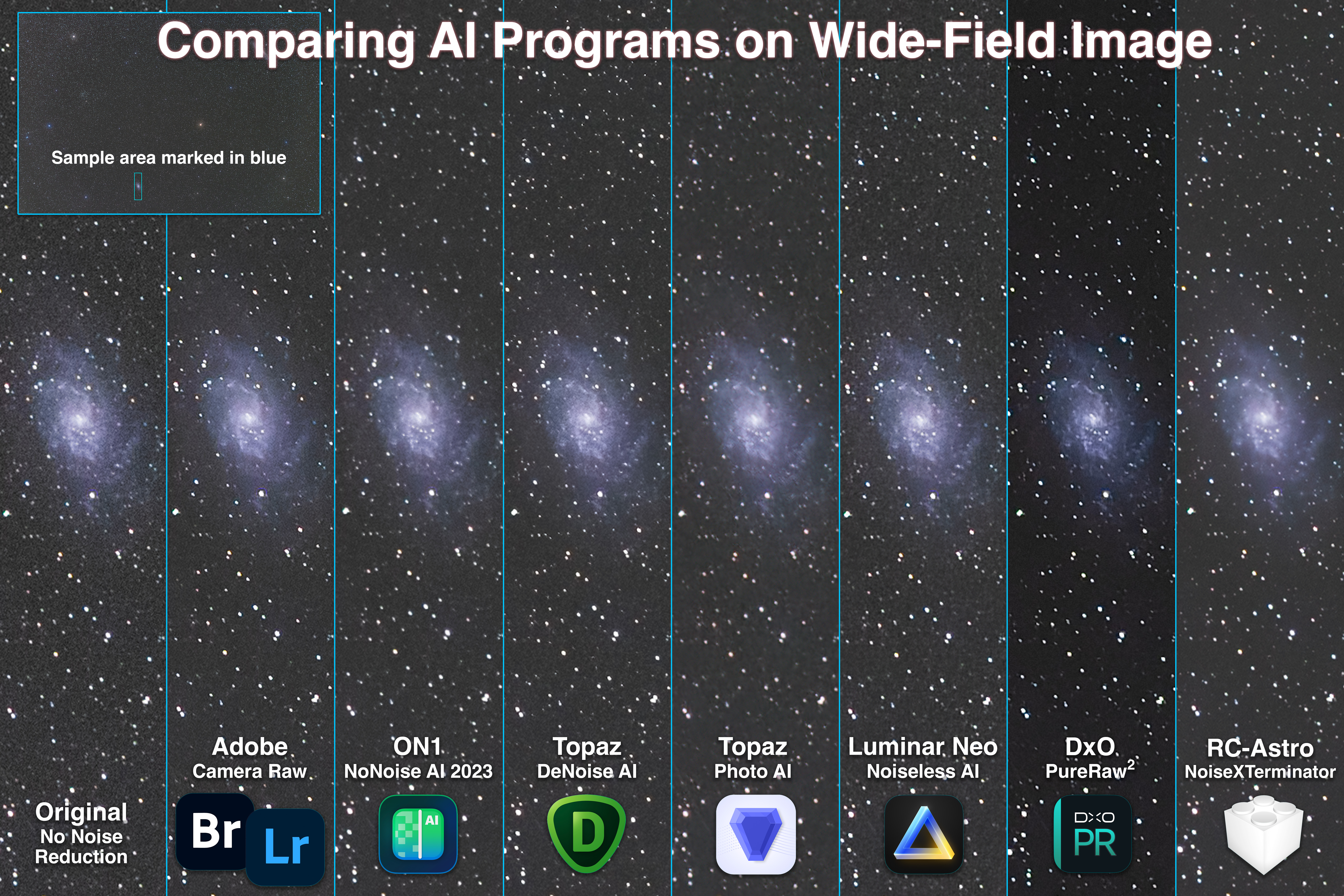
I shot this image of Andromeda and Triangulum with an 85mm Rokinon RF lens on the 45-megapixel Canon R5 on a star tracker. Stars are now points, with small ones easily mistaken for noise. Letโ€™s see how the programs handle such an image, zooming into a tiny section showing the galaxy Messier 33. 

The test results on a sample wide-field deep-sky image.
  • Adobe Camera Rawโ€™s noise and sharpening routines do take care of the worst of the luminance and chrominance noise, but inevitably leave some graininess to the image. This is traditionally dealt with by stacking multiple sub-exposures. 
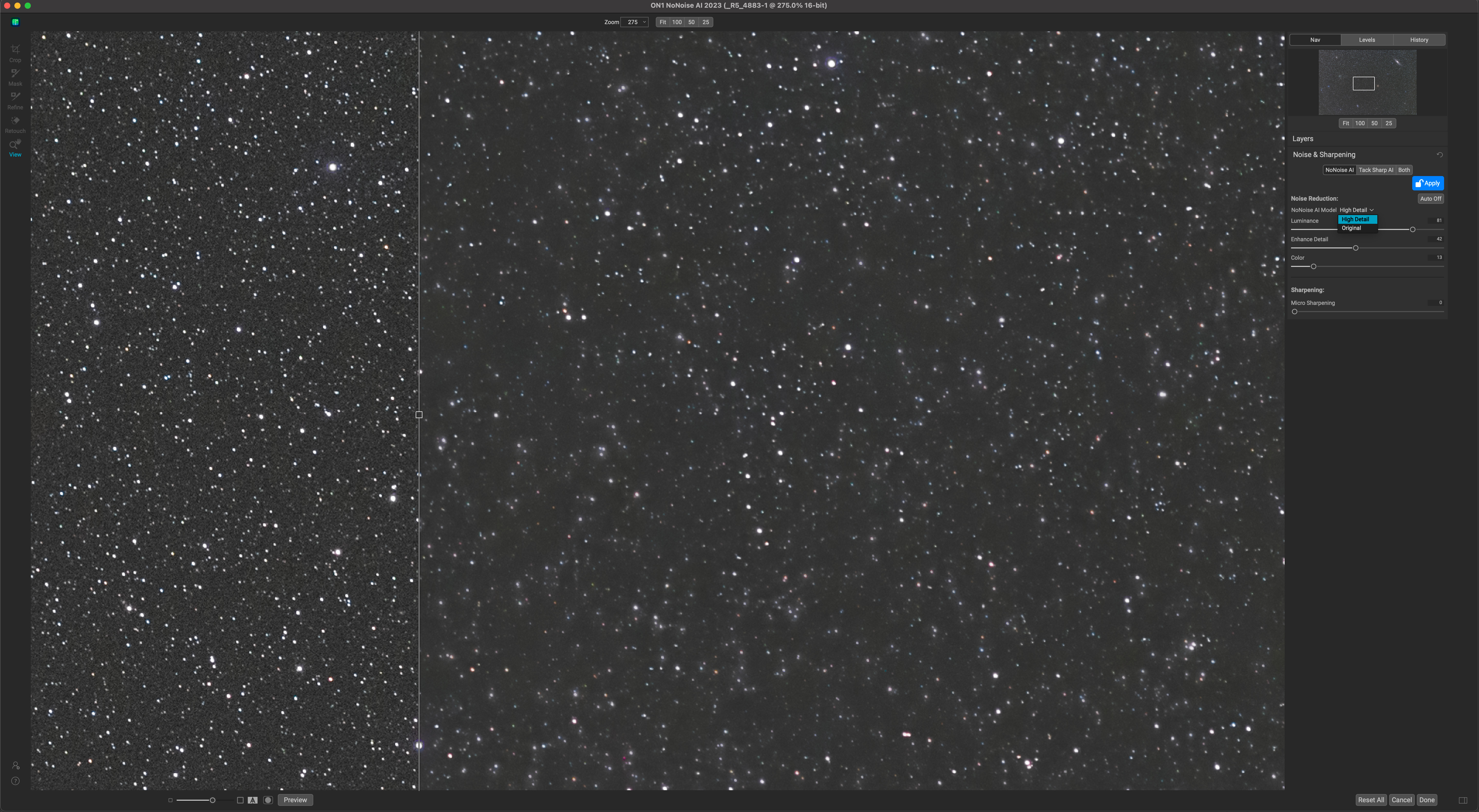
  • ON1 NoNoise 2023 did a better job than ACR, smoothing the worst of the noise and uniformly, without leaving uneven patchiness. However, it did soften star images, almost like it was applying a 1- or 2-pixel gaussian blur, adding a slight hazy look to the image. And yet the faintest stars that appeared as just perceptible blurs in the original image were sharpened to one- or two-pixel points. This was with only NoNoise AI applied, and no Tack Sharp AI. And, as I show below, NoNoise’s default “High Detail” option introduced with the 2022 version and included in the 2023 edition absolutely destroys star fields. Avoid it.
ON1 NoNoise “High Detail” option ruins star fields, as shown at right. Use “Original” instead.
  • Topaz DeNoise AI did a better job than Camera Raw, though it wasnโ€™t miles ahead. This was with the Standard setting. Its Low Light and Severe models were not as good, surprising as you might think one of those choices would be the best for such an image. It pays to inspect Topazโ€™s various modelsโ€™ results. Standard didnโ€™t erase stars; it actually sharpened the fainter ones, almost a little too much, making them look like specks of noise. Playing with Enhance Sharpness and Recover Detail didnโ€™t make much difference to this behavior. 
  • Topaz Photo AI again performed poorly. Its Normal mode left lots of noise and grainy artifacts. While its Strong mode shown here did smooth background noise better, it softened stars, wiping out the faint ones and leaving colored edges on the brighter ones. 
  • Noiseless AI in Luminar Neo did smooth fine noise somewhat, better than Camera Raw, but still left a grainy background, though with the stars mostly untouched in size and color. 
  • DxO PureRAW2 did eliminate noise quite well, while leaving even the faintest stars intact, unlike with the deep-sky image below, which is odd. However, it added some dark halos to bright stars from over-sharpening. And, as with the nightscape example, PureRAWโ€™s output DNG was darker than the raw that went in. I donโ€™t want noise reduction programs altering the basic appearance of an image, even if that can be corrected later in the workflow. 
  • Noise XTerminator performed superbly, as expected โ€“ after all, this is the subject matter it is trained to work on. It smoothed out random noise better than any of the other programs, while leaving even the faintest stars untouched, in fact sharpening them slightly. Details in the little galaxy were also unharmed. 

Conclusion: The clear winner was NoiseXTerminator. 

Topaz DeNoise was a respectable second place, performing better than it had done on such images in earlier versions. Even so, it did alter the appearance of faint stars which might not be desirable. 

ON1 NoNoise 2023 also performed quite well, with its softening of brighter stars yet sharpening of fainter ones perhaps acceptable, even desirable for an effect. 


TELESCOPIC DEEP-SKY TEST

I shot this image of the NGC 7822 complex of nebulosity with a SharpStar 61mm refractor, using the red-sensitive 30-megapixel Canon Ra and with a narrowband filter to isolate the red and green light of the nebulas. 

Again, the test image is a single raw image developed only to re-balance the color and boost the contrast. No dark frames were applied, so the 8-minute exposure at ISO 3200 taken on a warm night shows thermal noise as single โ€œhot pixelโ€ white specks. 

The test results on a sample deep-sky close-up.
  • Adobe Camera Raw did a good job smoothing the worst of the noise, suppressing the hot pixels but only by virtue of it softening all of the image slightly at the pixel level. However, it leaves most stars intact. 
  • ON1 NoNoise 2023 also did a good job smoothing noise while also seeming to boost contrast and structure slightly. But as in the wide-field image, it did smooth out star images a little, though somewhat photogenically, while still emphasizing the faintest stars. This was with no sharpening applied and Luminosity at 60, down from the default 100 NoNoise applies without fail. One wonders if it really is analyzing images to produce optimum settings. With no Tack Sharp sharpening applied, the results on this image with NoNoise 2023 looked identical to NoNoise 2022. 
  • Topaz DeNoise AI did another good job smoothing noise, while leaving most stars unaffected. However, the faintest stars and hot pixels were sharpened to be more visible tiny specks, perhaps too much, even with Sharpening at its lowest level of 1 in Standard mode. Low Light and Severe modes produced worse results, with lots of mottling and unevenness in the background. Unlike NoNoise, at least its Auto settings do vary from image to image, giving you some assurance it really is responding to the image content. 
  • Topaz Photo AI again produced unusable results. Its Normal modes produced lots of mottled texture and haloed stars. Its Strong mode shown here did smooth noise better, but still left lots of uneven artifacts, like DeNoise AI did in its early days. It certainly seems like Photo AI is using old hand-me-down code from DeNoise AI.
  • Noiseless AI in Luminar Neo did smooth noise but unevenly, leaving lots of textured patches. Stars had grainy halos and the program increased contrast and saturation, adjustments usually best left for specific adjustment layers dedicated to the task. 
  • DxO PureRAW2 did smooth noise very well, including wiping out the faintest specks from hot pixels, but it also wiped out the faintest stars, I think unacceptably and more than other programs like DeNoise AI. For this image it did leave basic brightness alone, likely because it could not apply lens corrections to an image taken with unknown optics. However, it added an odd pixel-level mosaic-like effect on the sky background, again unacceptable.
  • Noise XTerminator did a great job smoothing random noise without affecting any stars or the nebulosity. The Detail level of 20 I used actually emphasized the faintest stars, but also the hot pixel specks. NoiseXTerminator canโ€™t be counted on to eliminate thermal noise; that demands the application of dark frames and/or using dithering routines to shift each sub-frame image by a few pixels when autoguiding the telescope mount. Even so, Noise XTerminator is so good users might not need to take and stack as many images. 

Conclusion: Again, the winner was NoiseXTerminator. 

Deep-sky photographers have praised โ€œNoiseXโ€ for its effectiveness, either when applied early on in a PixInsight workflow or, as I do in Photoshop, as a smart filter to the base stacked image underlying other adjustment layers.

Topaz DeNoise is also a good choice as it can work well on many other types of images. But again, play with its various models and settings. Pixel peep!

ON1 NoNoise 2023 did put in a respectable performance here, and it will no doubt improve โ€“ it had been out less than a month when I ran these tests. 

Based on its odd behavior and results in all three test images I would not recommend DxOโ€™s PureRAW2. Yes, it reduces noise quite well, but it can alter tone and color in the process, and add strange pixel-level mosaic artifacts.  


COMPARING DxO and TOPAZ OPTIONS 

DxO and Topaz DeNoise AI offer the most choices of AI models and strength of noise reduction. Here I compare:

  • Topaz DeNoise AI on the nightscape image using three of its models: Standard (which I used in the comparisons above), plus Low Light and Severe. These show how the other models didnโ€™t do as good a job.
  • The set below also compares DeNoise AI to Topazโ€™s other program, Photo AI, to show how poor a job it is doing in its early form. Its Strong mode does smooth noise but over-sharpens and leaves edge artifacts. Yes, Photo AI is one-click easy to use, but produces bad results โ€“ at least on astrophotos. 
Comparing DeNoise’s and Photo AI’s different model settings.

As of this writing DxOโ€™s PureRAW2 offers the Prime and newer DeepPrime AI models โ€“ I used DeepPrime for my tests. 

However, DxOโ€™s more expensive and complete image processing program, PhotoLab 6, also offers the even newer DeepPrimeXD model, which promises to preserve or recover even more โ€œXtra Detailโ€ over the DeepPrime model. As of this writing, the XD mode is not offered in PureRAW2. Perhaps that will wait for PureRAW3, no doubt a paid upgrade. 

[UPDATE MARCH 2023: DxO has indeed brought out PureRaw3 as a paid upgrade that, as expected, offers the DeepPrimeXD. In testing the new version I found that, while it did not seem to alter an image’s exposure as PureRaw2 did, DeepPrime and DeepPrimeXD still unacceptably ruin starry skies, by either adding a fine-scale mosaic effect (DeepPrime) or weird wormy artifacts (DeepPrimeXD). Try it for yourself to see if you find the same.]

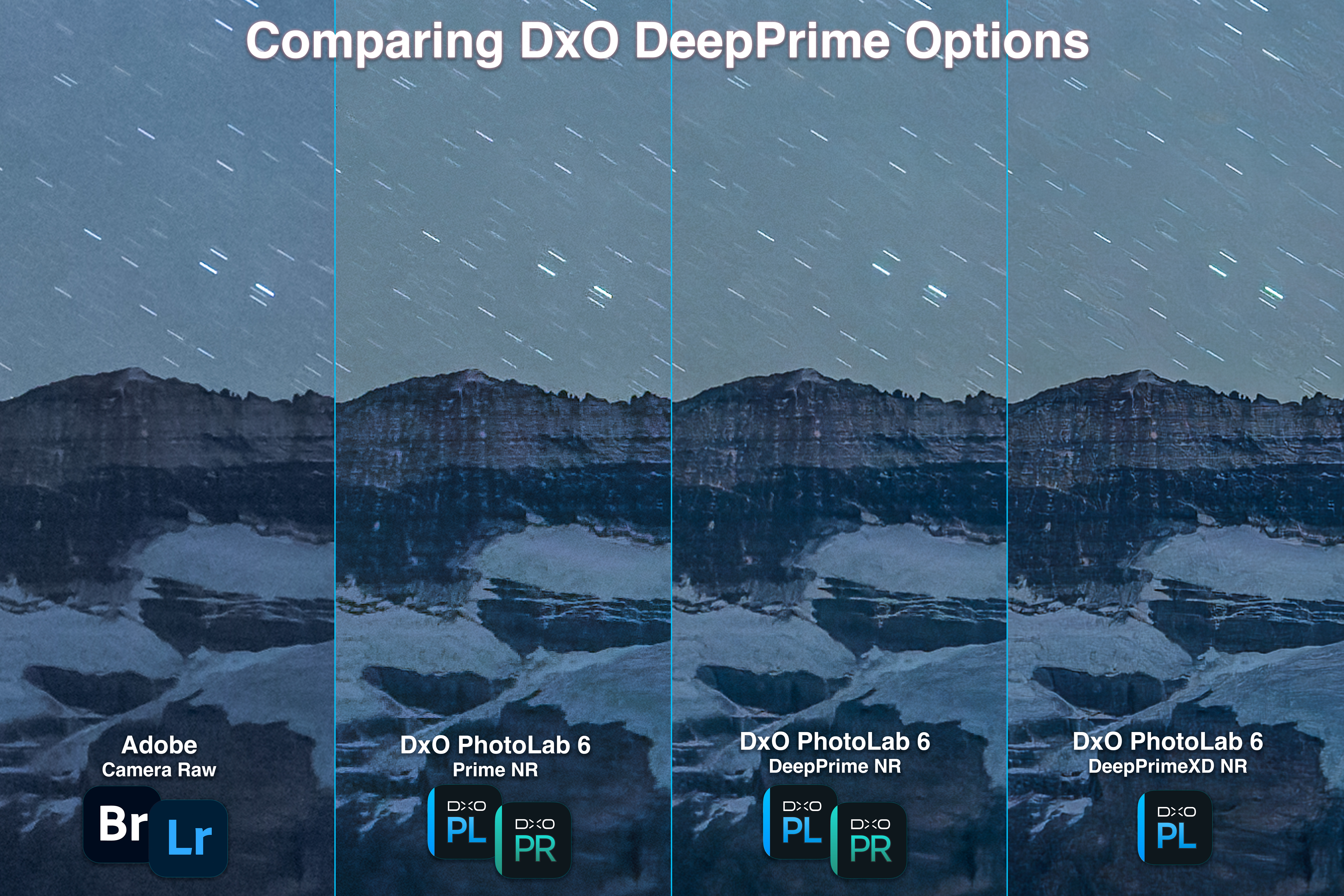
Comparing DxO’s various Prime model settings. DeepPrimeXD is only in PhotoLab 6.
  • The set above compares the three noise reduction models of DxOโ€™s PhotoLab 6. DeepPrime does do a better job than Prime. DeepPrimeXD does indeed sharpen detail more, but in this example it is too sharp, showing artifacts, especially in the sky where it is adding structures and textures that are not real. 
  • However, when used from within PhotoLab 6, the DeepPrime noise reduction becomes more usable. PhotoLab is then being used to perform all the raw image processing, so PureRAWโ€™s alteration of color and tone is not a concern. Conversely, it can also output raw DNGs with only noise reduction and lens corrections applied, essentially performing the same tasks as PureRAW. If you have PhotoLab, you don’t need PureRAW.

APRIL 2023 UPDATE โ€” TESTING ADOBE’S NEW AI Denoise

In April 2023 Adobe updated Lightroom Classic to v12.3 and the Camera Raw plug-in for Bridge and Photoshop to 15.3. The major new feature was a long-awaited AI noise reduction from Adobe called Denoise. It works only on raw files and generates a new raw DNG file to which all the raw develop settings, including AI masks, can be applied. But the DNG file is some four times larger than the original raw file from the camera.

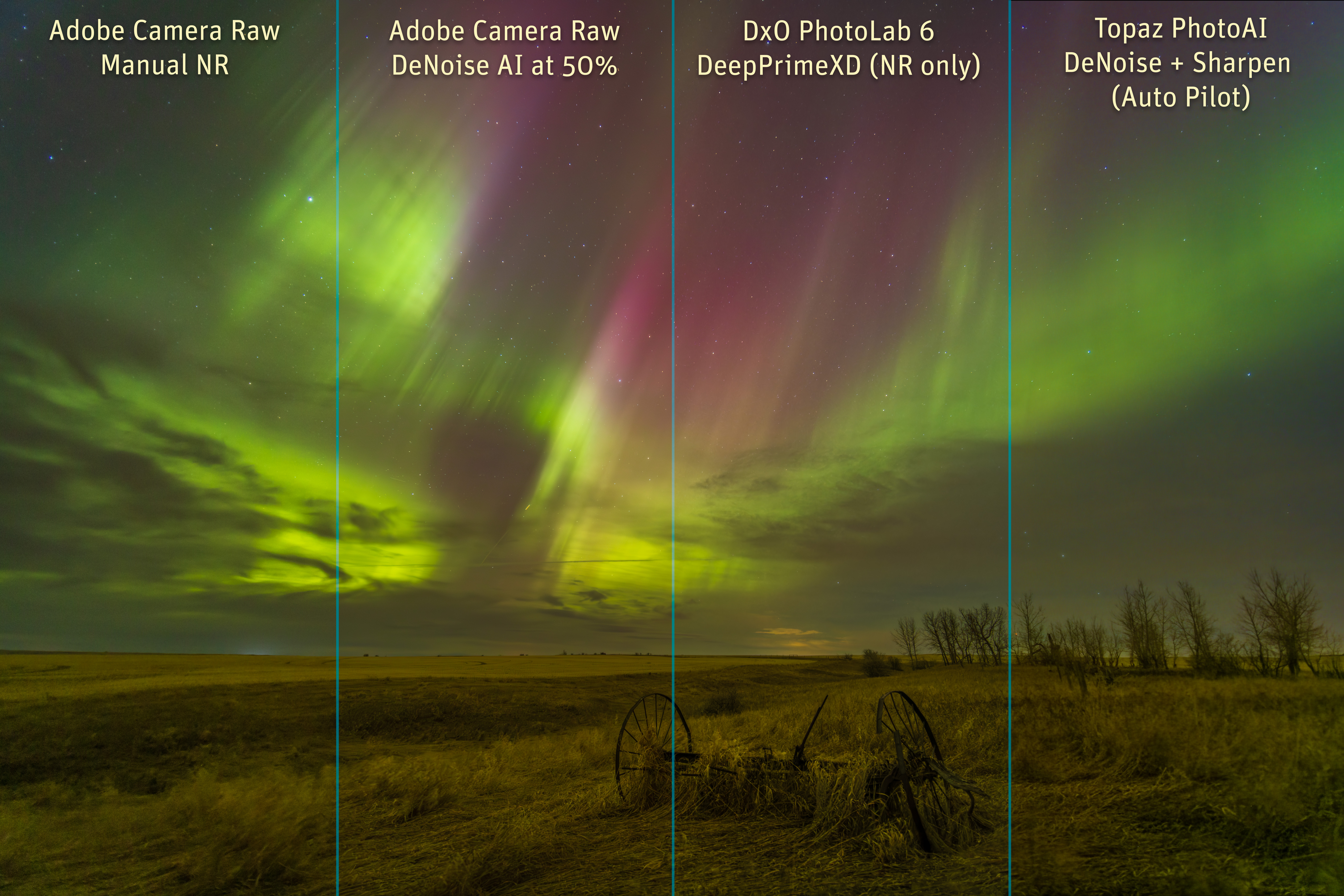
Here’s a comparison of Camera Raw using the old noise reduction and the new AI option, with DxO’s DeepPrimeXD and Topaz’s PhotoAI, on an aurora image from April 23, 2023:

I used Topaz Photo AI as that’s the program Topaz is now putting all their development effort into, neglecting their other plug-ins such as DeNoise AI. I used DxO PhotoLab 6 with its DeepPrimeXD option to export a DNG with only noise reduction applied, for results identical to what is now offered with DxO’s separate PureRaw3 plug-in.

At 100% above, there’s very little obvious difference. They show up when pixel peeping.

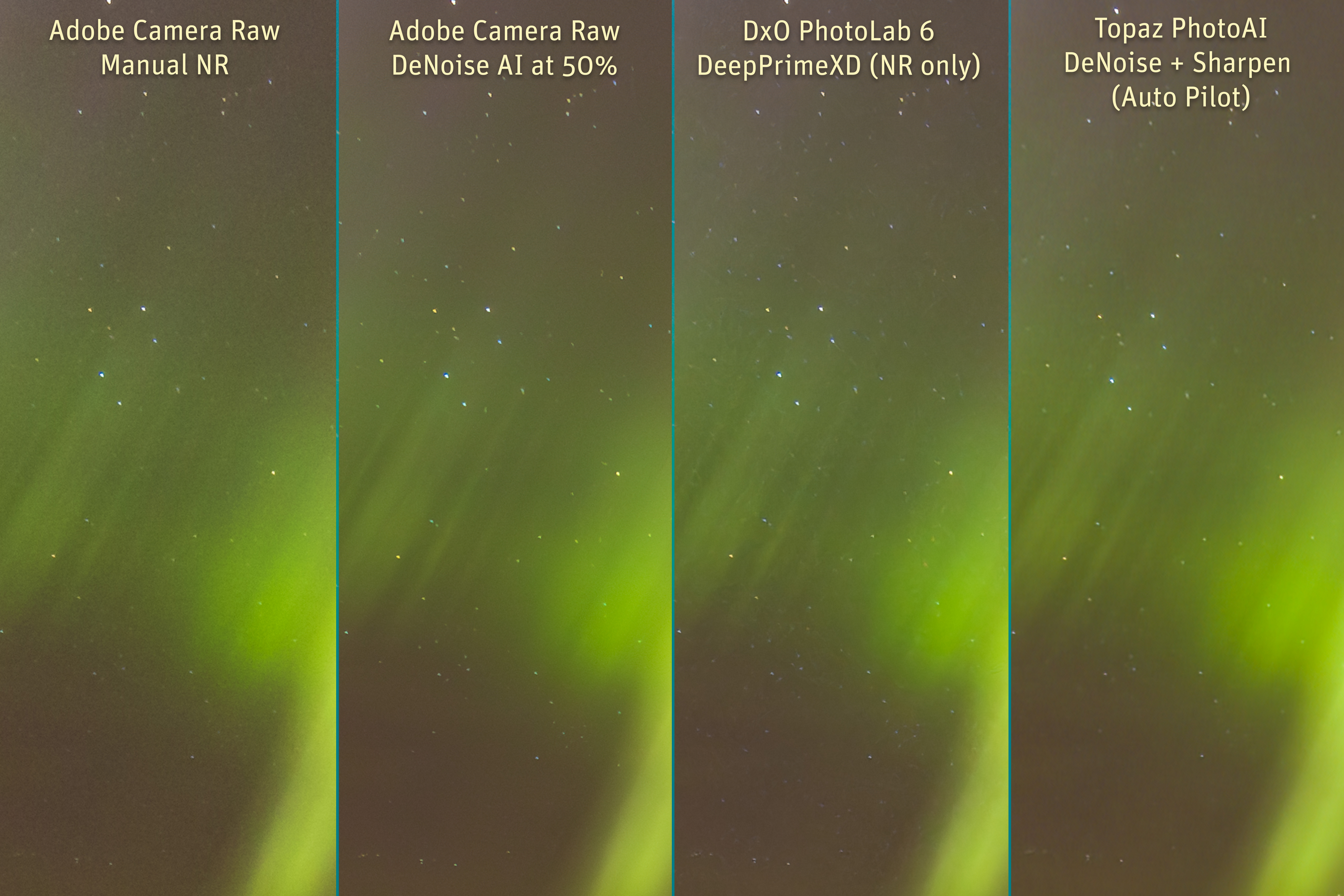
400% blow-ups of the sky – Tap or click to download a full-res JPG

Above are 400% blow-ups of a section of the sky.

Compared to using Adobe’s old noise reduction sliders, their new AI Denoise did a far superior job at smoothing noise, and providing sharpening โ€“ย almost too much, making even the smallest stars pop out more, perhaps a good thing. But there’s no control of that sharpening.

DxO’s DeepPrimeXD provides a similar, or perhaps more excessive level of AI sharpening. While it smooths noise, it introduces all manner of wormy AI artifacts. It is unacceptable.

Topaz PhotoAI’s noise reduction and sharpening, here both applied with their AutoPilot settings, smoothed noise, but created a patchy appearance. It also softened the stars, despite having sharpening turned on. It was the worst of the set.

400% blow-ups of a section of the ground y – Tap or click to download a full-res JPG

In a similar set of blow-ups of the ground, the old Adobe noise reduction did just that โ€” it smoothed only some noise. The new AI Denoise not only smooths noise, it also applies AI-based sharpening, to the point of almost inventing detail. Here it looks believable, but in other tests I have seen it add content, such as structures in the aurora, that looked fake and out of place. Or just plain wrong!

DxO’s DeepPrimeXD’s main feature over the older DeepPrime is the “eXtra Detail” it finds. Here it produces a result similar to Adobe Denoise, though in some areas of this and other images, I find it is over-sharpening. As with Adobe, there is no option for backing off the sharpening. Other than using DeepPrime or Prime noise reduction.

Topaz PhotoAI didn’t do much to add sharpening. If anything, it made the image softer. While PhotoAI has improved with its weekly updates, it still falls far short of the competition, at least for astrophotos and nightscapes.

The bottom line โ€” Adobe’s new AI Denoise can do a superb job on astrophotos, and will be particularly useful for high-ISO nightscapes, perhaps better than any of the competition. But watch what it does! It can invent details or create results that look artificial. Being able to adjust the sharpening would be helpful. Perhaps that will come in an update.


COMPARING AI TO OLDER NON-AI PROGRAMS

The new generation of AI-based programs have garnered all the attention, leaving older stalwart noise reduction programs looking a little forlorn and forgotten. 

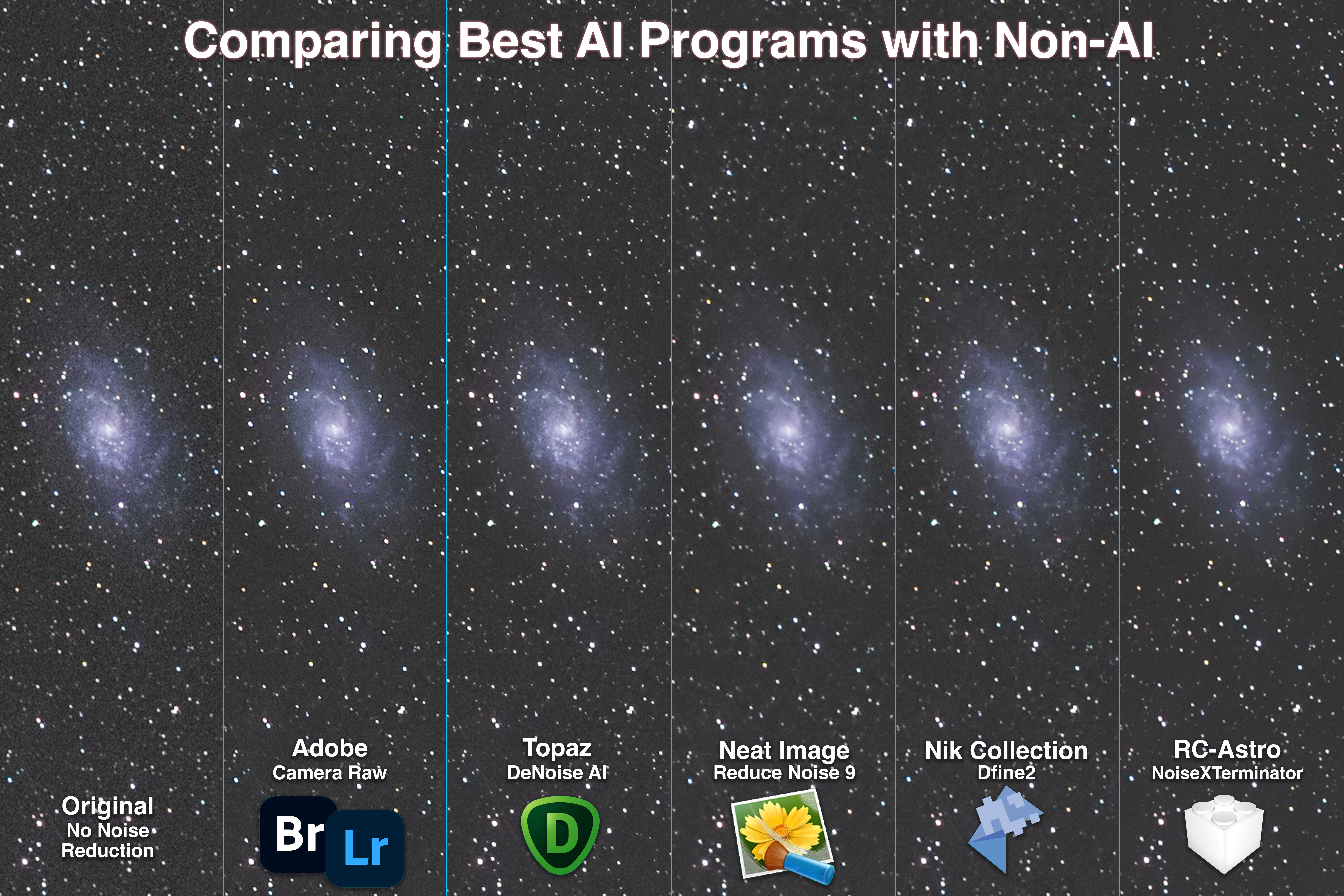
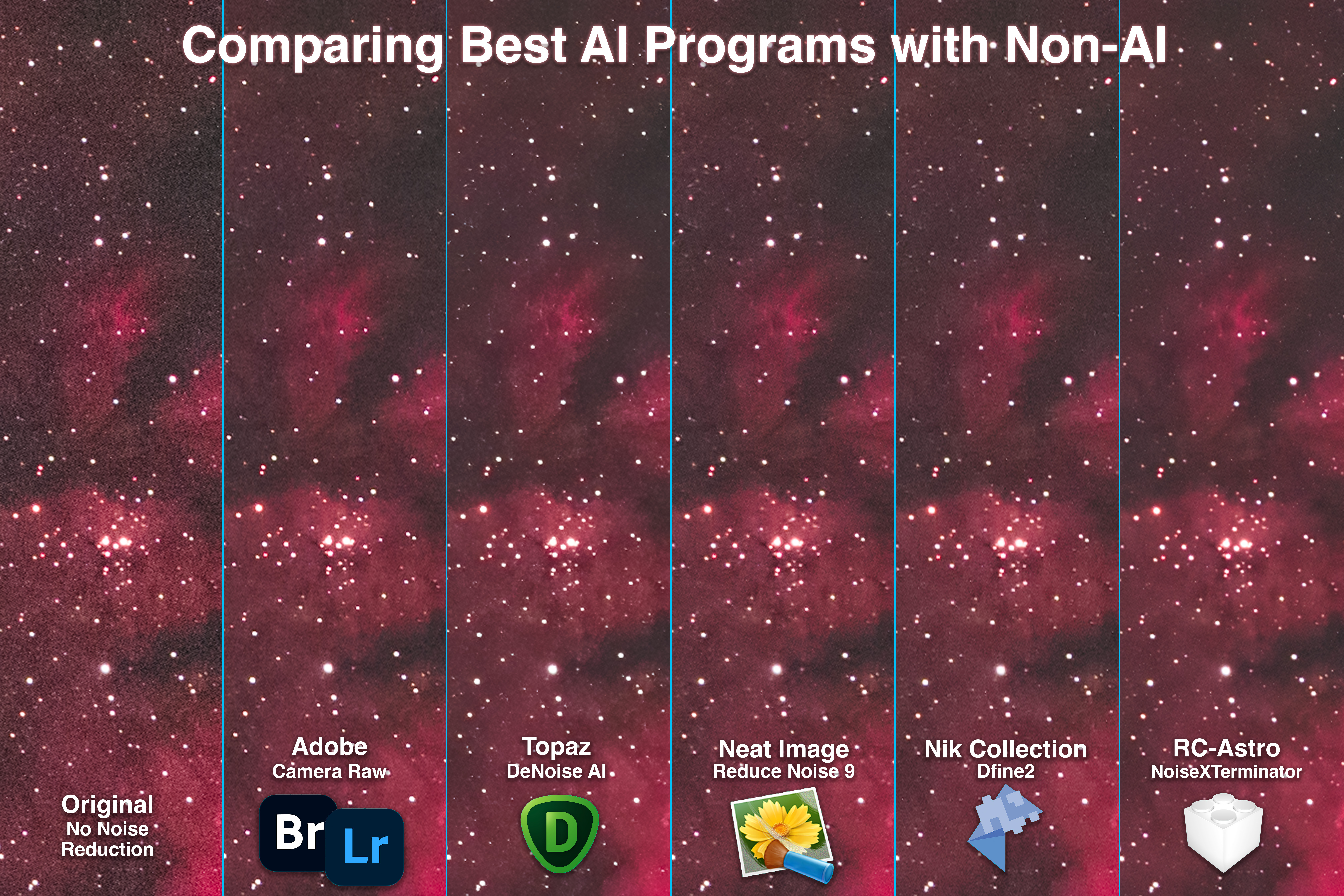
Here I compare Camera Raw and two of the best of the AI programs, Topaz DeNoise AI and NoiseXTerminator, with two of the most respected of the โ€œold-schoolโ€ non-AI programs: 

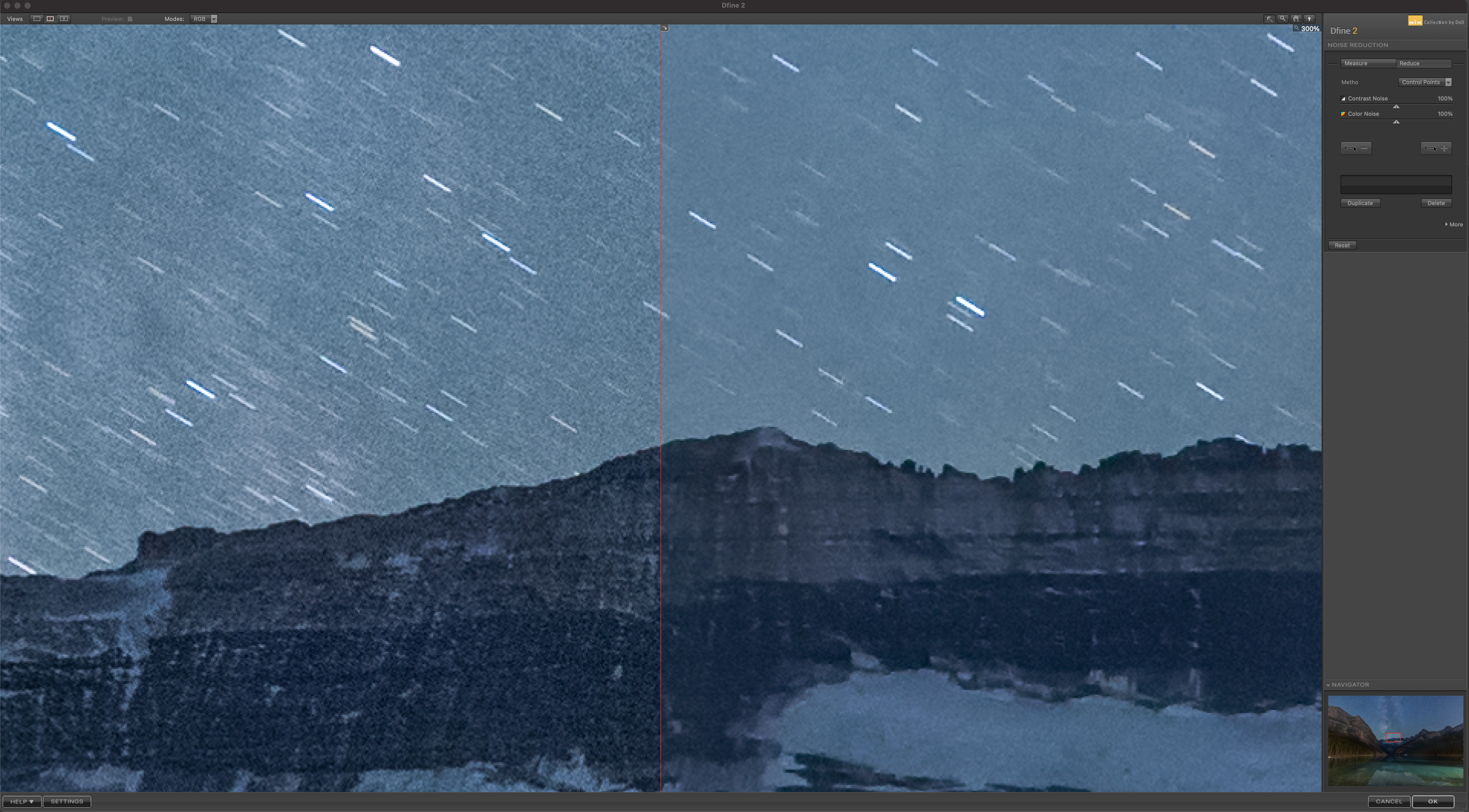
Nik Dfine2’s control interface.
  • Dfine2, included with the Nik Collection of plug-ins sold by DxO (shown above), and
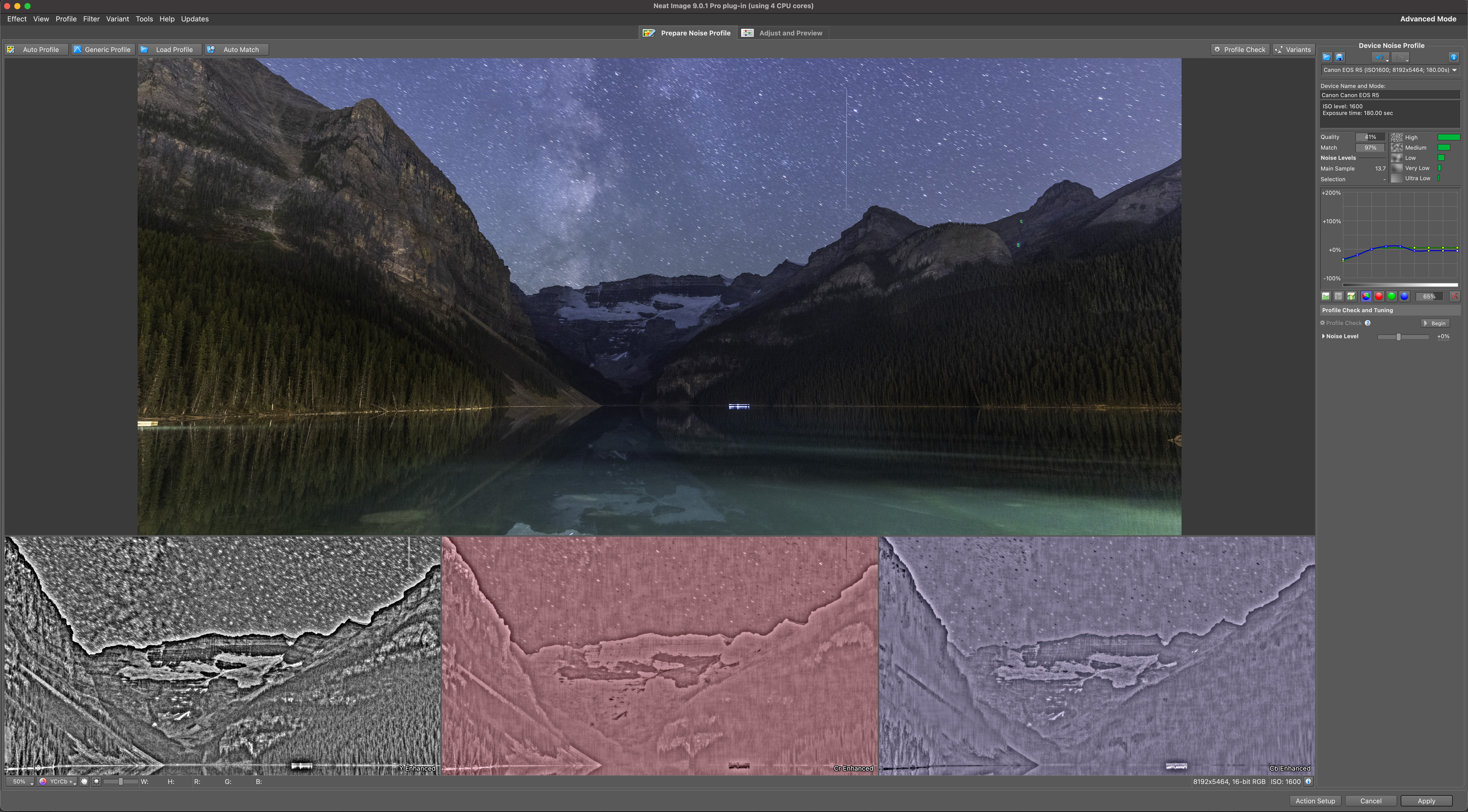
  • Reduce Noise v9 sold by Neat Image (shown below). 
Neat Image’s Reduce Noise control interface – the simple panel.

I tested both by using them in their automatic modes, where they analyze a section or sections of the image and adjust the noise reduction accordingly, but then apply that setting uniformly across the entire image. However, both allow manual adjustments, with Neat Imageโ€™s Reduce Noise offering a bewildering array of technical adjustments. 

How do these older programs stack up to the new AI generation? Here are comparisons using the same three test images. 

Comparing results with Neat Image and Nik Dfine2 on the nightscape test image.

In the nightscape image, Nik Dfine2 and Neat Imageโ€™s Reduce Noise did well, producing uniform noise reduction with no patchiness. But the results werenโ€™t significantly better than with Adobe Camera Rawโ€™s built-in routine. Like ACR, both non-AI programs did smooth detail in the ground, compared to DeNoise AI which sharpened the mountain details. 

Comparing results with Neat Image and Nik Dfine2 on the wide-field test image.

In the tracked wide-field image, the differences were harder to distinguish. None performed up to the standard of Noise XTerminator, with both Nik Dfine2 and Neat Image softening stars a little compared to DeNoise AI. 

Comparing results with Neat Image and Nik Dfine2 on the deep-sky test image.

In the telescopic deep-sky image, all programs did well, though none matched NoiseXTerminator. None eliminated the hot pixels. But Nik Dfine2 and Neat Image did leave wanted details alone, and did not alter or eliminate desired content. However, they also did not eliminate noise as well as did Topaz DeNoise AI or NoiseXTerminator. 

The AI technology does work! 


YOUR RESULTS MAY VARY

I should add that the nature of AI means that the results will certainly vary from image to image. 

In addition, with many of these programs offering multiple models and settings for strength and sharpening, results even from the same program can be quite different. In this testing I used either the programโ€™s auto defaults or backed off those defaults where I thought the effect was too strong and detrimental to the image.

Software is also a constantly moving target. Updates will alter how these programs perform, we hope for the better. For example, two days after I published this test, ON1 updated NoNoise AI to v17.0.2 with minor fixes and improvements.

And do remember Iโ€™m testing on astrophotos, and pixel peeping to the extreme. Rave reviews claiming how well even the poor performers here work on โ€œnormalโ€ images might well be valid. 

This is all by way of saying, your mileage may vary!

So donโ€™t take my word for it. Most programs (Luminar Neo is an exception) are available as free trial copies to test out on your astro-images and in your preferred workflow. Test for yourself. But do pixel peep. Thatโ€™s where youโ€™ll see the flaws. 


WHAT ABOUT ADOBE?

As noted above, with v15.3 of Camera Raw and v12.3 of Lightroom Classic, Adobe finally introduced their contender into the AI noise reduction contest. And it is a very good entry at that.

But it works only on raw files early in the workflow, and it generates a new raw DNG file, one four times the size of the original. The suggestion is that this technology will expand so that the AI noise reduction can be applied later in the workflow to other file formats.

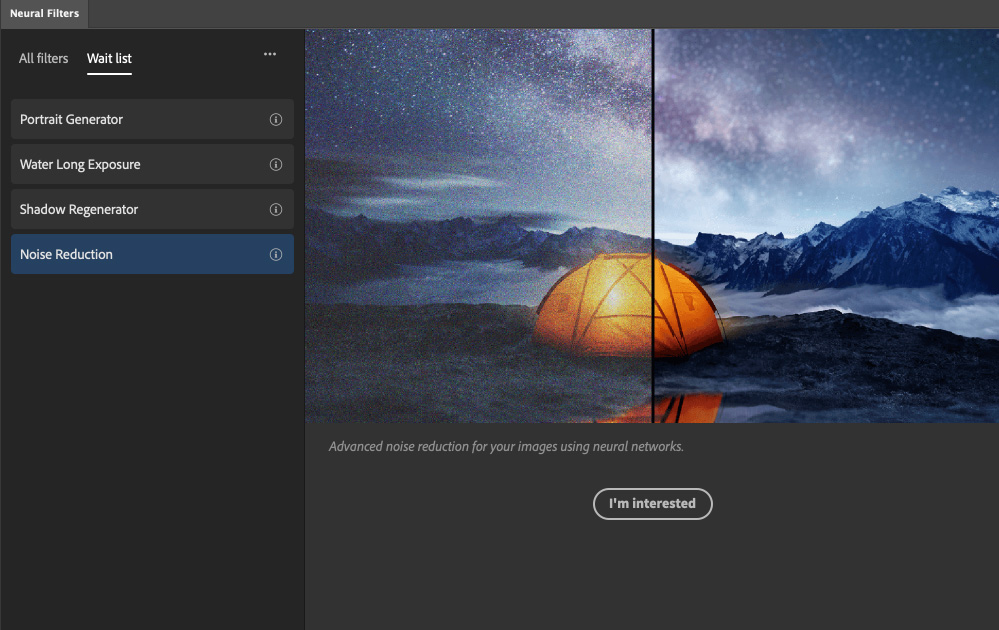
Indeed, in the last couple of years Adobe has introduced several amazing and powerful โ€œNeural Filtersโ€ into Photoshop, which work wonders with one click.

Neural network Noise Reduction is coming to Photoshop. One day!

A neural filter for Noise Reduction is on Adobeโ€™s Wait List for development, so perhaps we will see something in the next few months from Adobe, as a version of the AI noise reduction now offered in Lightroom and Camera Raw.

Until then we have lots of choices for third party programs that all improve with every update. I hope this review has helped you make a choice. 

โ€” Alan, November 15, 2022 / Revised April 27, 2023 / AmazingSky.com ย