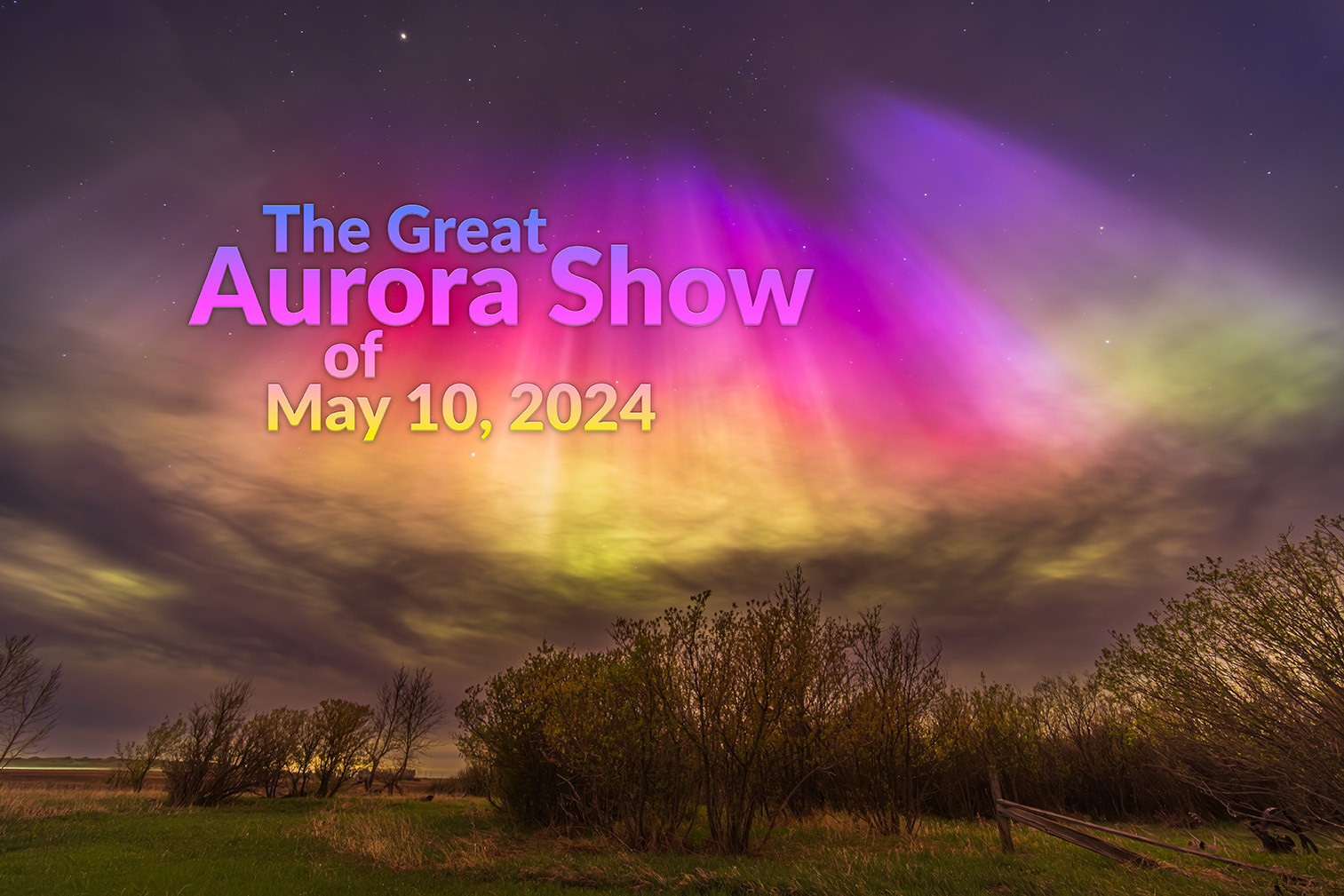
It has been many years since we were treated to an aurora as widely seen as the show on May 10, 2024. Here’s my tale of the great display.
As the sky darkened around the world on May 10/11, 2024, sky watchers in both the northern and southern hemispheres were amazed to see the sky lit by the deep reds, greens and pinks of a massive display of aurora. For me, this was my first Kp8 to 9 show (to use one measure of aurora intensity) in more than 20 years, back in the film era!
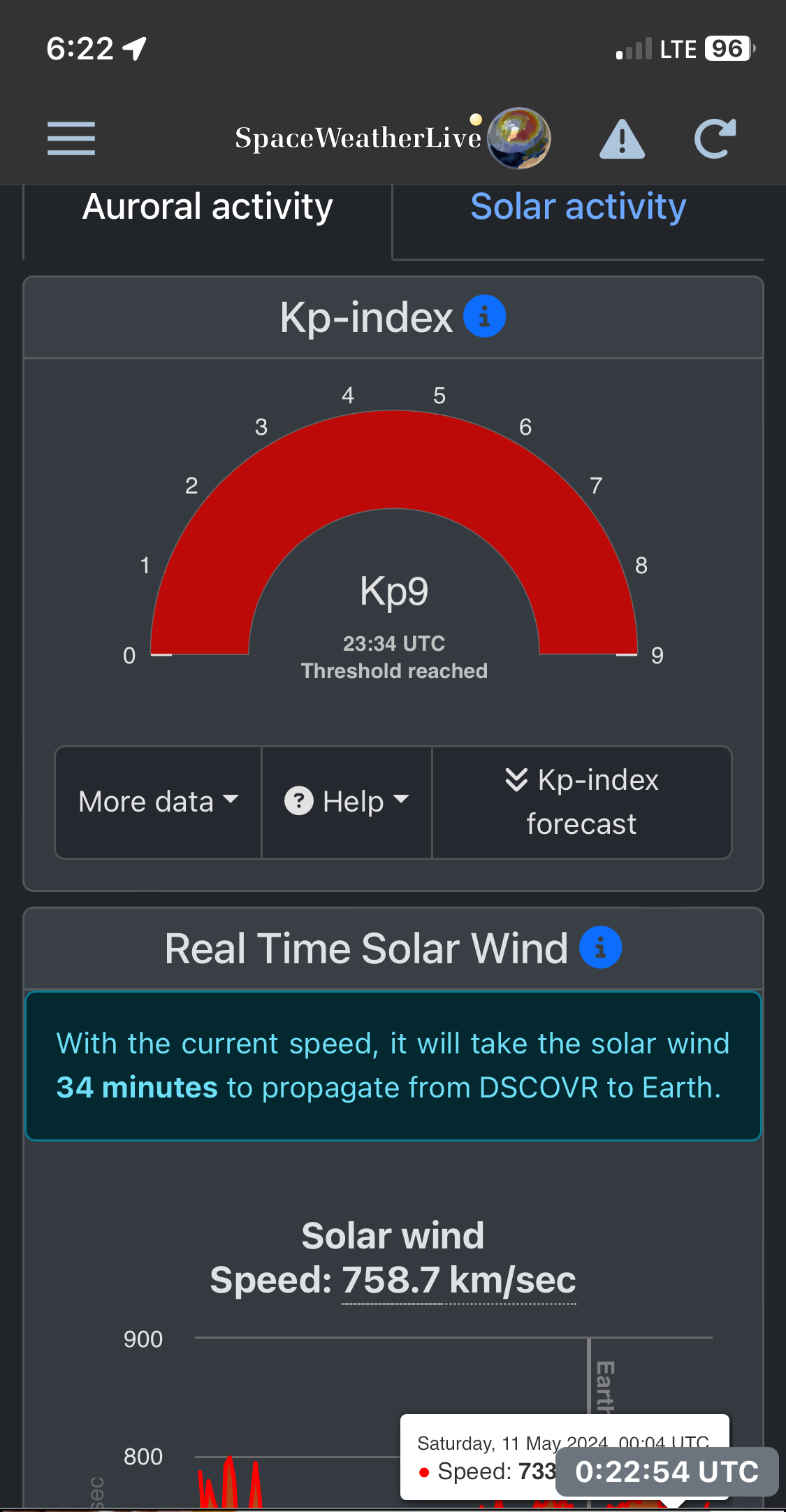
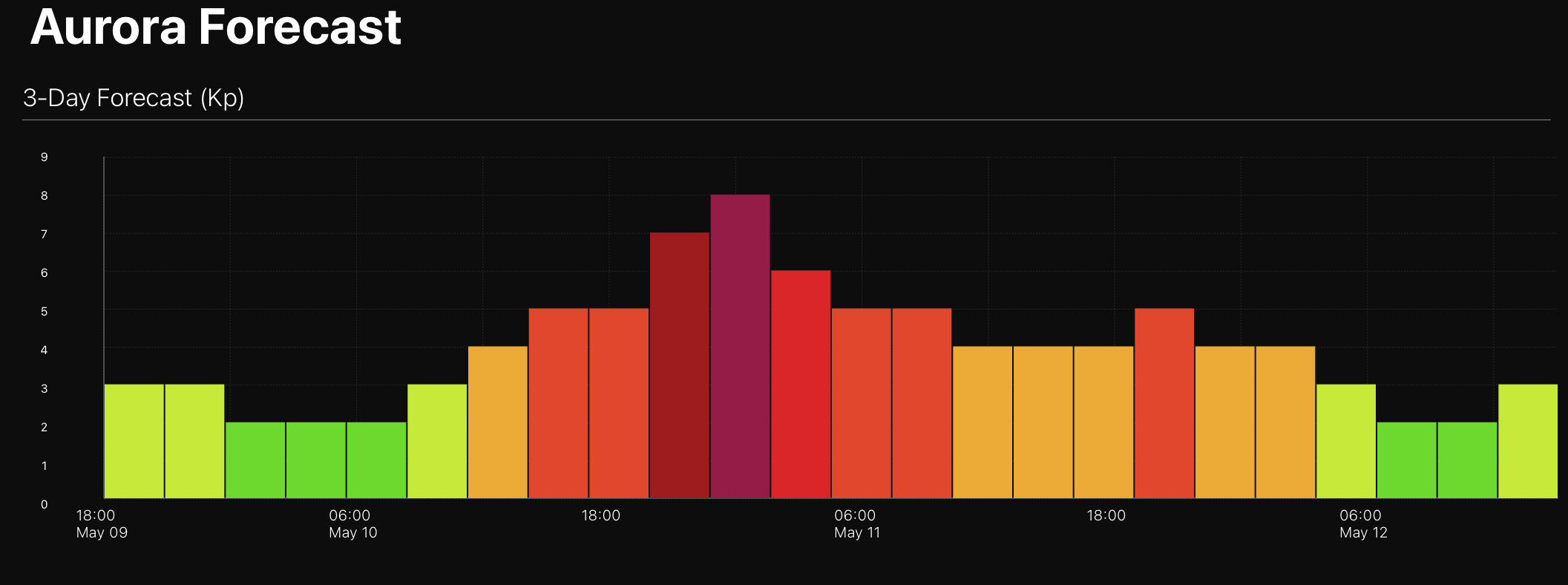
Throughout the day, aurora chasers’ phones (mine included) had been beeping with alerts of the arrival of a major solar storm, with the usual indicators of auroral activity pinned to the top of the scale.
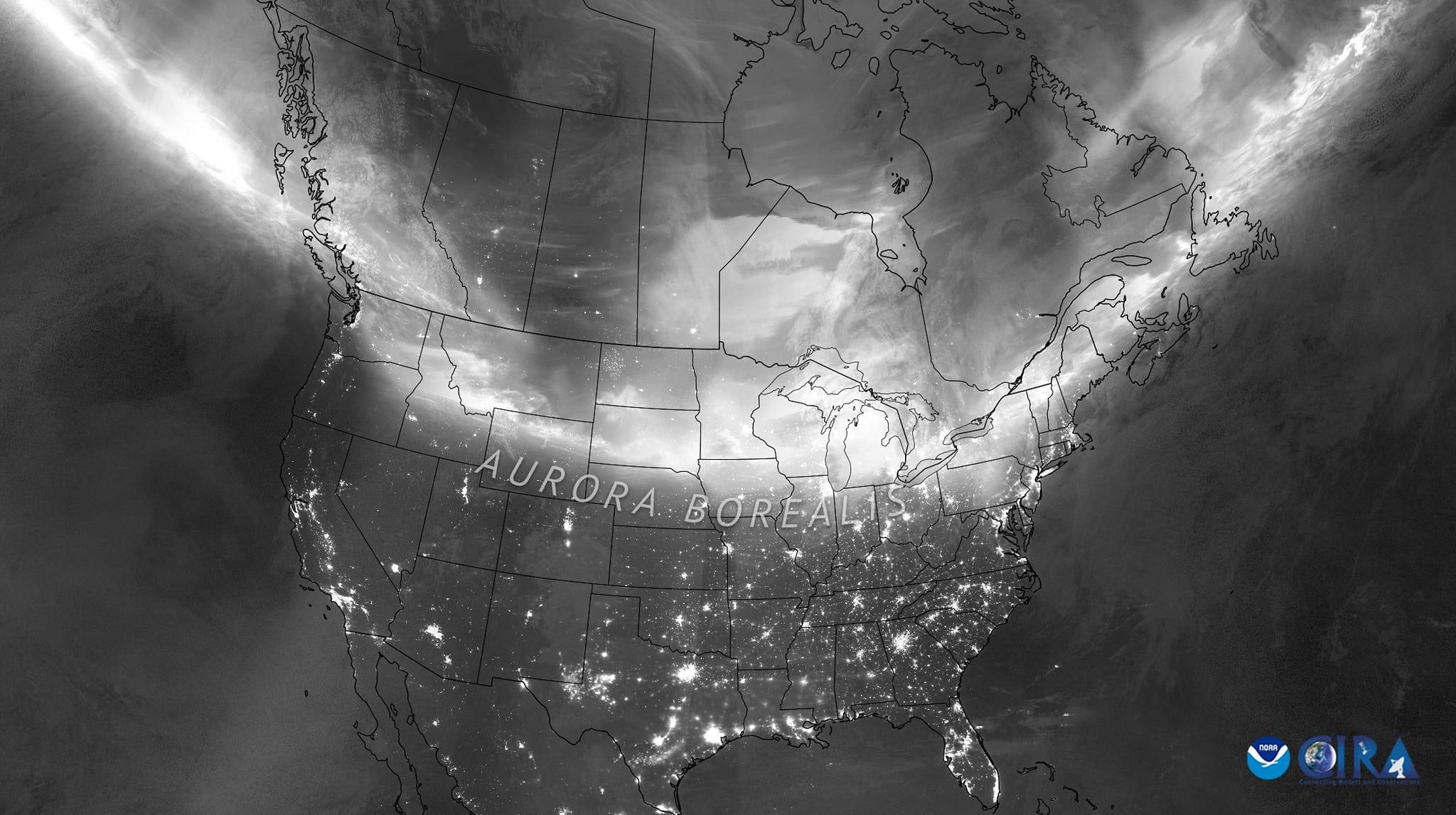
A NOAA satellite’s eye view of the ring of aurora May 10/11, showing it south of me in Alberta, and across the northern U.S. People in the southern U.S. saw it to their north.
As I show below, the graphic of the intensity of the band of aurora, the auroral oval, was lit up red and wide. This was a night we didn’t have to chase north to see the Northern Lights or aurora borealis — they were coming south to meet us (as I show above).
The Kp Index was reading 9 on SpaceWeatherLiveThe auroral oval was lit up red in the Ovation mapThe 3-hour predictions called for red and magenta alerts!
Observers in the southern hemisphere had the normally elusive aurora australis move much farther north than usual, bringing the Southern Lights even to tropical latitudes in Australia, South America and Africa.
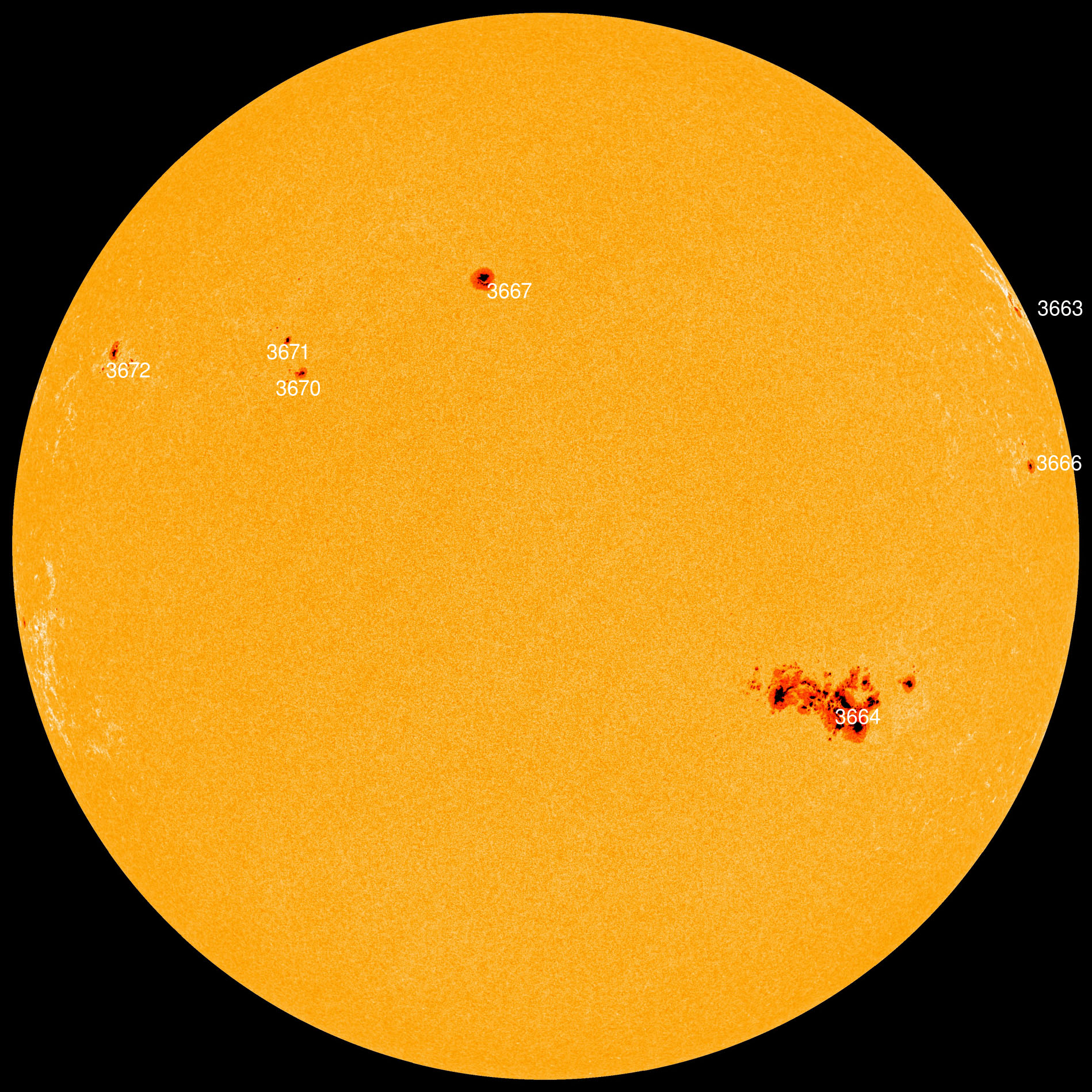
The cause was a massive sunspot group on the Sun which had let off several intense solar flares.
Sunspot group 3664 was so big it could be seen with the naked eye, using solar eclipse glasses. Photo courtesy NASA.
The flares had in turn blown off parts of the Sun’s atmosphere, the corona, that anyone who saw the total eclipse a month earlier had admired so much. But a month later, the corona was being blown our way, in a series of Coronal Mass Ejections (CMEs), to collide with Earth.
A movie of six CMEs blasting toward Earth, captured by the SOHO satellite. Courtesy NASA/ESA.
As it happened I was scheduled to give a community talk in the nearby town early in the evening of May 10, on the topic of The Amazing Sky! Watching the indicators, I could more or less promise the audience that we would indeed see an amazing sky later that evening as it got dark.
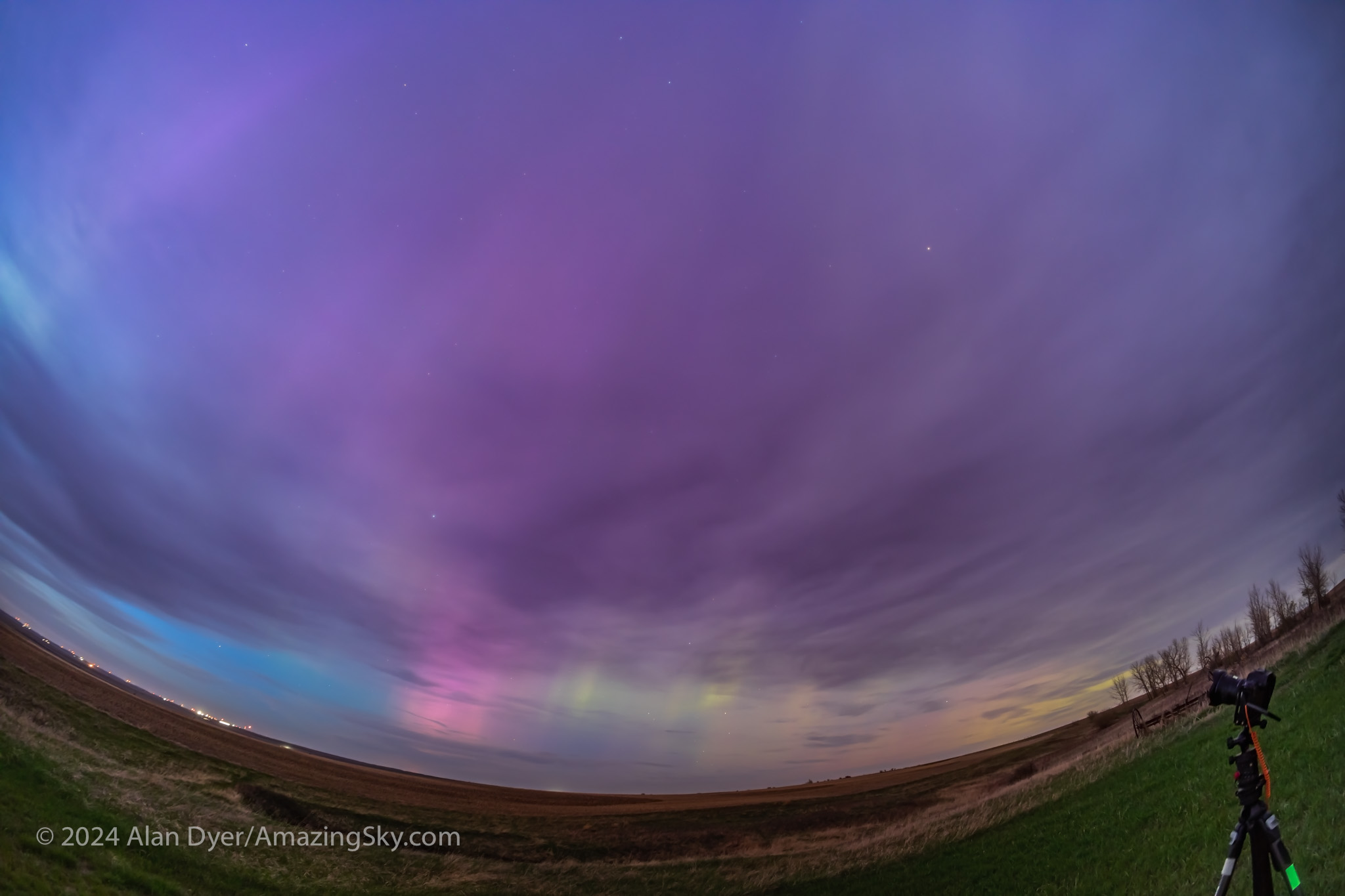
Post talk, I hurried home to get the cameras ready, choosing to forgo more hurried driving out to a scenic site in southern Alberta, for the convenience of shooting from my rural backyard. As the sky darkened, the clouds were lit purple, and curtains of aurora appeared in the clear patches.
Clouds and aurora in twilight with the 11mm TTArtisan full-frame fish-eye lens.A bright arc of aurora shining through the purple clouds, with the 7.5mm TTArtisan circular fish-eye lens.
Something big was going on! This was promising to be the best show of Northern Lights I had seen from home in a year. (Spring 2023 had three great shows at monthly intervals, followed by an aurora drought for many months. See The Great April Aurora.)
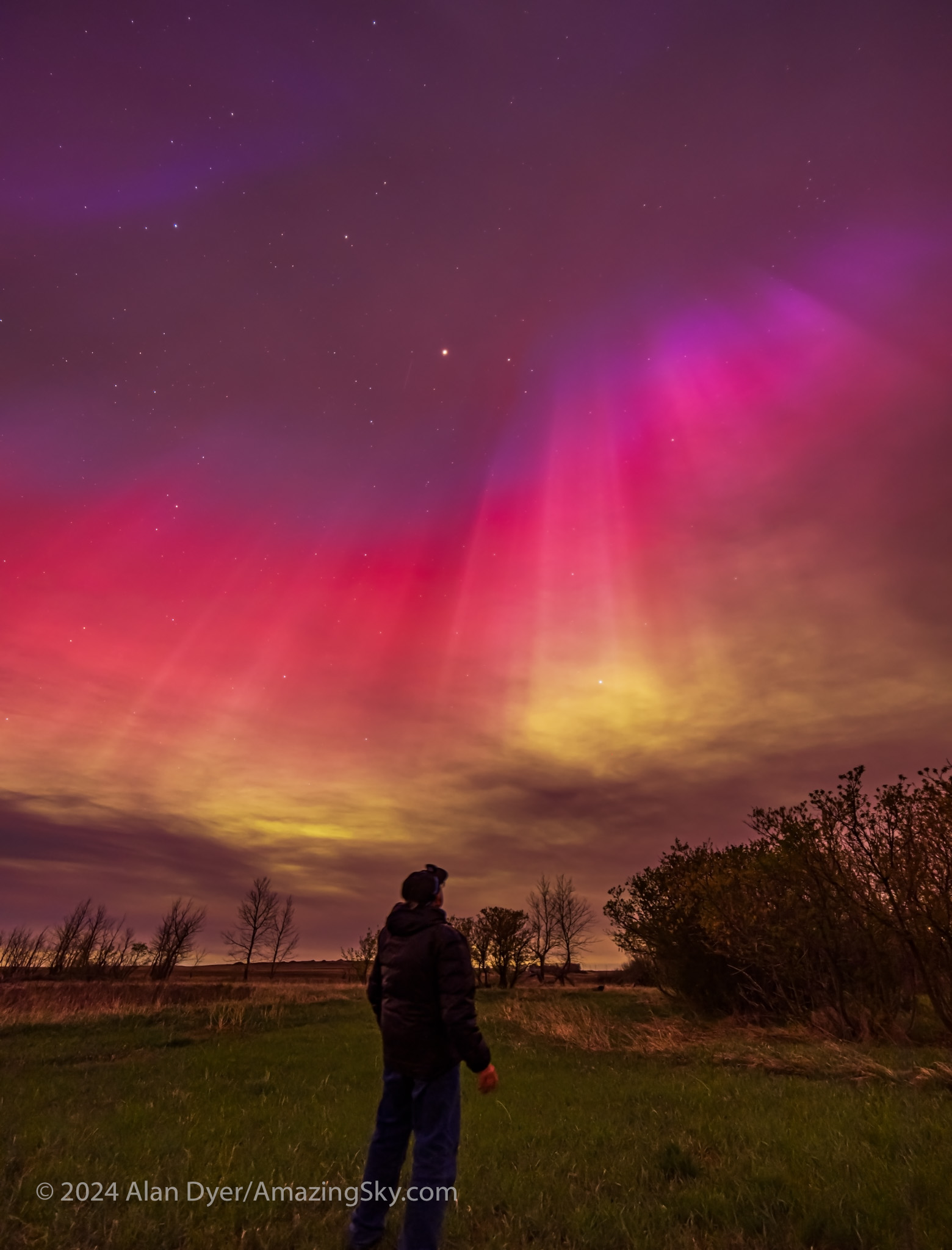
A selfie at the start of the great aurora show of May 10, 2024.
I shot with four cameras (a Canon EOS R, Ra, R5 and R6) — two for time-lapses, one for real-time movies, and one for still images. I used the latter to take many multi-image panoramas, as they are often the best way to capture the wide extent of an aurora across the sky.
The arc of aurora in purple and white across the northern sky from home in Alberta at the start of the great display (about 11:30 p.m. MDT).
Early in the evening the arc of aurora wasn’t the usual green from oxygen, but shades of purple, pink, and even white, likely from sunlit nitrogen. The panorama above is looking north toward a strangely coloured arc of nitrogen (?) aurora.
Then after midnight a more normal curtain appeared suddenly, but toward the south, brightening and rising to engulf much of the southern sky and the sky overhead.
Looking south with the 15mm wide-angle lens.
It is at local midnight to 1 a.m. when substorms usually hit, as we are then looking straight down Earth’s magnetic tail, toward the rain of incoming aurora particles bombarding the Earth. During a substorm, the rain turns into a deluge — the intensity of the incoming electrons increases, sparking a sudden brightening of the aurora, making it dance all the more rapidly.
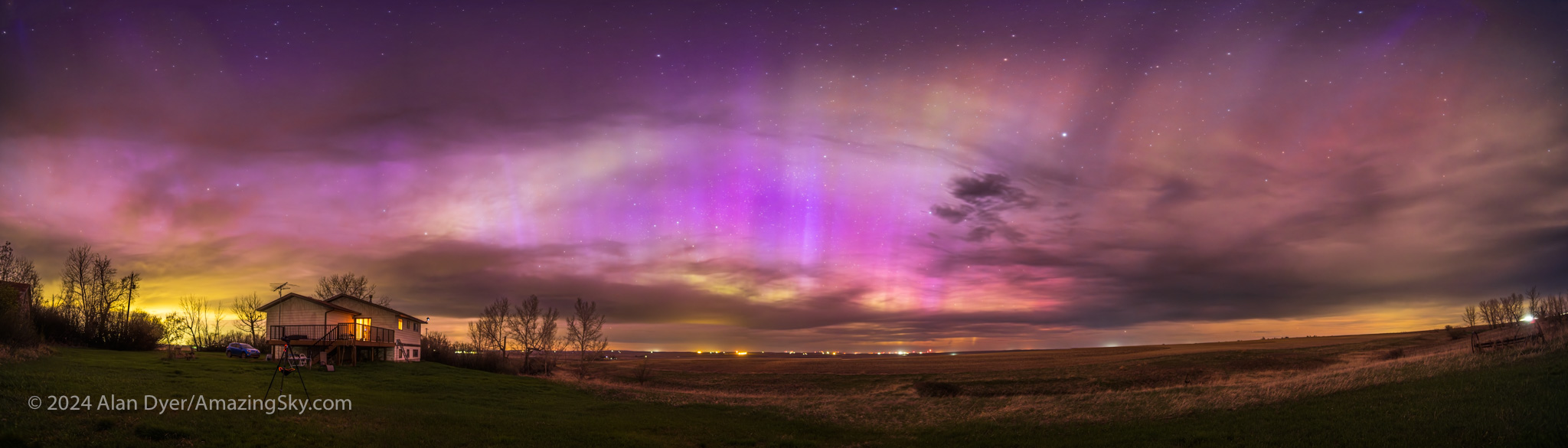
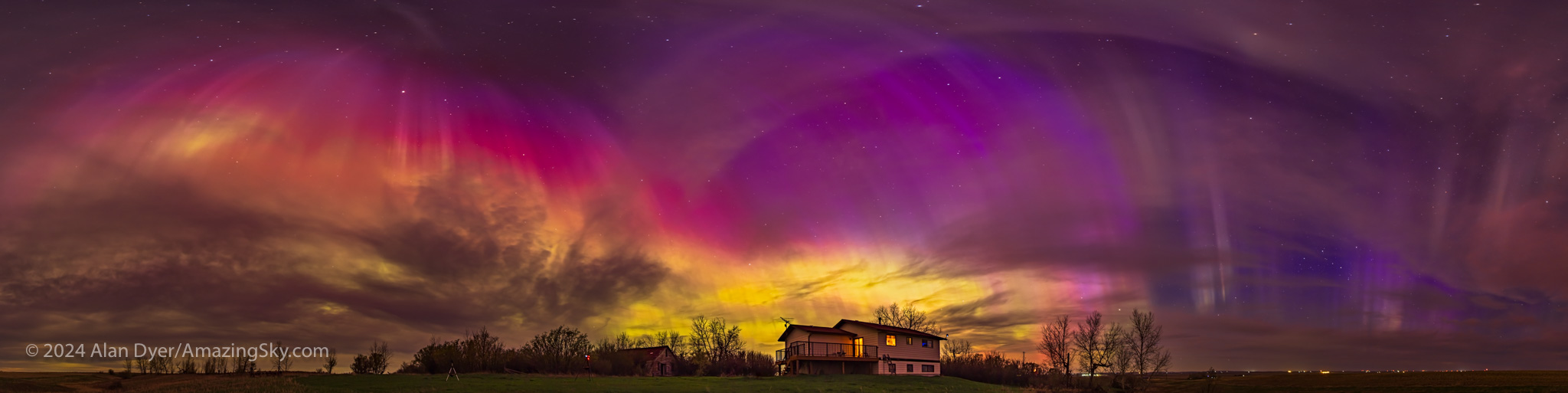
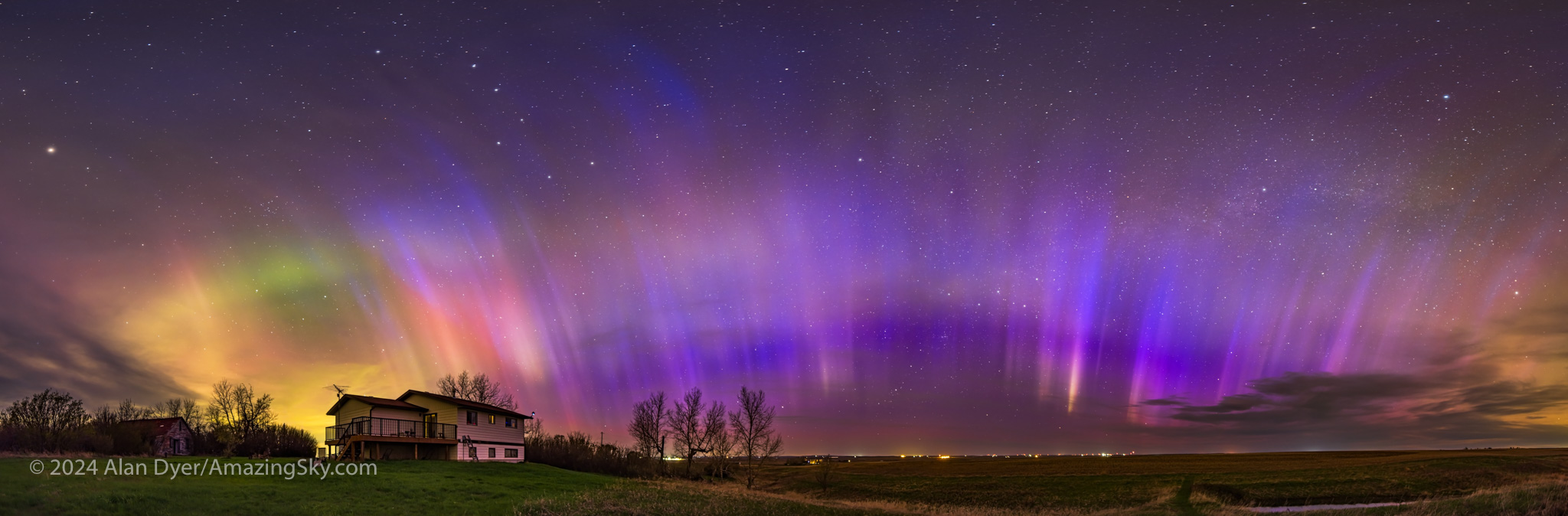
This is a 300° panorama of my home sky now filled with colourful curtains.
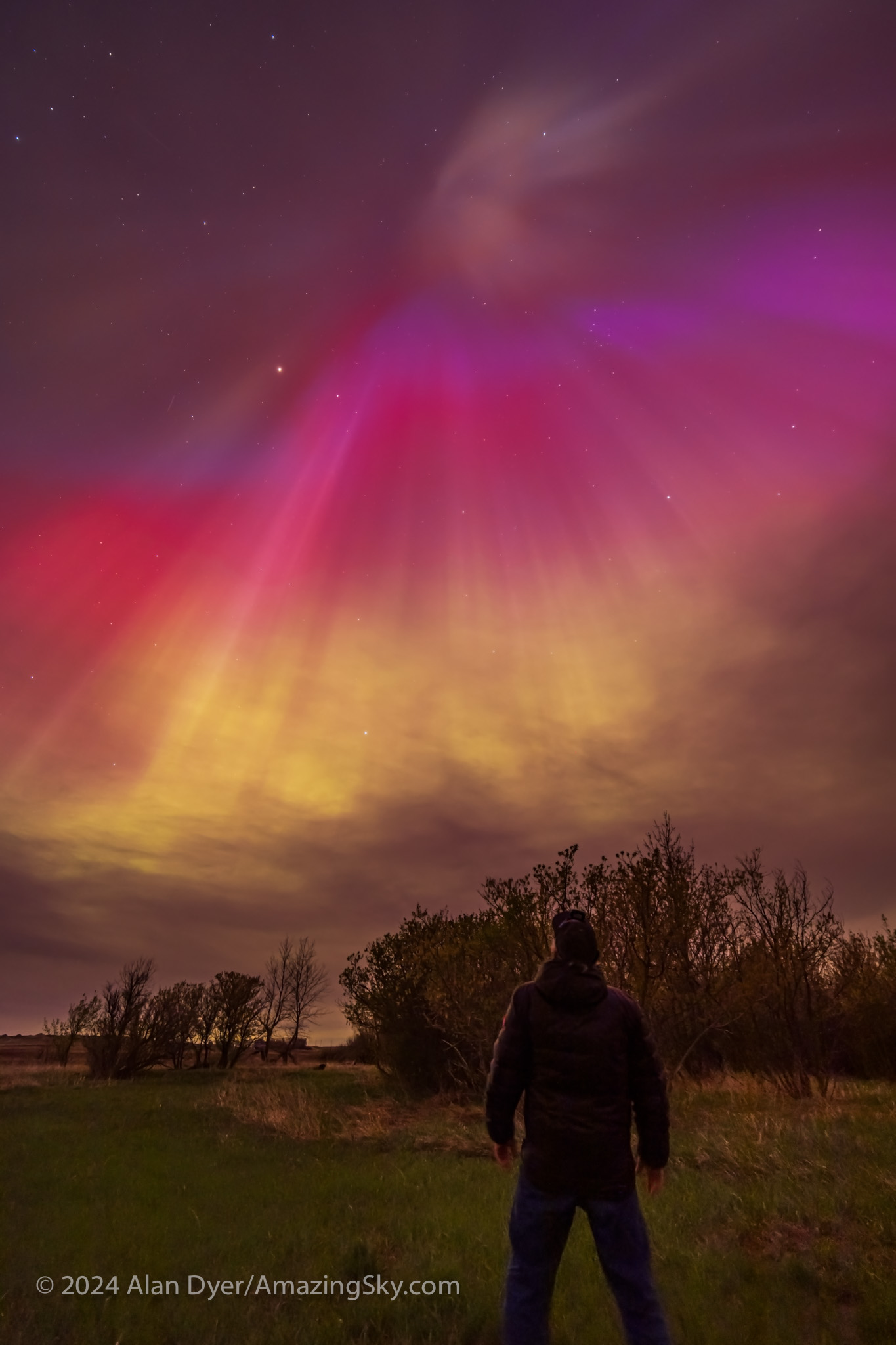
As the aurora explodes in brightness it often swirls up to the zenith (or more correctly, the magnetic zenith) to form one of the sky’s greatest sights, a coronal outburst. Rays and beams converge overhead to form a tunnel effect. It is jaw-dropping.
I’ve seen this many times from northern sites such as Churchill and Yellowknife, where the aurora often dances straight up. And from my latitude of 51° N in western Canada, the aurora does often come down to us.
But this night, people at latitudes where, at best, the aurora might be seen just as a glow on the horizon, saw it dance overhead in a corona show to rival the solar eclipse, and that other corona we saw on April 8!
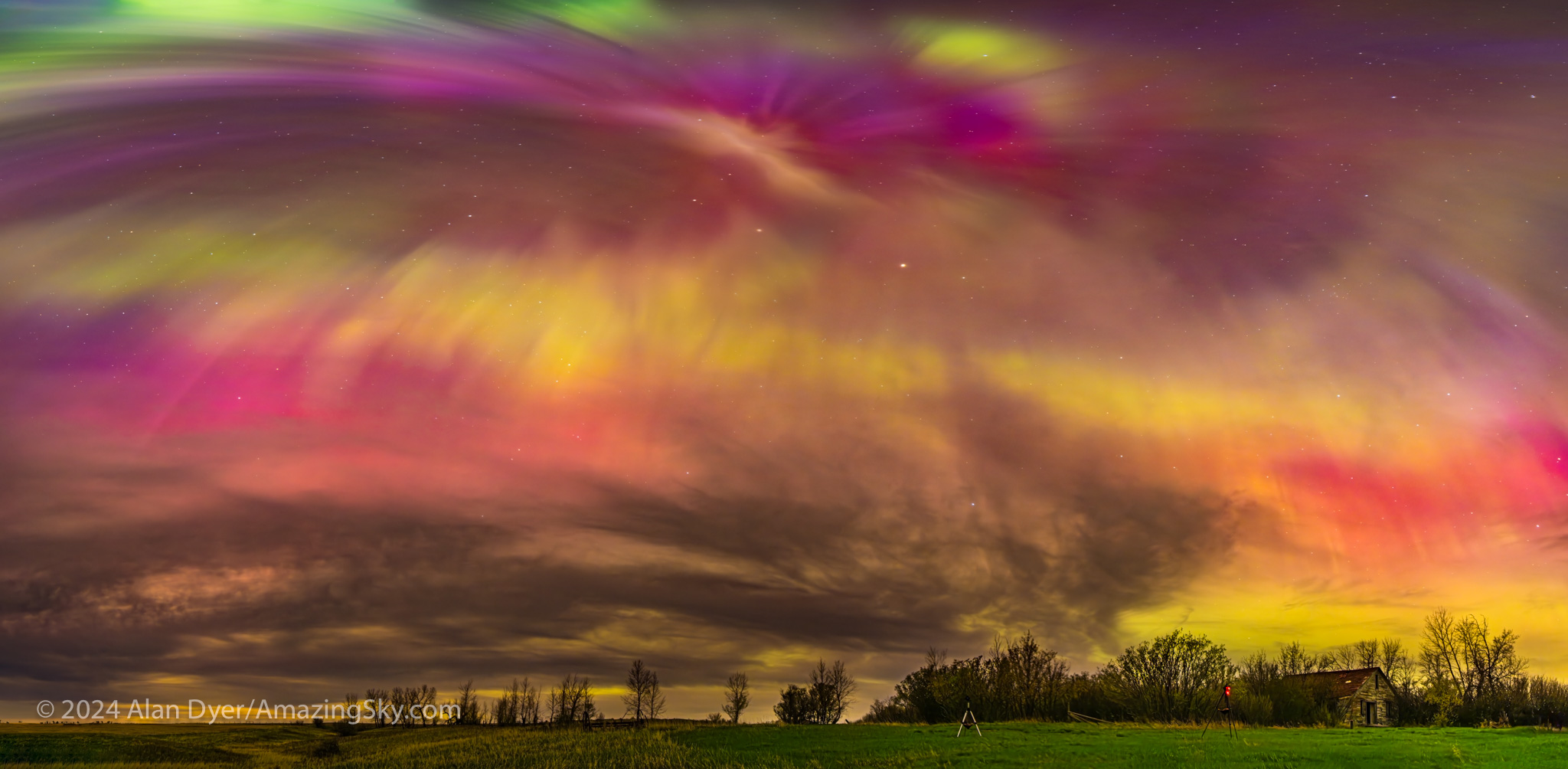
This is a panorama of a substorm outburst creating an overhead corona with rays converging to the magnetic zenith (south of the true zenith), and amid clouds. The rays show a rich mix of oxygen greens and reds, as well as nitrogen blues blending to create purples. Some greens and reds are mixing to make yellows.
Yes, the long exposures of aurora photos (even those taken with phone cameras) show the colours better than your eye can see them (insensitive as our eyes are to colour in dim light). But this night portions of the arcs and rays were bright enough that greens and pinks were easily visible to the naked eye.
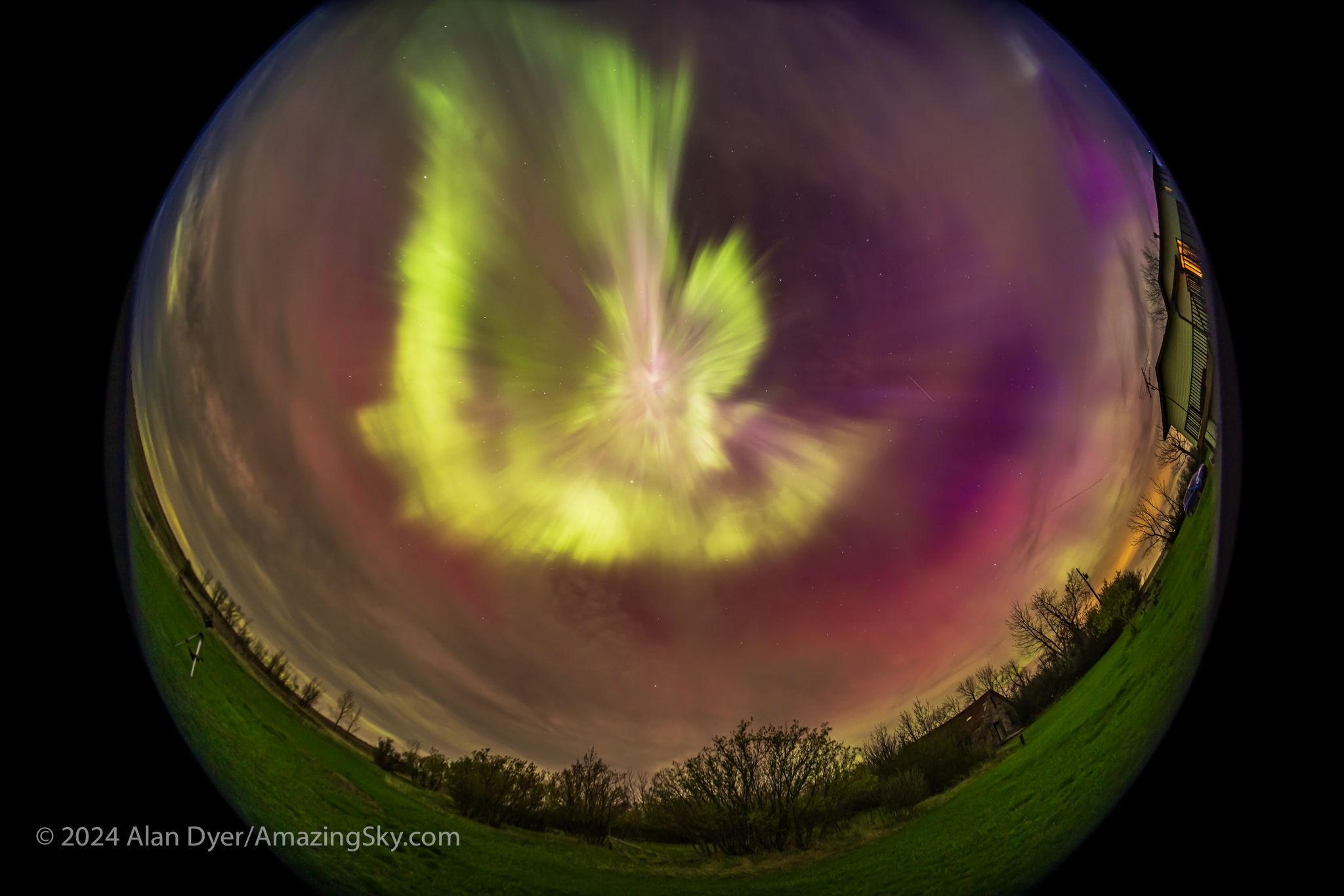
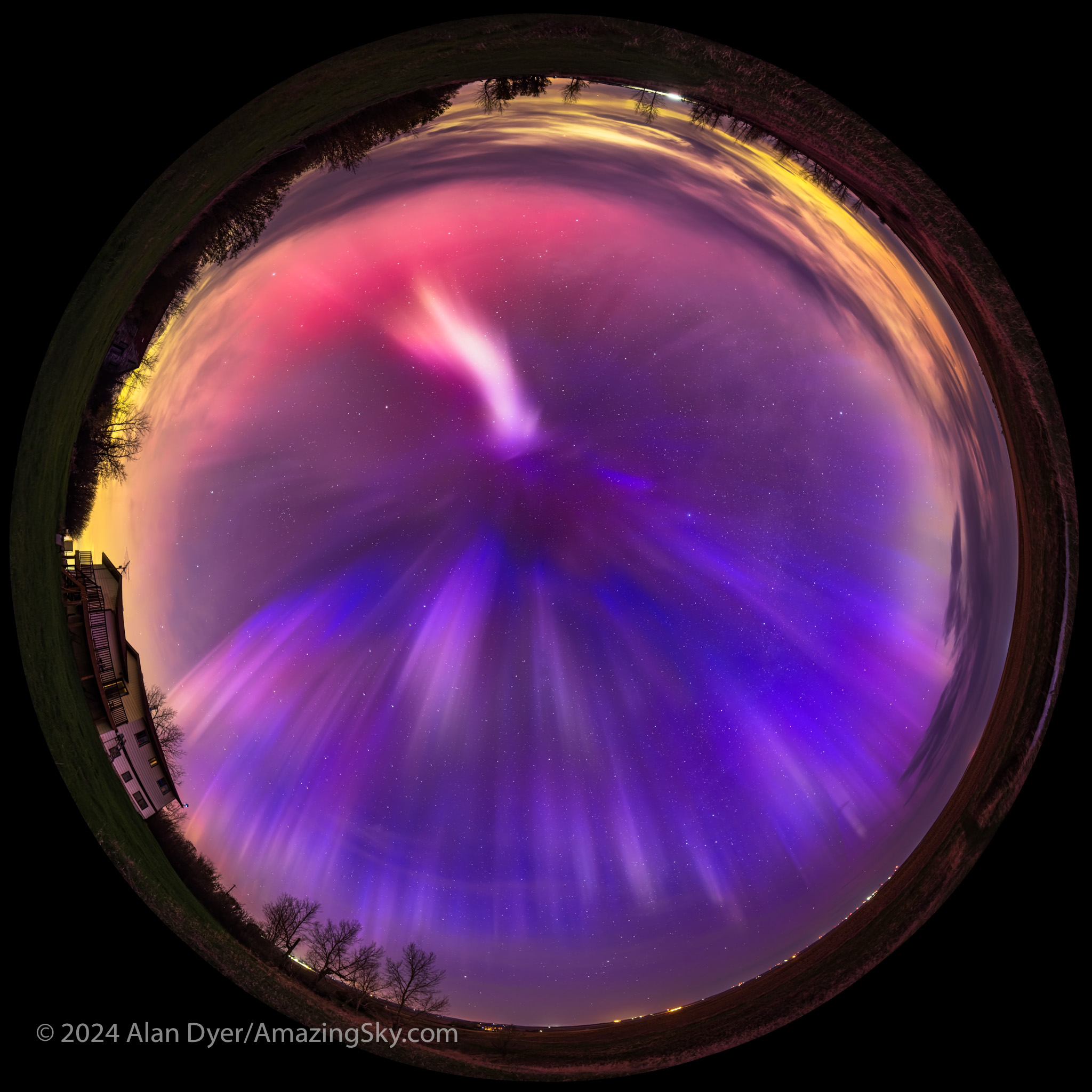
This is a single 9-second exposure of the peak of a bright outburst at 1 a.m. MDT. It was with the Laowa 7.5mm circular fish-eye lens at f/2 on the Canon R5 at ISO 800. It is one frame from a time-lapse sequence. A brief outburst of a substorm created an overhead corona with bright rays converging to the magnetic zenith (south of the true zenith).The corona shows a mix of oxygen greens and reds, as well as nitrogen blues blending to create purples. Some greens and reds mix to make yellows.
At its peak the show was changing rapidly enough, I couldn’t get to all the cameras to aim and frame them, especially the movie camera. The brightest outburst at 1 a.m. lasted just a minute — the time-lapse cameras caught it. The sequence below shows the view in 9-second exposures taken consecutively just 1 second apart.
This series shows a brief outburst of bright aurora at the magnetic zenith overhead. The time between these 7 consecutive 9-second exposures is only 1 second, so this bright outburst did not last long (little more than a minute). With the TTArtisan 7.5mm f/2 fish-eye lens on the Canon R5. Click or tap to enlarge to full screen.
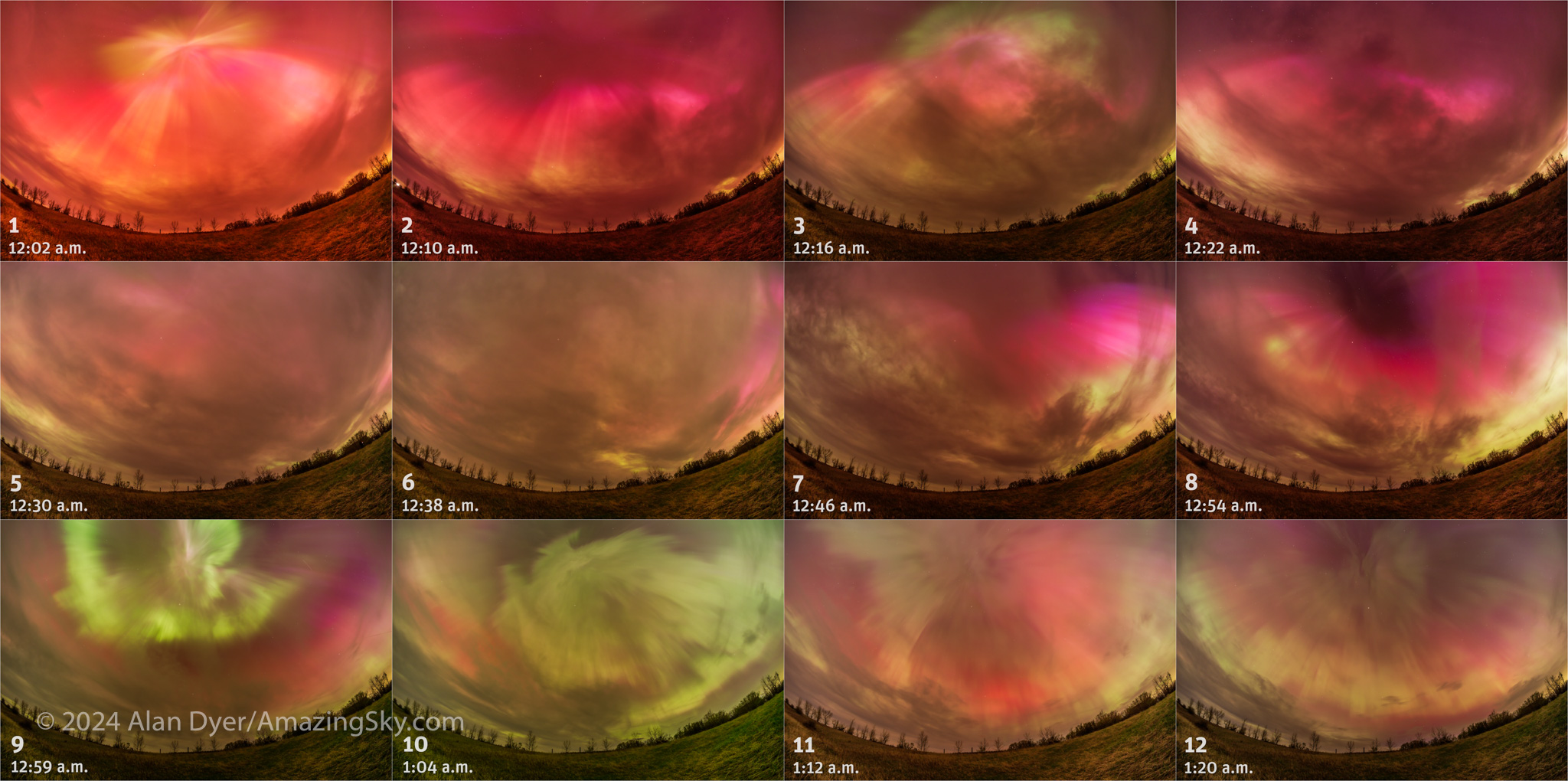
Here’s another sequence of frames taken as part of a time-lapse sequence with the 11mm lens. It shows the change in the aurora over the 80 minutes or so that it was most active for me at my site.
The time between these 12 images is usually 8 minutes, though to include some interesting activity at a bright outburst, the interval is 5 minutes for three of the images around 1 a.m. Each is a 7- or 9-second exposure taken as part of a time-lapse sequence using the 11mm TTArtisan lens at f/2.8 on the Canon R at ISO 800 or 1600.
Shooting time-lapses with fish-eye lenses captures the show with a minimum of attention needed (except to adjust ISO or exposure times when the aurora brightens!). I could use the still camera (with the Laowa 15mm f/2 lens) to take individual shots, such as more selfies and home shots.
This is a single 6-second exposure with the Laowa 15mm lens at f/2 and Canon Ra at ISO 2000.This is a single 4-second exposure with the Laowa 15mm lens at f/2 and Canon Ra at ISO 1600. This is a single 8-second exposure with the Laowa 15mm lens at f/2 on the Canon Ra at ISO 800. Another camera taking a time-lapse is in the scene. I had four going this night.
As colourful as the aurora was at its best between midnight and 1:30 a.m., I think the most unique shots came after the show had subsided to appear just as faint rays across the north again, much as it had begun. To the eye it didn’t look like much, but even on the camera’s live screen I could see unusual colours.
I took more panoramas, to capture one of the most unusual auroral arcs I’ve even seen — a blue and magenta aurora across the north, similar to how the night started.
This a stitch of 11 segments, each 13-second exposures, with the Laowa 15mm lens at f/2 on the Canon Ra camera at ISO 800, and turned to portrait orientation. Processed in Camera Raw and stitched with PTGui.
The colours may be from nitrogen glowing, which tends to light up in blues and purples, especially when illuminated by sunlight at high altitudes. At 2 to 2:30 a.m. the Sun might have been illuminating the aurora at a height of 150 to 400 km, and far to the north.
I’d seen blue-topped green auroras before (and there’s a green aurora off to the west at left here). But this was the first time I’d seen an all-blue aurora, no doubt a product of the intense energy flowing in the upper atmosphere this night. And the season and my latitude.
The panorama is a spherical projection spanning 360º, and reaching to the zenith 90° high at centre. This a stitch of 20 segments, each 13-second exposures, with the Laowa 15mm lens at f/2 on the Canon Ra camera at ISO 800, and turned to portrait orientation. Processed in Camera Raw and stitched with PTGui.
The weirdest aurora was at 2:30 a.m., when in addition to the blue rays of nitrogen, an odd white and magenta patch appeared briefly to the south. What was that??
The lesson here? During a bright show do not go back to sleep when things seem to be dying down. Interesting phenomena can appear in the post-storm time, as we’ve learned with STEVE and other odd red arcs and green proton blobs that we aurora photographers have helped document.
I end with a finale music video, mostly made of the time-lapses I shot this night.
Enjoy!
Bring on more aurora shows as the Sun peaks in activity, perhaps this year. But the best shows often occur in the 2 or 3 years after solar max. So we have several more years to look forward to seeing the Lights dance in our skies.
Watch in full screen and in 4K if you can. For all the tech details click through to YouTube and check the description below the video.
With the October 14, 2023 annular eclipse of the Sun only weeks or days away, it’s time to test your equipment, to ensure success on eclipse day.
On October 14 everyone in North America, Central America, and much of South America can see an eclipse of the Sun, as shown in the map below, courtesy GreatAmericanEclipse.com. The closer you are to the “path of annularity” drawn in yellow here, the more of the Sun you see covered by the Moon.
Eclipse map showing area of visibility of the October 14 eclipse courtesy GreatAmericanEclipse.com
However, for the best experience, plan to be in the central path of the Moon’s shadow. In North America, as shown in the map below, that path crosses the western states, passing over the scenic landscapes of the American southwest.
Courtesy GreatAmericanEclipse.com
Those in the main path will see an annular eclipse – the Moon will travel across the center of the Sun’s disk, but won’t be large enough to completely cover the Sun. The result, as shown below, is that the Sun will be reduced to a thin ring or “annulus” of light at mid-eclipse, but only for a few minutes.
The May 10, 1994 annular eclipse of the Sun, with a trio of eclipse rigs.
To view or photograph the annular eclipse well, you need to use a long telephoto lens or a telescope. A focal length of 400mm or longer is required to make the Sun’s and Moon’s disks large enough to show detail well.
As I show above, the lens or telescope can be on a solid tripod, or on an untracked alt-azimuth telescope mount, or on a mount that can track the sky, such as the equatorial mount on the right above. All will work fine, as exposures will always be short, just a fraction of a second.
I go into the many options for photographing the eclipse in my ebook, linked to at right. It contains thorough tutorials on how to shoot the eclipses in 2023 and 2024. In this blog I’m focusing on extolling the need to practice now, with whatever gear you own and intend to use for the eclipse.
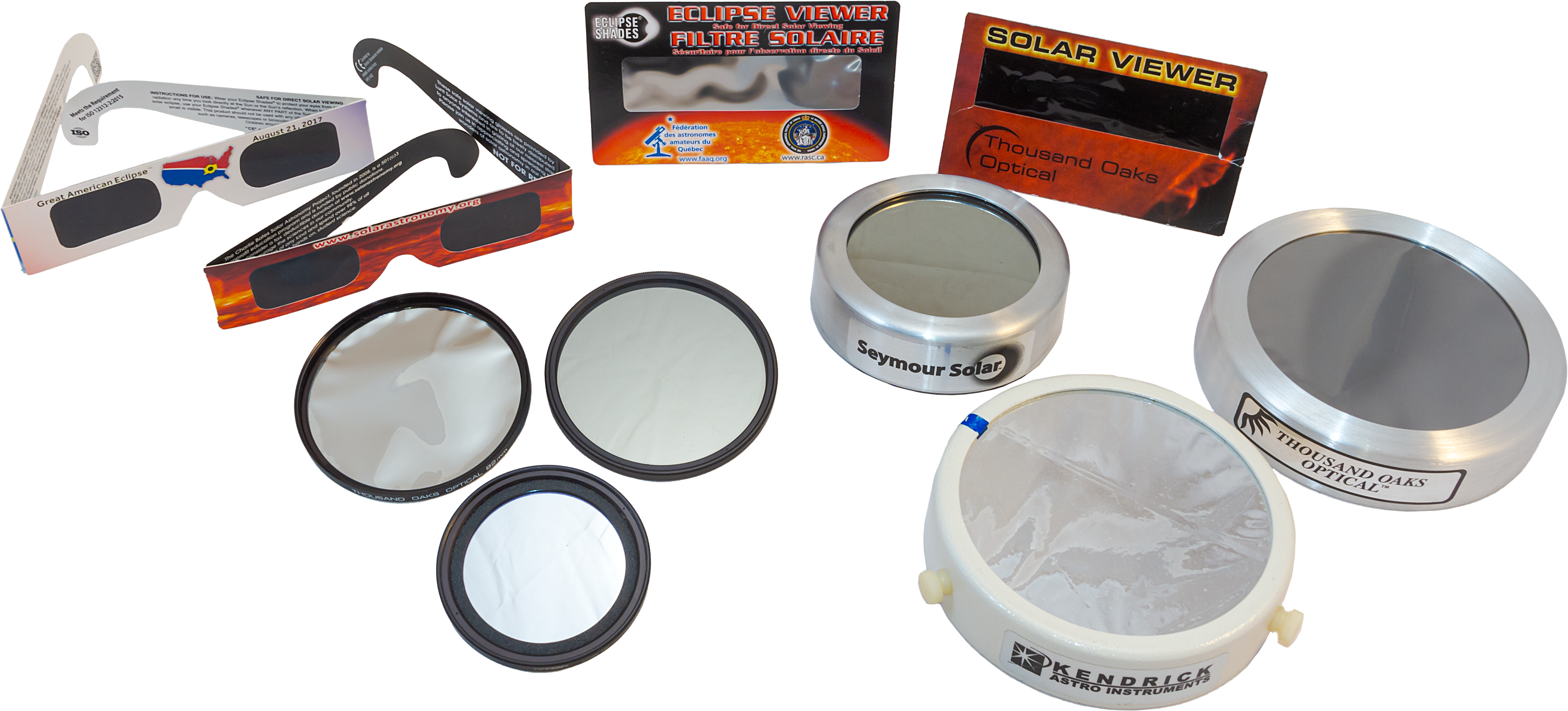
An array of solar filers, for unaided eyes, lenses and telescopes
No matter what optics you plan to use, they must be equipped with a safe solar filter mounted over the front of the optics. For the October 14 eclipse, even from sites in the path of annularity, a filter must be used at all times. It will never be safe to look at or shoot the Sun without a filter.
And it must be a filter dense enough and designed for the purpose of aiming at the Sun. Do not use stacked neutral density filters or other jury-rigged arrangements, as other filters can transmit ultraviolet or infrared light that can still damage eyes and cameras.
The eyeglass or handheld style of solar filters are good for unaided eye views, and most are made by American Paper Optics or Rainbow Symphony. A list of recommended filter suppliers is available at the American Astronomical Society’s eclipse website at https://eclipse.aas.org/eye-safety. In addition, many astronomy clubs, planetariums and science centers will offer safe eyeglass-style filters they purchased in bulk from one of the suppliers above.
However, for photography through a lens or telescope you need a filter that either screws onto the lens or clamps over the telescope, as I show below.
Comparing different types of telescope filters – the Baader Mylar worked best in this test.
In my testing, I’ve found that the aluminized Mylar® (or polyethylene) type of filter – one that looks like a silvery sheet – provides the best sharpness and contrast, despite the wrinkles. The most popular type is made by Baader Planetarium, and sold by them or by other dealers and resellers.
While metal-coated glass filters also work very well, in recent years they have become hard to find, with past suppliers of glass filters switching to black polymer plastic material. While safe and good for naked-eye views, I’ve found the image through black polymer filters can be soft and surrounded by lots of light scatter when used for photography at long focal lengths.
TESTING, TESTING!
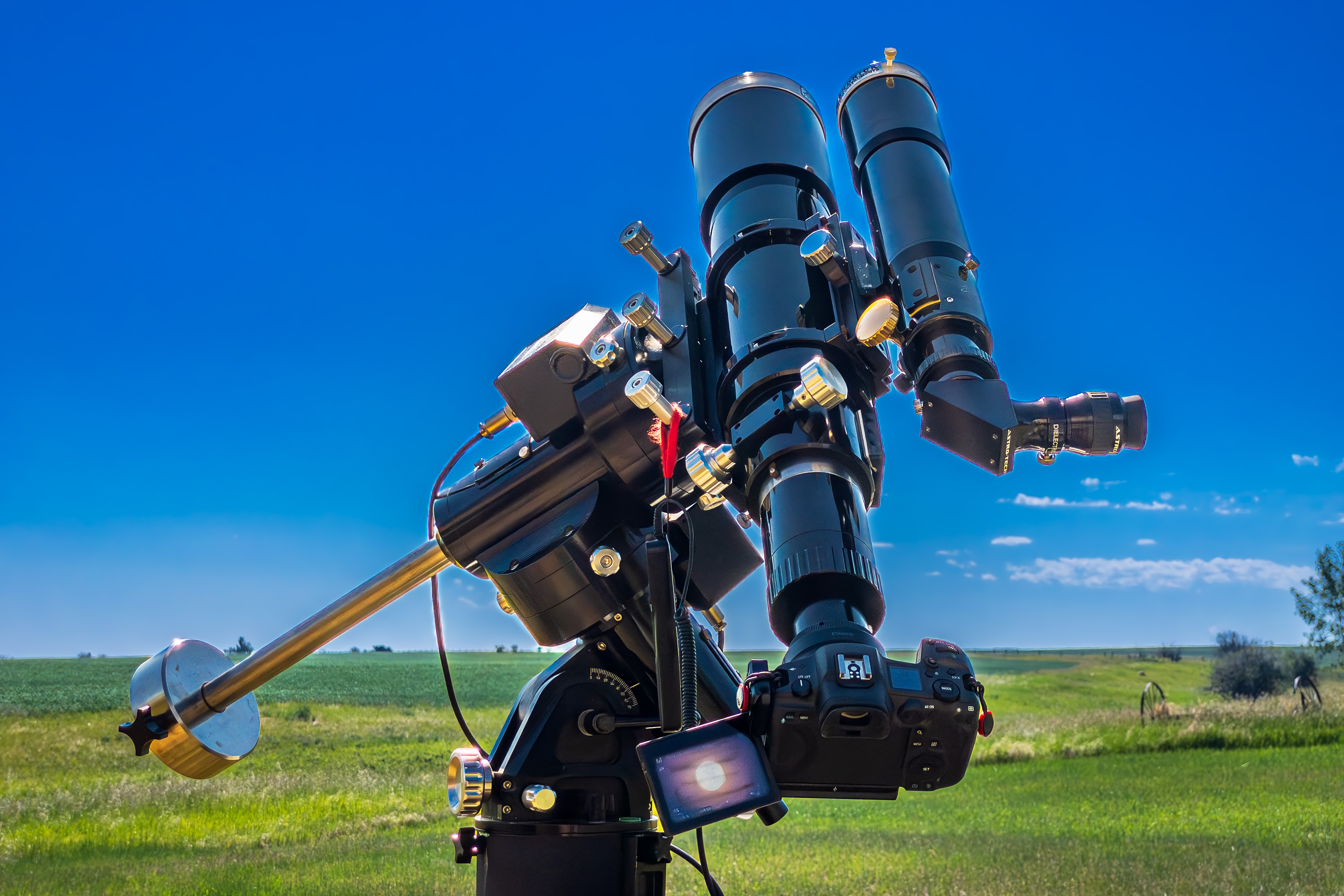
An eclipse rig under test, with dual scopes for shooting and looking
Once properly equipped, test your setup as soon as possible on the Sun. In the rig above I have piggybacked a smaller telescope onto the larger telescope, both with filters, the latter to shoot through while I look through the smaller scope, good for watching the few minutes of annularity.
The key things to test for are:
Finding the Sun (not as easy as you might think!)
Focusing on the Sun (also critical and can be tough – focus on the edge or on sunspots)
Checking for any focus shift over a couple of hours time
Determining the correct exposures with your filter
Checking for any vibration that can blur the image
Operating your camera to change settings, without vibration
Checking to see how long batteries will last
Seeing how much the Sun moves across the frame during a few minutes time
Following the Sun or keeping it centered
Making a checklist of the gear you need on eclipse day, plus any backups such as a spare battery, and tools for last-minute fixes or adjustments.
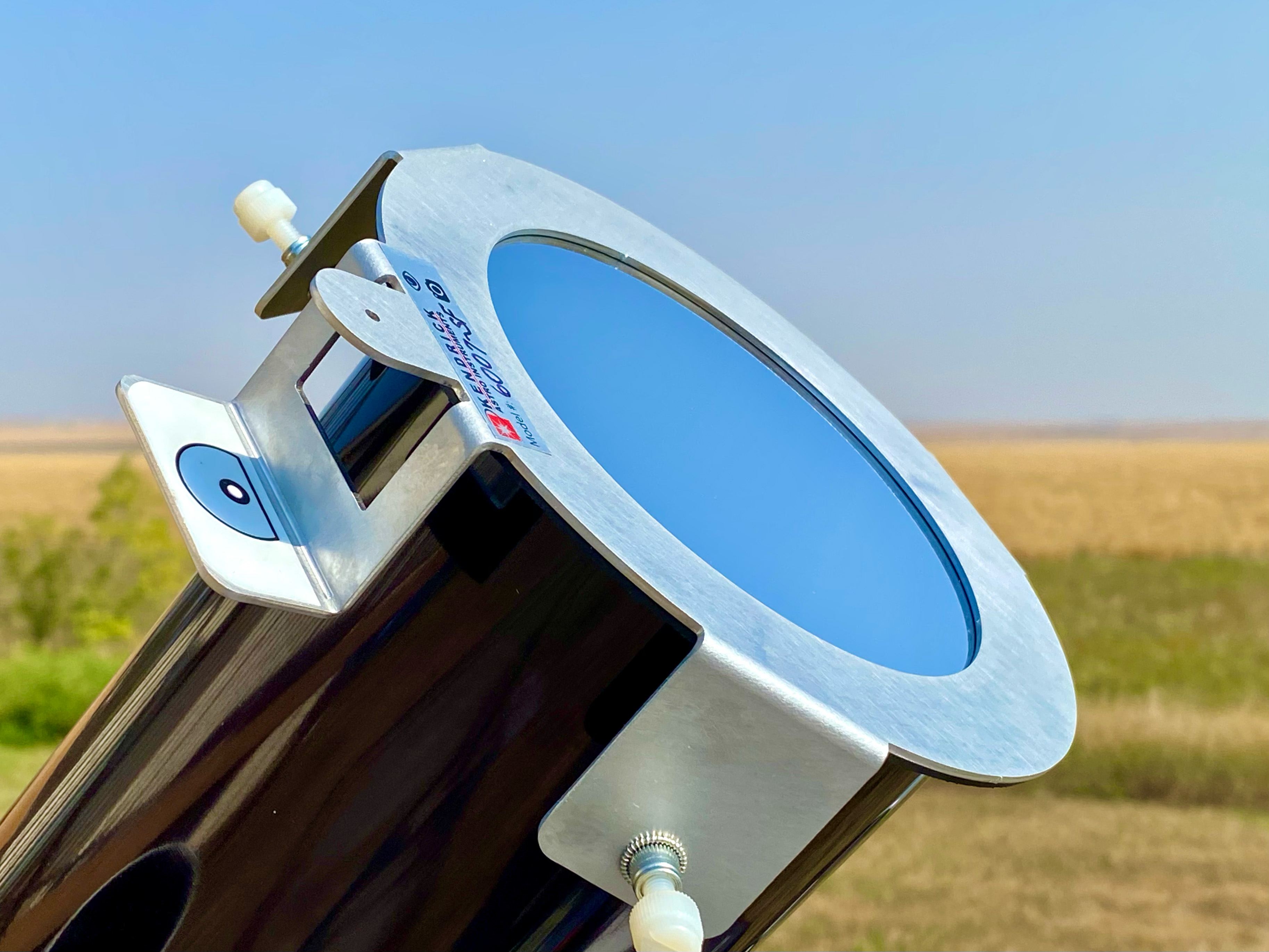
The filters from Kendrick Astro Instruments have a handy Sun finder attachment.
You want to test how solid your setup is when aimed up. Your super-telephoto lens and tripod that work great for birds and wildlife might not be as well-suited as you thought when aimed high at the Sun. Best to find out now about any shortcomings in your gear.
A series of images with an 80mm refractor and Kendrick Mylar filter shows a range from under to over-exposed.
Run through a set of exposures to see what produces the best result with your optics and filter. Even with the October 14 eclipse underway, the Sun will be a similar brightness as it is on any normal day.
At best, on eclipse day you might wish to shoot a bracketed set of exposures throughout the eclipse, perhaps a frame taken at your pre-determined “best” exposure, and two others: at one stop and two stops overexposed, to account for the slightly dimmer solar disk when it is mostly covered by the Moon in a deep partial or annular phase.
Alter exposures by changing shutter speeds, not aperture or ISO. Keep the ISO speed low, and the aperture either wide open or at some middle setting such as f/5.6 for the sharpest images.
But also check what exposures might be needed when shooting the Sun through thin clouds. Any cloud or haze will require longer exposures. And you might need to change shutter speeds quickly if the Sun goes into and out of clouds. Practice that – without introducing vibration from handling the camera.
Leave the rig for a couple of hours to test how the focus might shift, as it is certain to do, as the temperature changes through the morning or afternoon. Practice touching up the focus. People fuss over the “best” exposure, when it is poor focus that is the common spoiler of eclipse photos.
You can find more tips for practicing for eclipse close-ups at a blog I wrote for AstronomyByNight.ca.
WIDE-FIELD OPTIONS
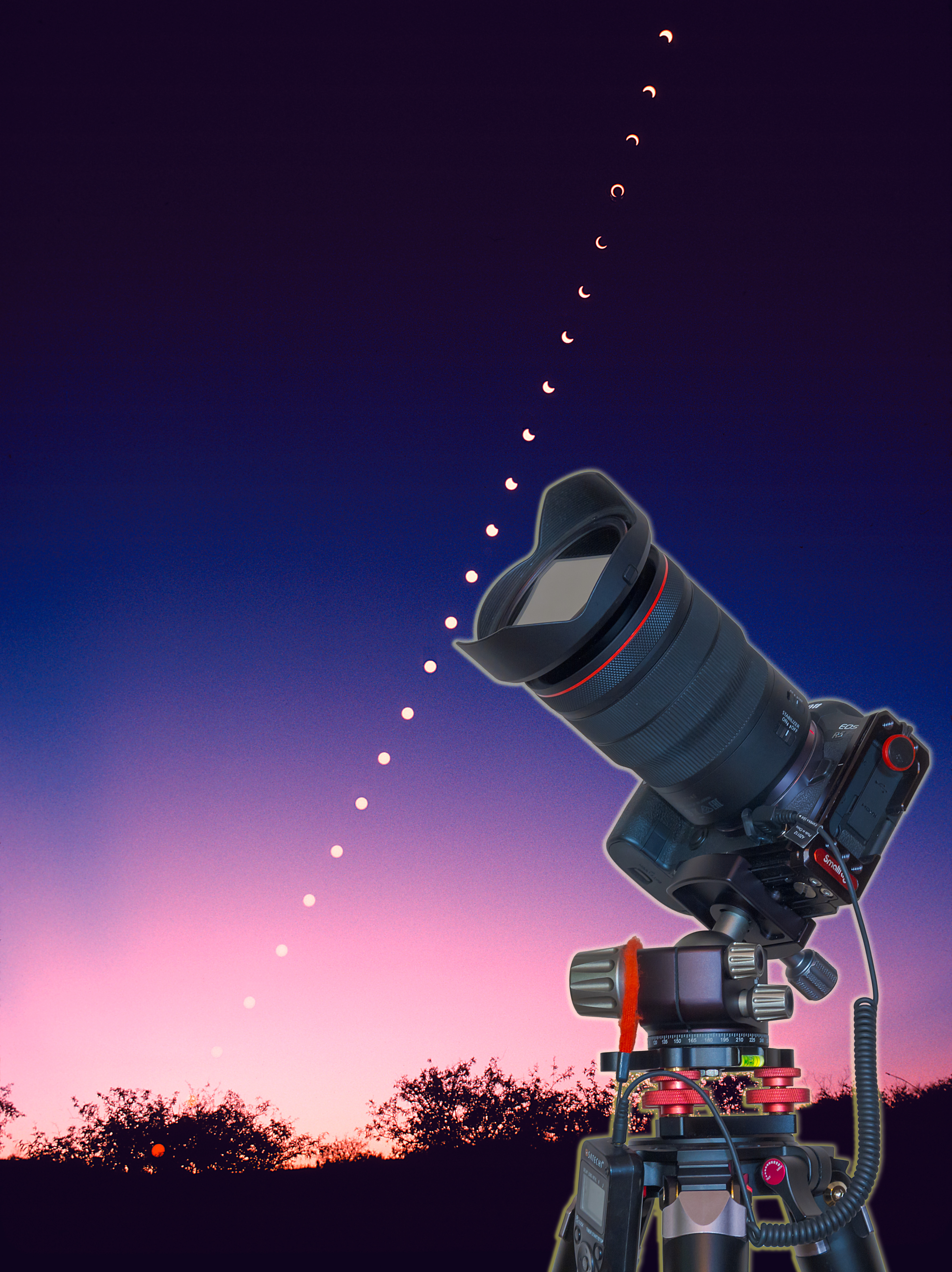
May 10, 1994 annular eclipse in a series of multiple exposures every 10 minutes.
An alternative way to shoot the eclipse is with a wide-angle lens, but also equipped with a solar filter, as shown above. Frame the scene to include the expected path of the Sun, determined by using planetarium software such as SkySafari or Stellarium (my ebook also has charts). Take images every minute or so, then layer those onto an unfiltered image of the sky and foreground taken either before the Sun enters the frame or after it leaves it.
A test set for a composite image.
Practice that method now, to shoot images for a test composition as I show above. It layers filtered images taken at 5-minute intervals onto an unfiltered background sky image taken after the Sun left the frame.
However, composite images can be complex to plan and execute.
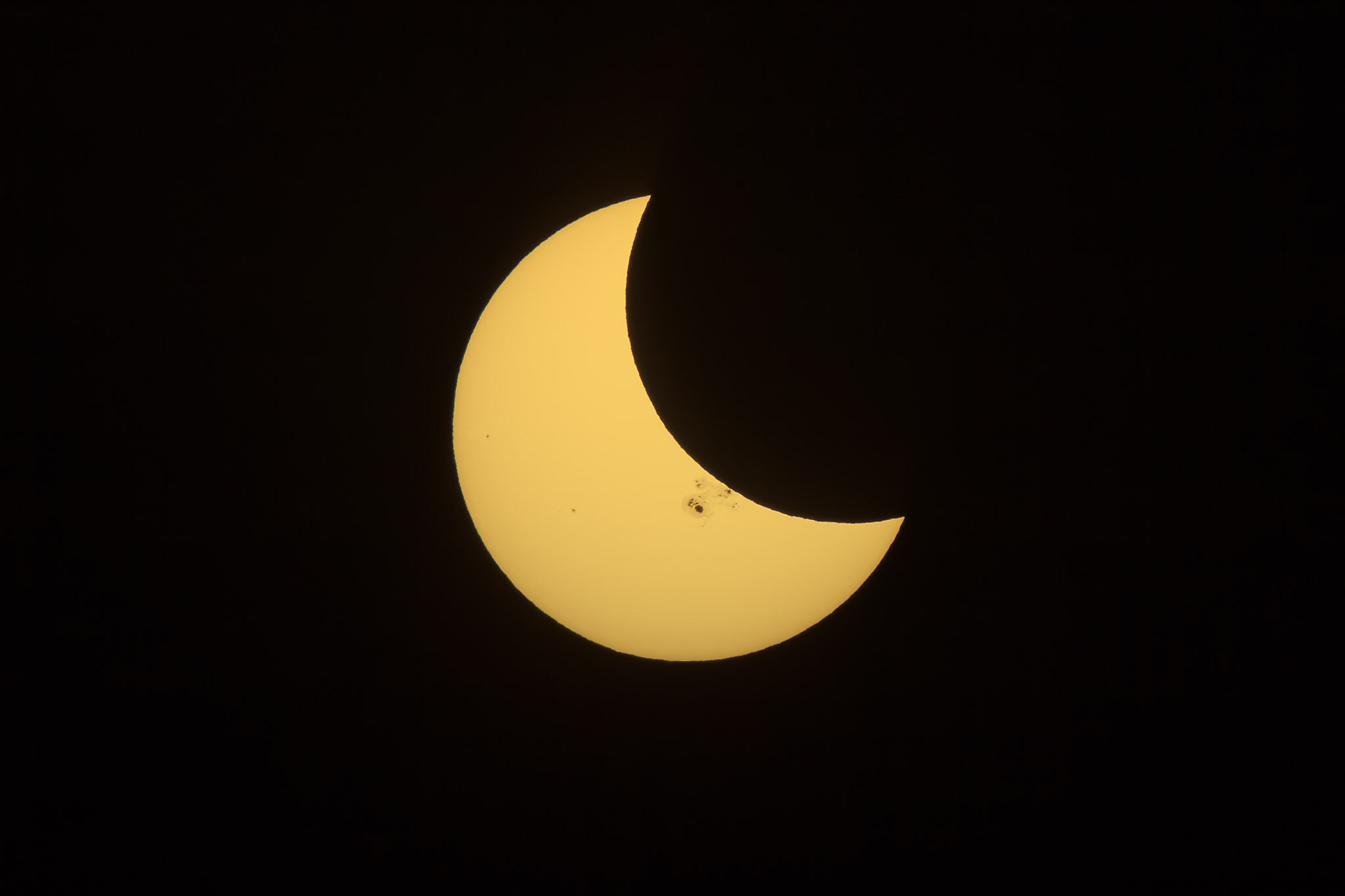
The partial solar eclipse of October 23, 2014 as seen from Jasper, Alberta, at a public event in Centennial Park as part of the annual Dark Sky Festival. This is a single-exposure image showing the scene near mid-eclipse with telescopes from volunteers from the Royal Astronomical Society of Canada, and the mostly clear skies above with the crescent Sun visible through the handheld polymer solar filter.
A simpler method for grabbing a souvenir eclipse photo is to simply hold a handheld solar filter in front of the lens to dim the Sun but leave the rest of the scene visible.
Again, you can practice that now to see what exposure might be best. For this type of shot I find black polymer filters best as they are less reflective than the Mylar type.
That method, or using a long lens or telescope will work well on eclipse day no matter where you are, either in the path or elsewhere enjoying the partial eclipse, as in the example image below, also from October 23, 2014, shot with my small scope at lower left in the image above.
The partial eclipse of the Sun, October 23, 2014, as seen from Jasper, Alberta, shot under clear skies through a Mylar filter, on the front of a 66mm f/6 apo refractor.
No matter the method and gear you use, success on eclipse day will require practicing beforehand to learn what can go wrong, and what works best for the setup you plan to use. Never assume something will work!
Clear skies on October 14! The annular eclipse that day will serve as a great dress rehearsal for the big eclipse to come – the total eclipse of the Sun on April 8, 2024. That’s the event you really want to get right!
Panoramas featuring the arch of the Milky Way have become the icons of dark sky locations. “Panos” can be easy to shoot, but stitching them together can present challenges. Here are my tips and techniques.
My tutorial complements the much more extensive information I provide in my eBook, at right. Here, I’ll step through techniques for simple to more complex panoramas, dealing first with essential shooting methods, then reviewing the workflows I use for processing and stitching panoramas.
What software works best depends on the number of segments in your panorama, or even on the focal length of the lens you used.
PART 1 — SHOOTING
What Equipment Do You Need?
Nightscape panoramas don’t require any more equipment than what you likely already own for shooting the night sky. For Milky Way scenes you need a fast lens and a solid tripod, but any good DSLR or mirrorless camera will suffice.
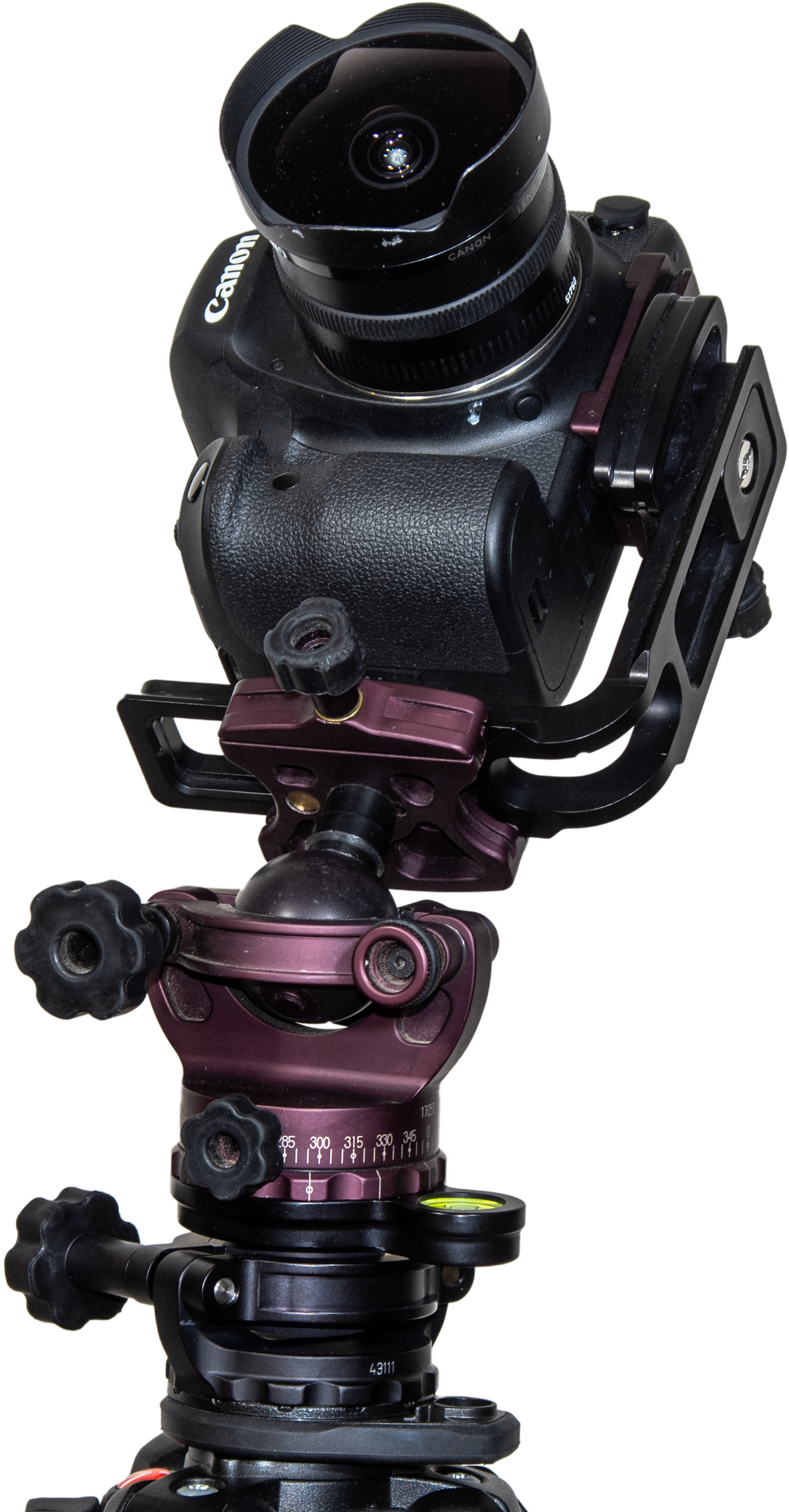
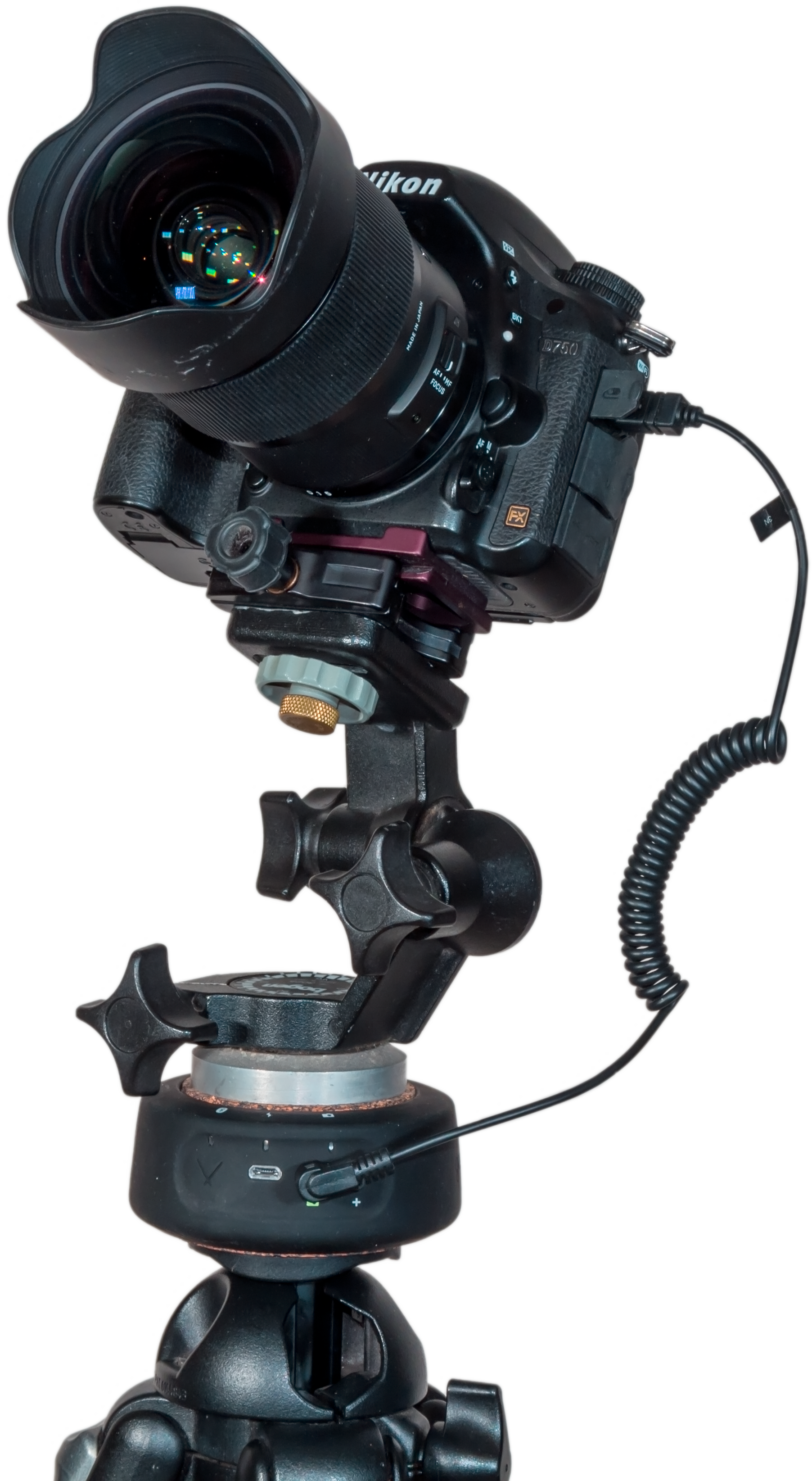
Pano Gear A tripod head with a scale marked in degrees is essential. Here it sits on a levelling head with its own bubble level that makes it easy to level the camera. An L-bracket allows the camera to rotate directly above the vertical axis, handy when shooting in portrait mode, as here with a 15mm full-frame fish-eye lens, one option for horizon-to-zenith panoramas. The tripod accessories here are by Acratech.
The tripod head can be either a ball head or a three-axis head, but it should have a horizontal axis marked with a degree scale. This allows you to move the camera at a correct and consistent angle from segment to segment. I think that’s essential.
What you don’t need is a special, and often costly, panorama head. These rotate the camera around the so-called “nodal point” inside the lens, avoiding parallax shifts that can make it difficult to align and stitch adjacent frames. Parallax shift is certainly a concern when shooting interiors or any scenes with prominent content close to the camera. However, in most nightscapes our scene content is far enough away that parallax simply isn’t an issue.
Though not a necessity, I find a levelling base a huge convenience. As I show above, this specialized ball head goes under the usual tripod head and makes it easy to level the main head. It eliminates all the fussing with trial-and-error adjustments of the length of each tripod leg.
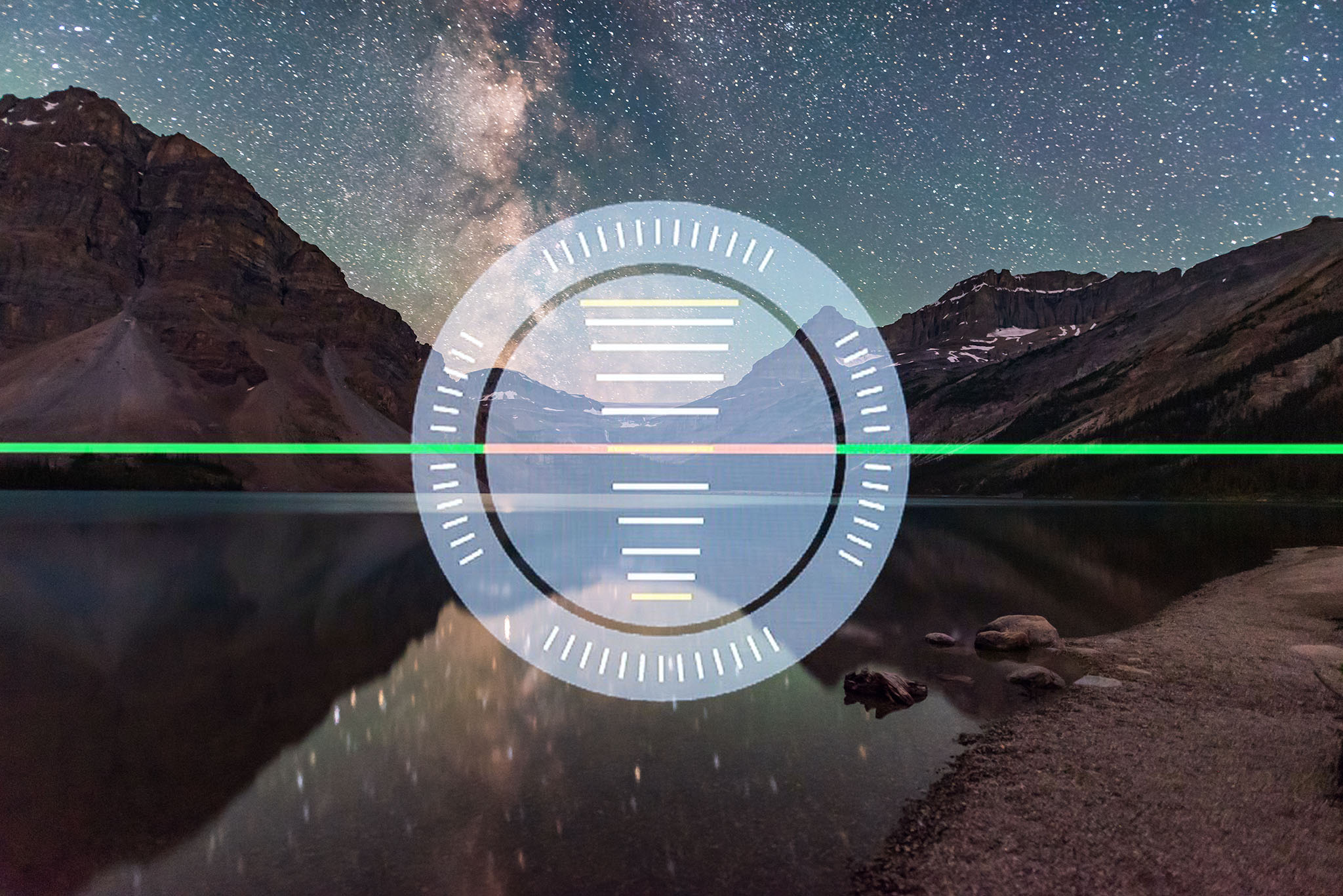
On the Level Most cameras now have an electronic level built in that is handy for ensuring the panorama does not end up tilted. This is from a Canon 6D MkII.
Then to level the camera itself, I use the electronic level now in most cameras. Or, if your camera lacks that feature, an accessory bubble level clipped into the camera’s hot shoe will work.
Having the camera level is critical. It can be tipped up, of course, but not tilted left-right. If it isn’t level the whole panorama will be off kilter, requiring excessive straightening and cropping in processing, or the horizon will wave up and down in the final stitch, perhaps causing parts of the scene to go missing.
NOTE: Click or tap on the panorama images to open a high-res version for closer inspection.
Aurora in the Winter Sky To capture this panorama I used a Sigma 14mm lens on a Nikon D750, mounted in portrait orientation with the gear shown above, to shoot eight segments 45° apart, each 13 seconds at f/2 and ISO 3200. Stitching was with Adobe Camera Raw. The aurora lies to the north at left, while Orion and the winter Milky Way are to the south at right.
Shooting Horizon Panoramas
While panoramas spanning the entire sky might be what you are after, I suggest starting simpler, with panos that take in just a portion of the 360° horizon and only a part of the 180° of the sky. These “partial panos” are great for auroras (above) or noctilucent clouds, (below), or for capturing just the core of the Milky Way over a landscape.
The key to all panorama success is overlap. Segments should overlap by 30 to 50 percent, enabling the stitching software to align the segments using the content common to adjacent frames. Contrary to some users, I’ve never found an issue with having too much overlap, where the same content is present on several frames.
Noctilucent Clouds in Summer NLCs are good panorama subjects. I captured this display on June 19, 2019 using a Sony a7III camera at ISO 400, and a Sigma 50mm lens at f/2 for a set of six segments stitched with Adobe Camera Raw
For a practical example, let’s say you shoot with a 24mm lens on a full-frame camera, or a 16mm lens on a cropped-frame camera. Both combinations yield a field of view across the long dimension of the frame of roughly 80°, and across the short dimension of the frame of about 55°.
That means if you shoot with the camera in “landscape” orientation, panning the camera by 40° between segments would provide a generous 50 percent overlap. The left half of each segment will contain the same content as the right half of the previous segment, if you take your panos by turning from left to right.
TIP: My habit is to always shoot from left to right, as that puts the segments in the correct order adjacent to each other when I view them in browser programs such as Lightroom or Adobe Bridge, with images sorted in chronological order (from first to last images in a set) as I typically prefer. But the stitching will work no matter which direction you rotate the camera.
In the example of a 24mm lens and a camera in landscape orientation you could turn at a 45° or 50° spacing and yield enough overlap. However, turning the camera at multiples of 15° is usually the most convenient, as tripod heads are often graduated with markings at 5° increments, and labeled every 15° or 30°.
Some will have coarser and perhaps unlabeled markings. If so, determine what each increment represents, then take care to move the camera consistently by the amount that will provide adequate overlap.
Moonrise over the Red Deer River Not all panoramas have to be of the Milky Way. This captures the sweeping arc of Earth’s blue shadow rising in the eastern sky as the Harvest Moon comes up amid the shadow. This is a 7-section single-tier panorama with the 20mm Sigma lens and Nikon D750 at ISO 100. It stitched fine with Adobe Camera Raw.
To maximize the coverage of the sky while still framing a good amount of foreground, a common practice is to shoot panoramas with the camera in portrait orientation. That provides more vertical but less horizontal coverage for each frame. In that case, for adequate overlap with a 24mm lens and full-frame camera shoot at 30° spacings.
TIP: When shooting a partial panorama, for example just to the south for the Milky Way, or to the north for the aurora borealis, my practice is to always shoot a segment farther to the left and another to the right of the main scene. Shoot more than you need. Those end segments can get distorted when stitching, but if they don’t contain essential content, they can be cropped out with no loss, leaving your main scene clean and undistorted.
Shooting with a longer lens, such as a 50mm (or 35mm on a cropped frame camera), will yield higher resolution in the final panorama, but you will have much less sky coverage, unless you shoot multiple tiers, as I describe below. You would also have to shoot more segments, at 15° to 20° spacings, taking longer to complete the shoot.
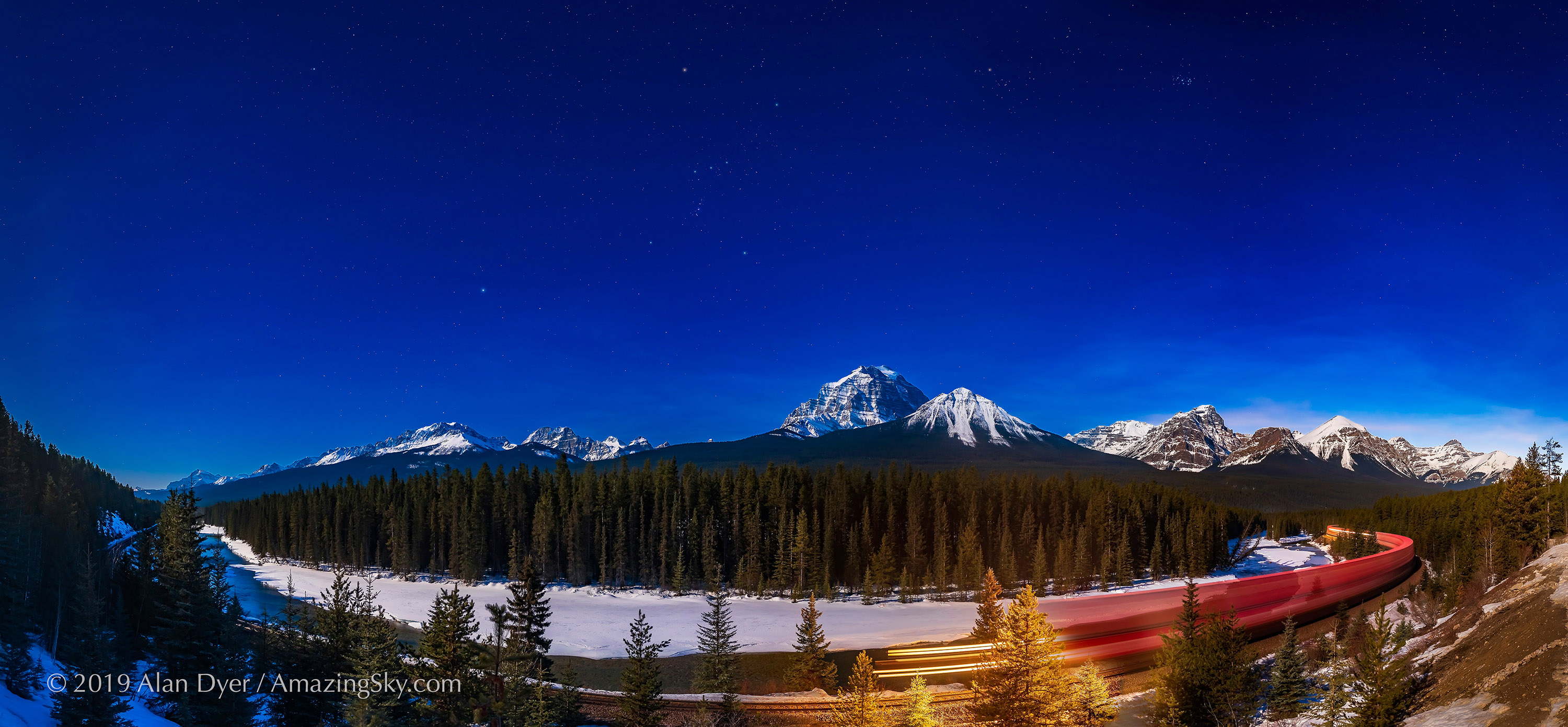
Morant’s Curve in the Moonlight Not all panoramas have to be shot under dark skies, or encompass 360°. Moonlight illuminates the famous viewpoint called Morant’s Curve in Banff National Park, with Orion setting over the peaks of the Continental Divide, as a train speeds east through the March night. This is a panorama of 12 segments, each with a 24mm Sigma lens and Nikon D750 in portrait orientation, stitched with PTGui.
As the number of segments goes up shooting fast becomes more important, to minimize how much the sky moves from segment to segment, and during each exposure itself, to aid in stitching. Remember, the sky appears to be turning from east to west, but the ground isn’t. So a prolonged shoot can cause problems later as the stitching software tries to align on either the fixed ground or the moving stars.
Panoramas on moonlit nights, as I show above, are relatively easy because exposures are short.
Milky Way over the Buffalo Jump A moonless night in early May was perfect for a panorama of the Milky Way arching over the Badlands of Dry Island Buffalo Jump in Alberta. This is a multi-tier panorama of 3 tiers of 7 segments each, with exposures of 30 seconds at f/2 with a 20mm Sigma Art lens and Nikon D750 at ISO 6400.
Milky Way panoramas taken on dark, moonless nights are tougher. They require fast apertures (f/2 to f/2.8) and high ISOs (ISO 3200 to 6400), to keep individual exposures no more than 30 to 40 seconds long.
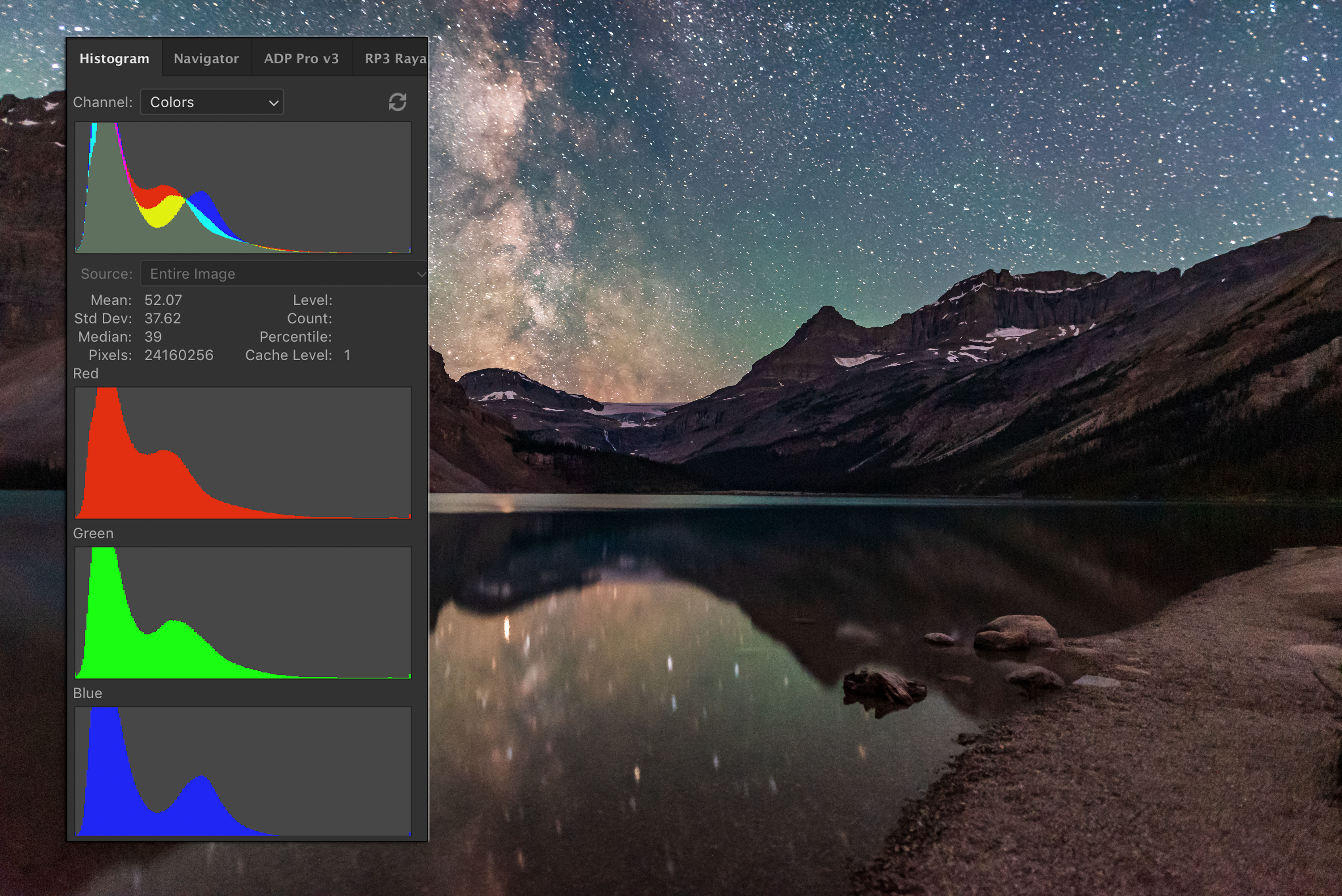
Expose to the Right Minimize noise in the shadows by exposing so the histogram is shifted to the right, and not slammed to the left. Underexposure is the most common cardinal sin of newbie nightscape photographers.
Noise lives in the dark foregrounds, so I find it best to err on the side of overexposure, to ensure adequate exposure for the ground, even if it means the sky is bright and the stars slightly trailed. It’s the “Expose to the Right” philosophy I espouse at length in my eBook.
Advanced users can try shooting in two passes: one at a low ISO and with a long exposure for the fixed ground, and another pass at a higher ISO and a shorter exposure for the moving sky. But assembling such a set will take some deft work in Photoshop to align and mask the two stitched panos. None of the examples here are “double exposures.”
Shooting 360° Panoramas
Milky Way at Waterton Lakes While covering 360° in azimuth, this panorama from July 2018 goes only partway up the sky, to capture the Milky Way core to the south and the solstice twilight glow to the north. This is a 10-segment panorama, with each segment 30 seconds at f/2 with a Sigma 24mm Art lens and Nikon D750 at ISO 6400. Adobe Camera Raw stitched this nicely.
More demanding than partial panoramas are full 360° panoramas, as above. Here I find it is best to start the sequence with the camera aimed toward the celestial pole (to the north in the northern hemisphere, or to the south in the southern hemisphere). That places the area of sky that moves the least over time at the two ends of the panorama, again making it easier for software to align segments, with the two ends taken farthest apart in time meeting up in space.
In our 24mm lens example, to cover the entire 360° scene shooting with a 45° spacing would require at least eight images (8 x 45 = 360). I used 10 above. Using that same lens with the camera in portrait orientation will require at least 12 segments to cover the entire 360° landscape.
Shooting 360° by 180° Panoramas
Capturing STEVE This 360° panorama captures the infamous STEVE auroral arc across the south, with a normal auroral display to the north at right. This was from six segments, each 10 seconds at ISO 2500, with a Sigma 14mm lens at f/1.8 and Nikon D750 in portrait orientation.
More demanding still are 360° panoramas that encompass the entire sky, from the ground below the horizon to the zenith overhead. Above is an example.
To do that with a single row of images requires shooting in portrait orientation with a very wide 14mm rectilinear lens on a full-frame camera. That combination has a field of view of about 100° across the long dimension of the sensor.
That sounds generous, but reaching up to the zenith at an altitude of 90° means only a small portion of the landscape will be included along the bottom of the frame.
To provide an even wider field of view to take in more ground, I use full-frame fish-eye lenses on my full-frame cameras, such as Canon’s old 15mm lens (as shown at top) or Rokinon’s 12mm. Even a circular-format fish-eye will work, such as an 8mm on a full-frame camera or 4.5mm on a cropped-frame camera.
All such fish-eye lenses produce curved horizons, but they take in a wide swath of sky, making it possible to include lots of foreground while reaching well past the zenith. Conventional panorama assembly programs won’t work with such wide and distorted segments, but the specialized programs described below will.
Shooting Multi-Tier Panoramas
Bow Lake by Night The summer Milky Way arches over iconic Bow Lake in Banff on a perfect night in July 2018. This is a stitch, using PTGui, of three tiers of 7 segments each, with a 20mm Sigma lens and Nikon D750, with a Genie Mini automating the horizontal panning and shutter release, as shown above. Each frame was 30 seconds at f/2 and ISO 6400. I used this same set to test the programs described below.
The alternative technique for “all-sky” panos is to shoot multiple tiers of images: first, a lower row covering the ground and partway up the sky, followed by an upper row completing the coverage of just the sky at top.
The trick is to ensure adequate overlap both horizontally and vertically. With the camera in landscape orientation that will require a 20mm lens for full-frame cameras, or a 14mm lens for cropped-frame cameras. Either combination can cover the entire sky plus lots of foreground in two tiers, though I usually shoot three, just to be sure!.
Shooting with longer lenses provides incredible resolution for billboard-sized “gigapan” blow-ups, but will require shooting three, if not more, tiers, each with many segments. That starts to become a chore to do manually. Some motorized assistance really helps when shooting multi-tier panoramas.
Automating the Pan Shooting
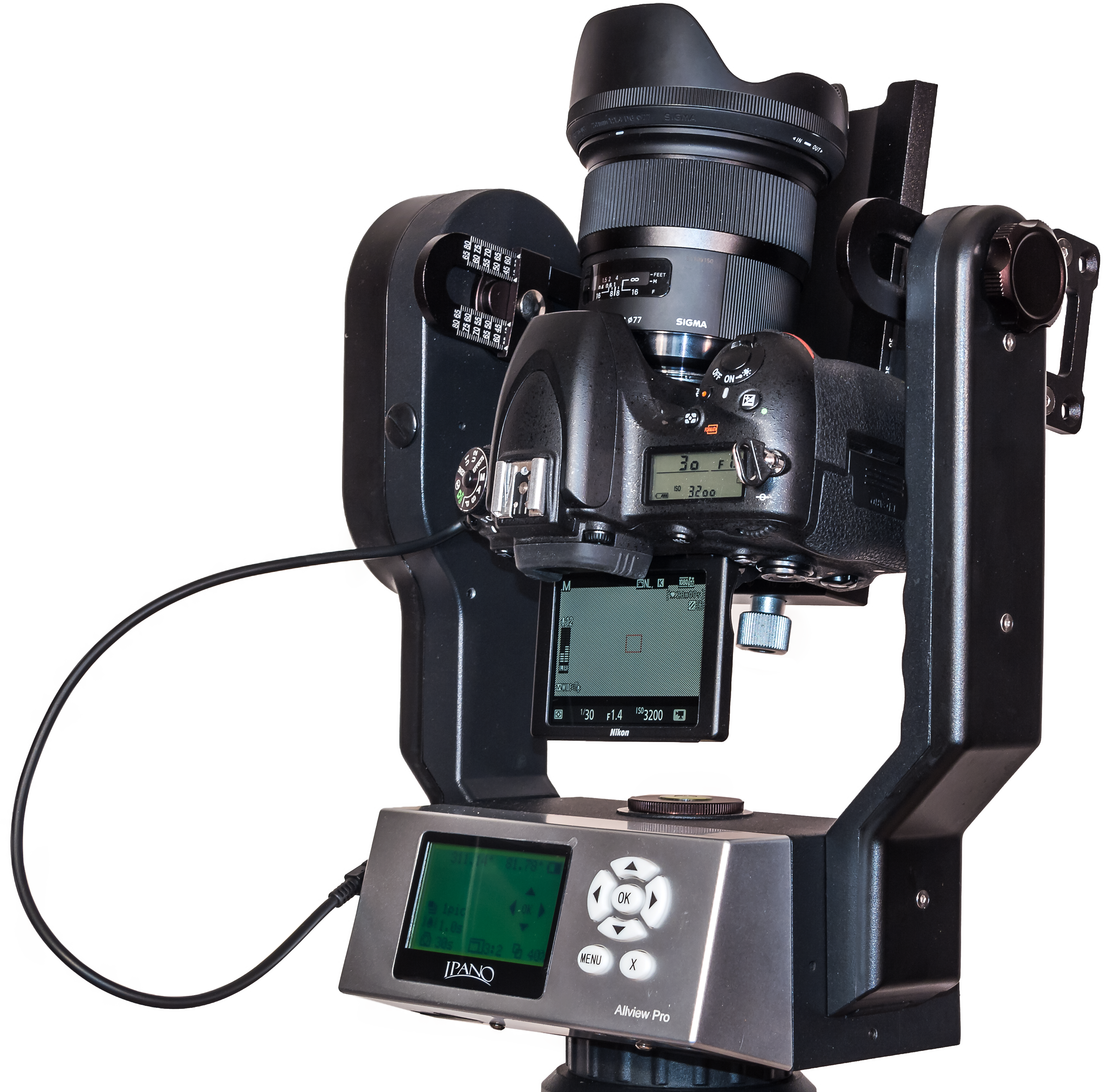
The dedicated pano shooter might want to look at a device such as the GigaPan Epic models or the iOptron iPano, (shown below), all about $800 to $1000.
iPano Panorama Machine The iOptron iPano automates all shooting and movement, making even the most complex panoramas easy to shoot. It can also be used for two-axis motion-control time-lapses.
I’ve tested the latter and it works great. You program in the lens, overlap, and angular sweep desired. The iPano works out how many segments and tiers will be required, and automates the shooting, firing the shutter for the duration you program, then moving to the new position, firing again, and so on. I’ve shot four-tier panos effortlessly and with great success.
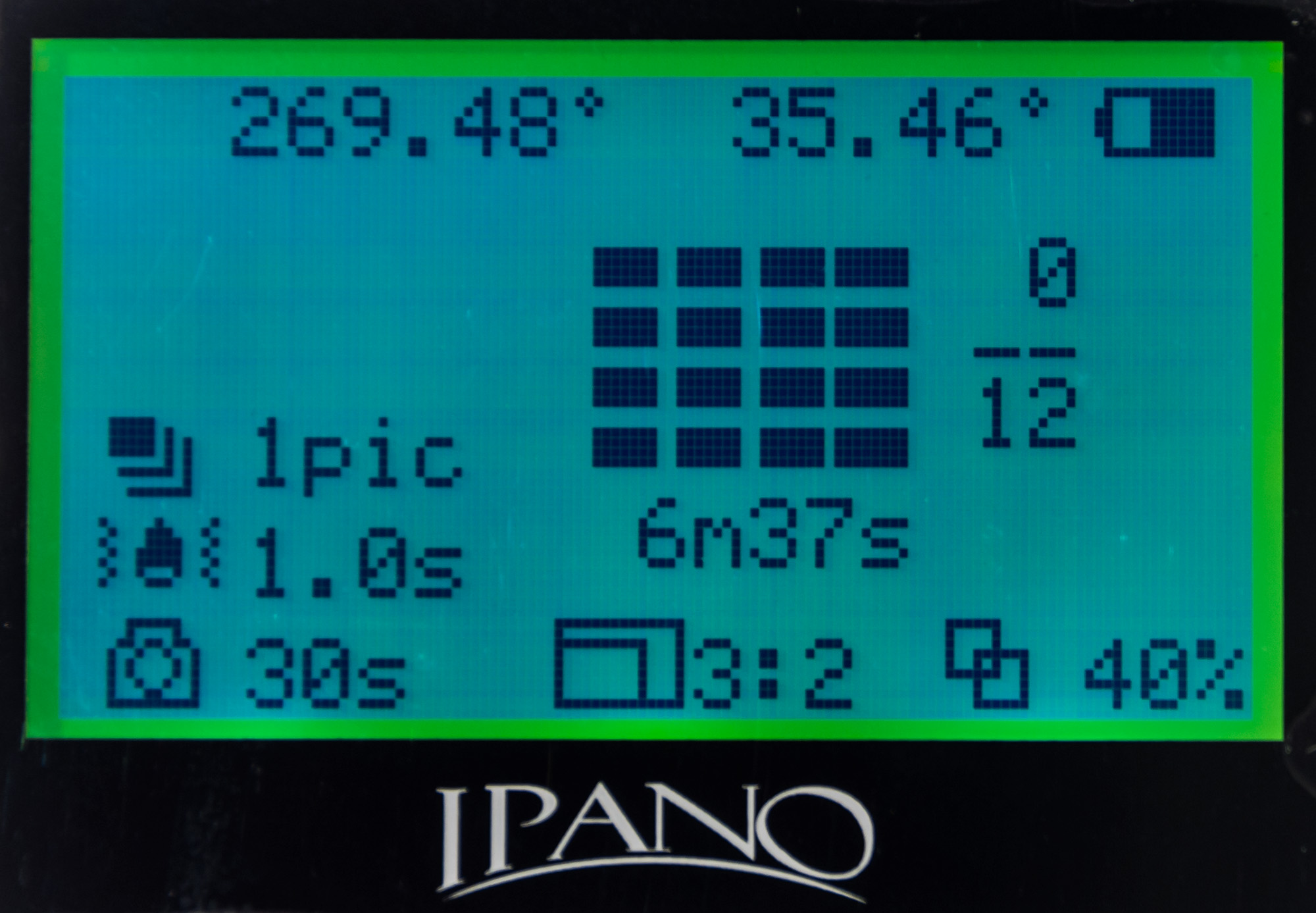
iPano Control The iPano’s on-board screen provides all the menus and options for setting up a shoot. This screen shows that this multi-tier pano will take 6m37s to complete.
However, these devices are generally bigger and heavier than I care to heft around in the field.
Instead, I use the original Genie Mini from SYRP, (below), a $250 device primarily for shooting motion control time-lapses. But the wireless app that programs the Genie also has a panorama function that automatically slews the camera horizontally between exposures, again based on the lens, overlap, and angular sweep you enter. The just-introduced Genie Mini II is similar, but with even more capabilities for camera control.
The SYRP Genie Mini A lower-cost option for automated shooting, the Genie Mini also provides time-lapse motion control. Here, I show it with a conventional 3-axis head on top, for shifting the camera up in altitude manually for multi-tier panos, while the Mini handles the horizontal motion and exposures.
While combining two Genie Minis allows programming in a vertical motion as well, I’ve been using just a regular tripod head atop the Mini to manually move the camera vertically between each of the horizontal tiers. I don’t feel the one or two moves needed to go from tier to tier too arduous to do manually, and I like to keep my field gear compact and easy to use.
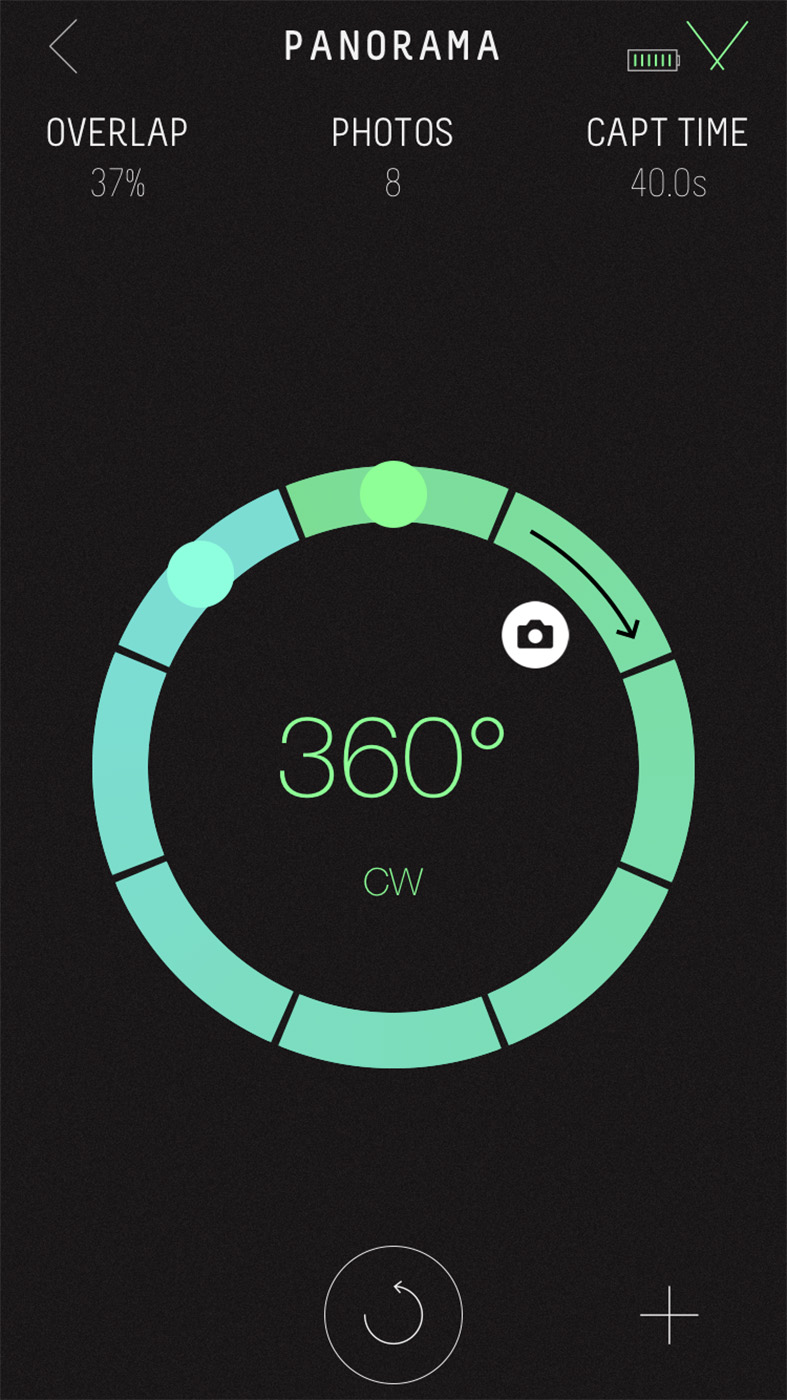
Wireless Control The original Genie App (Apple iOS or Android) connects to the Genie via Bluetooth. This screen shows a 360° panorama programmed for a 20mm lens with 37% percent overlap, requiring eight segments. The shutter will fire after each move for 40 seconds.
The Genie Mini (now replaced by the Mini II) works great and I highly recommend it, even if panoramas are your only interest. But it is also one of the best, yet most affordable, single-axis motion control devices on the market for time-lapse work.
When to Shoot the Milky Way
While the right gear and techniques are important, go out on the wrong night and you won’t be able to capture the Milky Way as the great sweeping arch you might have hoped for.
In the northern hemisphere the Milky Way arches directly overhead from late July to October for most of the night. That’s fine for spherical fish-eye panoramas, but in rectangular images when the Milky Way is overhead it gets stretched and distorted across the top of the final panorama. For example, in the Bow Lake by Night panorama above, I cropped out most of this distorted content.
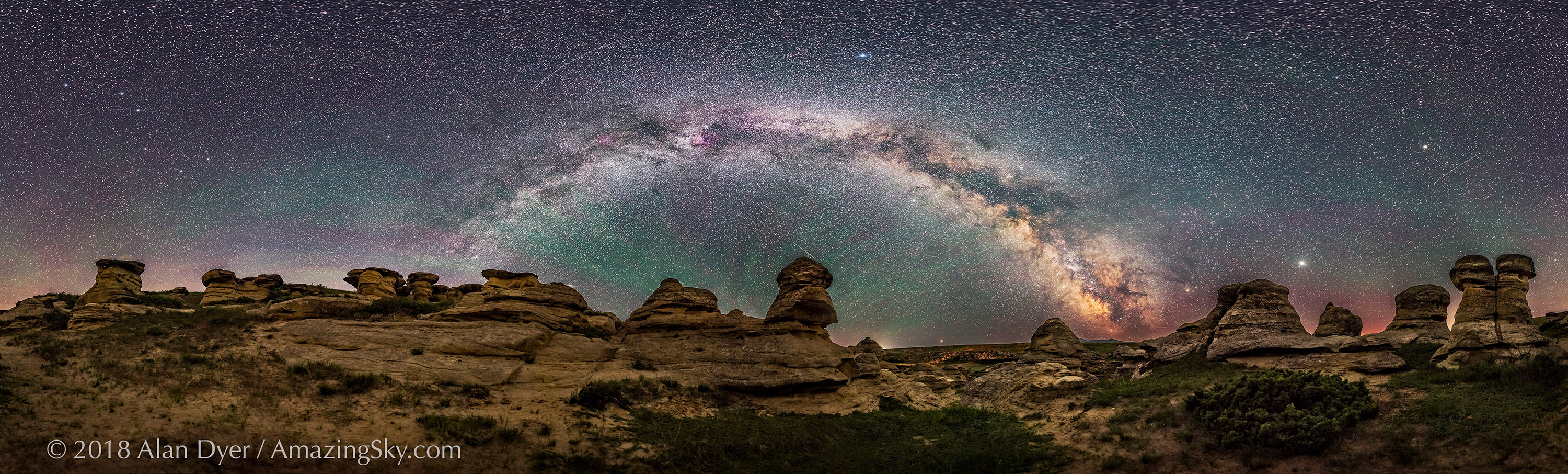
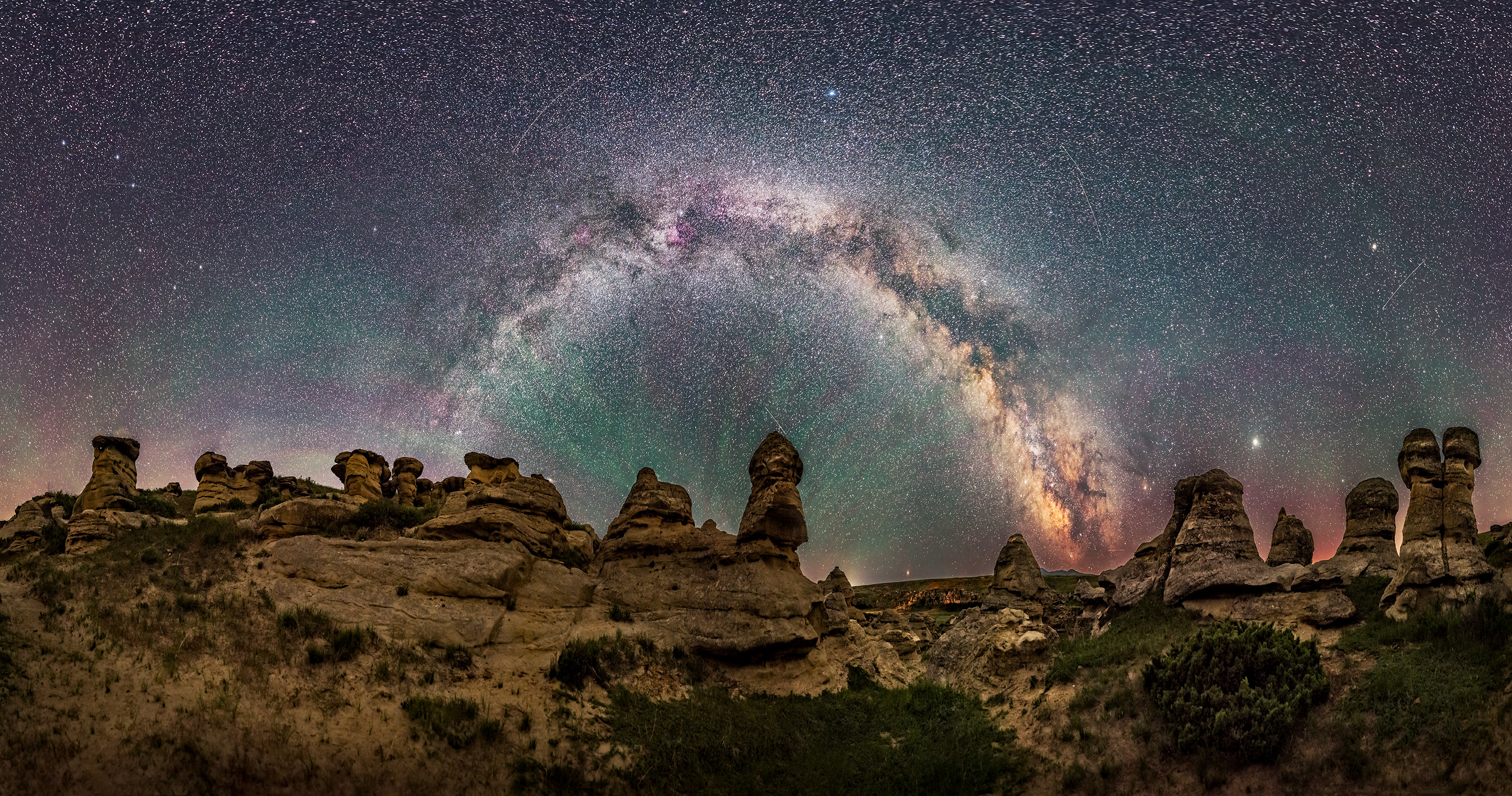
Capturing the Arch I captured this 360° pano of the summer Milky Way arching over the sandstone formations of Writing-on-Stone Provincial Park in southern Alberta in early June 2018. At that time of year the Milky Way is still confined to the eastern sky. This is a 21-panel panorama, shot in three tiers of seven panels each, with the Nikon D750 and Sigma 20mm Art lens on the Genie Mini, with each segment 30 seconds at f/2 and ISO 6400.
The prime season for Milky Way arches is therefore before the Milky Way climbs overhead, while it is still across the eastern sky, as above. That’s on moonless nights from March to early July, with May and June best for catching it in the evening, and not having to wait up until dawn, as is the case in early spring.
Simulating the Scene I often use Starry Night™ (shown here) to simulate the sky for the place and date I want, to preview where and when the Milky Way will appear and how it will move. The red box shows the field of view of a rectilinear 14mm lens in portrait orientation, showing it covering from the zenith (at top) to just below the horizon.
TIP: The best way to figure out when and where the Milky Way will appear is to use a desktop planetarium program such as Starry Night or Sky Safari or the free Stellarium. All can realistically depict the Milky Way for your location and date. You can then step through time to see how the Milky Way will move through the night, and how it will frame with your camera and lens combination using the “field of view” indicators the programs provide.
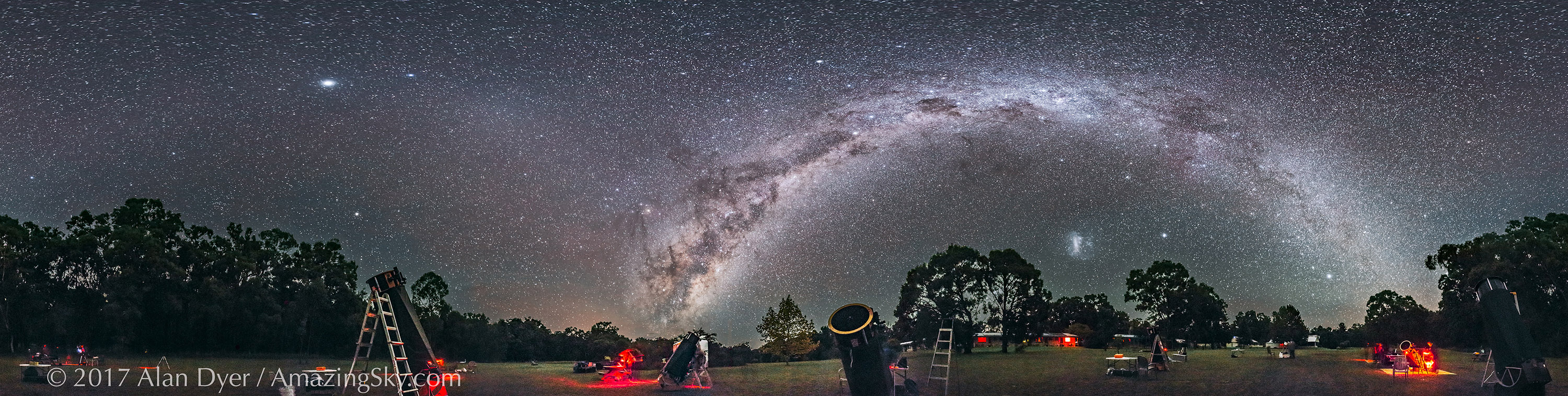
The Great Southern Sky A 360° panorama from April 2017 captures the arc of the southern Milky Way over the OzSky star party near Coonabarabran, NSW, Australia. This is 8 segments, each 30 seconds at ISO 6400 and f/2.5 with a Rokinon 14mm lens on a Canon 6D in portrait orientation, and stitched with PTGui.
When shooting in the southern hemisphere I like the April to June period for catching the sweep of the southern Milky Way and the galactic core rising in late evening. By contrast, during mid austral winter in July and August the galactic centre shines directly overhead in the evening, a spectacular sight to be sure, but tough to capture in a panorama except in a spherical or fish-eye scene.
The Other Milky Way This 360° panorama, shot in a single tier with a 14mm Sigma lens and Nikon D750 in portrait orientation, captures the winter Milky Way arching across the western sky on an early spring night at Dinosaur Provincial Park in Alberta. Also in the pano is the sweep of the faint Zodiacal Light. This is a stitch, using PTGui, of 12 segments, each 30 seconds at f/2.8 and ISO 4000.
That said, I always like to put in a good word for the often sadly neglected winter Milky Way (the summer Milky Way for those “down under”). While lacking the spectacle of the galactic core in Sagittarius, the “other” Milky Way has its attractions such as Orion and Taurus. The best months for a panorama with that Milky Way in an arch across a rectangular frame are January to March. The Zodiacal Light can be a bonus at that season, as it was above.
TIP: Always shoot raw files for the widest dynamic range and flexibility in recovering details in the highlights and shadows. Even so, each segment has to be well exposed and focused out in the field.
And unless you are doing a “two-pass” double exposure, always shoot each segment with identical exposure settings. This is especially critical for bright sky scenes such twilights or moonlit scenes. Vary the exposure and you might get unsightly banding at the seams.
There’s nothing worse than getting home only to find one or more segments was missed, or was out of focus or badly exposed, spoiling the set.
PART 2 — STITCHING
Developing Panorama Segments
Once you have your panorama segments, the next step is to develop and assemble them. For my workflow, the process of assembling a panorama from its constituent segments begins with developing each of those segments identically.
NOTE: Click or tap on the software screen shots to open a high-res version for closer inspection.
Developing with Adobe Camera Raw This shows one segment of the multi-tier example before (on the left) and after applying development settings in the Basic panel of Adobe Camera Raw. By selecting all the images, the Sync Settings command (at top left) will apply the settings of one image to the rest of the set.
I like to develop each segment’s raw file as fully as possible at this first stage in the workflow, applying noise reduction, colour correction, contrast adjustments, shadow and highlight recovery, and any special settings such as dehaze and clarity that can make the Milky Way pop.
I also apply lens corrections to each raw image. While some feel doing so produces problems with stitching later on, I’ve never found that. I prefer to have each frame with minimal vignetting and distortion when going into stitching. I use Adobe Camera Raw out of Adobe Bridge, but Lightroom Classic has identical functions.
There are several other raw developers that can work well at this stage. In other tests I’ve conducted, Capture One and DxO PhotoLab stand out as producing good results on nightscapes. See my blog from 2017 for more on software choices.
Developing with DxO Among a host of programs competing with Adobe, DxO PhotoLab does a good job developing raw files, with the ability to copy and paste settings from one image to many. It has excellent noise reduction and shadow detail recovery. However, it cannot layer images.
The key is developing each raw file identically, usually by working on one segment, then copying and pasting its settings to all the others in a set. Not all raw developers have this “Copy Settings” function. For example, Affinity Photo does not. It works very well as a layer-based editor to replace Photoshop, but is crude in its raw developing “Persona” functions.
While panorama stitching software will apply corrections to smooth out image-to-image variations, I find it is best to ensure all the segments look as similar as possible at the raw stage for brightness, contrast, and colour correction.
Do be aware that among social media groups and chat rooms devoted to nightscape imaging a lot of myth and misinformation abounds about how to process and stitch panoramas, and why some don’t work. Someone having a problem with a particular pano will ask why, and get ten different answers from well-meaning helpers, most of them wrong!
Stitching Simple Panoramas
For example, if your segments don’t join well it likely isn’t because you needed to use a panorama head (one oft-heard bit of advice). I never do. The issue is usually a lack of sufficient overlap. Or perhaps the image content moved too much from frame to frame as the photographer took too long to shoot the set.
Or, even when quickly-shot segments do have lots of overlap, stitching software can still get confused if adjoining segments contain featureless content or content that changes, such as segments over rippling water with no identifiable “landmarks” for the software to latch onto.
The primary problems, however, arise from using software that just isn’t up to the task. Programs that work great on simple panoramas (as the next three examples show) will fail when trying to stitch a more demanding set of segments.
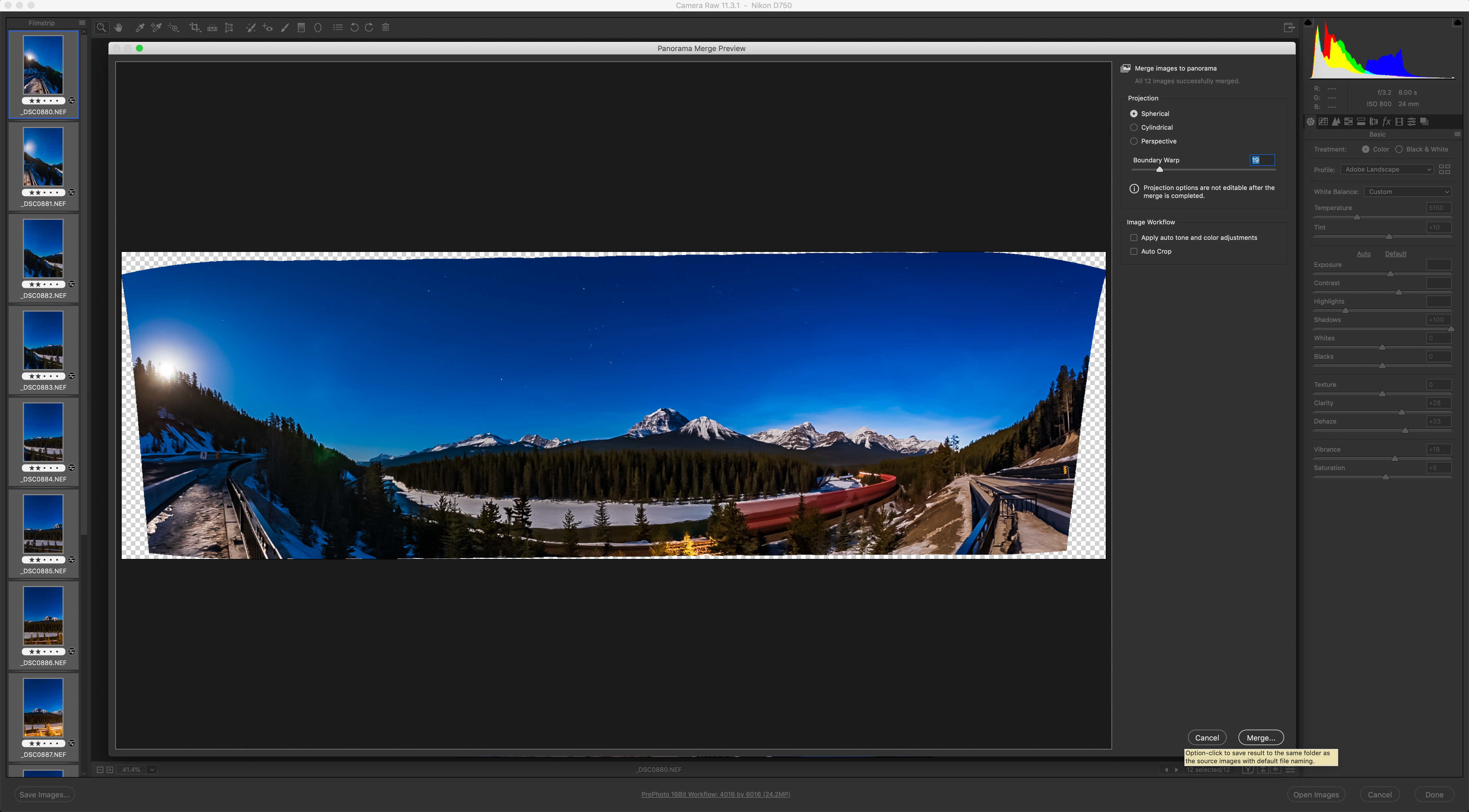
Stitching with Adobe Camera Raw The panorama function in all recent versions of Adobe Camera Raw (Lightroom Classic has the same feature) can do a superb job on simple panoramas, such as the moonlit Morant’s Curve pano, with the magical Boundary Warp option allowing you to fill the frame without cropping and losing content.
For example, for partial horizon panos shot with 20mm to 50mm lenses, I’ll use the panorama function now built into Adobe Camera Raw (ACR) and Adobe Lightroom Classic, and also in the mobile-friendly Lightroom app. As I show above, ACR can do a wonderful job, yielding a raw DNG file that can continue to be edited non-destructively. It’s by far the easiest and fastest option, and is my first choice.
Another choice, not shown here, is the Photomerge function from within Photoshop, which yields a layered and masked master file, and provides the option for “content-aware” filling of missing areas. It can sometimes work on panos that ACR balks at.
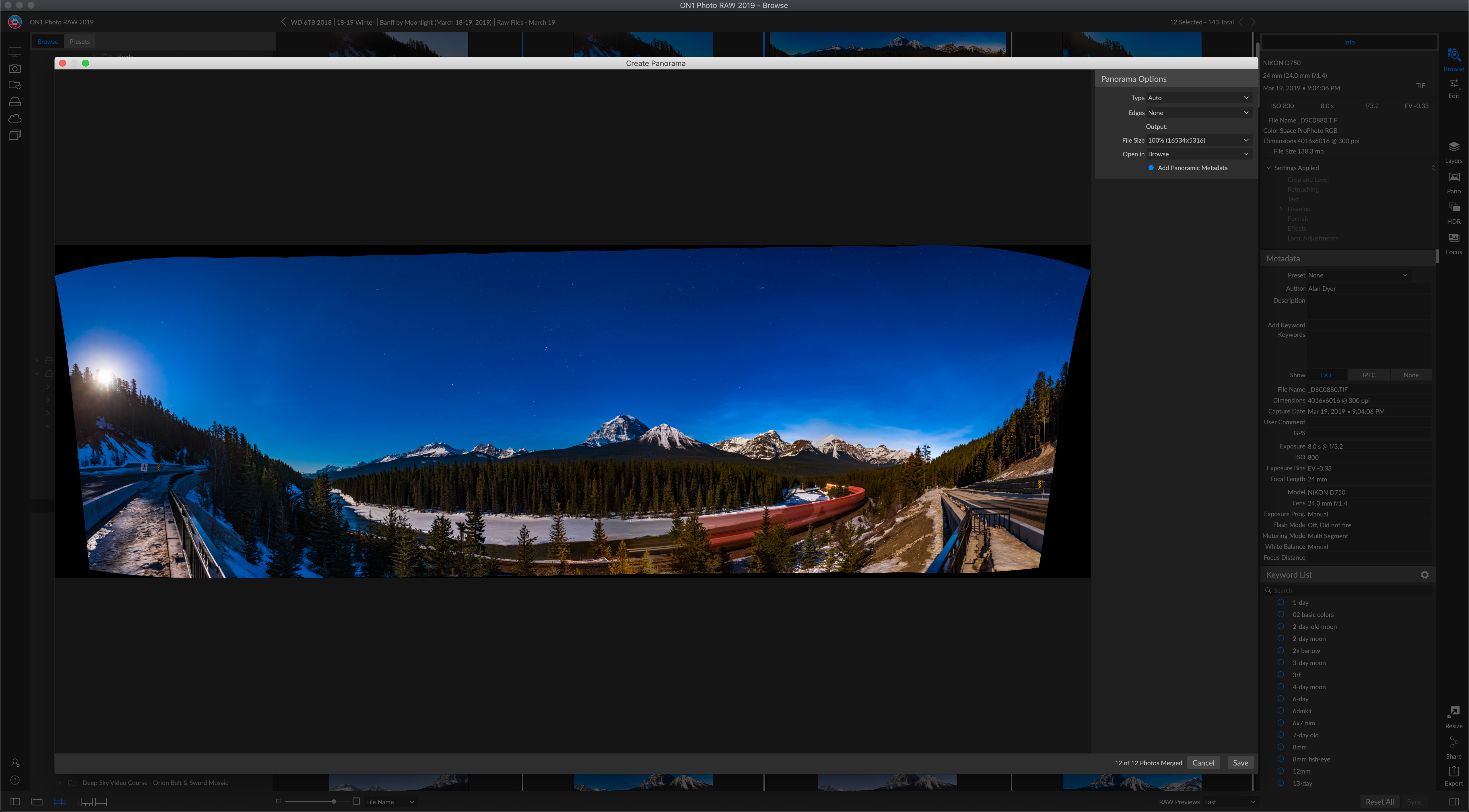
Stitching with ON1 PhotoRAW The Adobe competitor ON1 PhotoRAW also provides a good panorama stitching feature that can work with both simple and many multi-tier panos. It provides a flattened result, even when exporting as a .PSD Photoshop file.
Two programs popular as Adobe alternatives, ON1 PhotoRAW (above) and the aforementioned Affinity Photo (below), also have very capable panorama stitching functions.
However, in testing both programs with the demanding Bow Lake multi-tier panorama I used below with other programs, ON1 2019.5 did an acceptable job, while Affinity 1.7 failed. It works best on simpler panoramas, like this partial scene with a 24mm lens.
Stitching with Affinity Photo Another program vying to unseat Adobe products is Affinity Photo. It, too, does a fine job on simple panos, but tends to fail on multi-tier panoramas. There is no choice of panorama projections or option to export a layered master.
Even if they succeed when stitching 360° panoramas, such general-purpose editing programs, Adobe’s included, provide no option for choosing how the final scene gets framed. You have no control over where the program puts the ends of the scene.
Or the program just fails, producing a result like this.
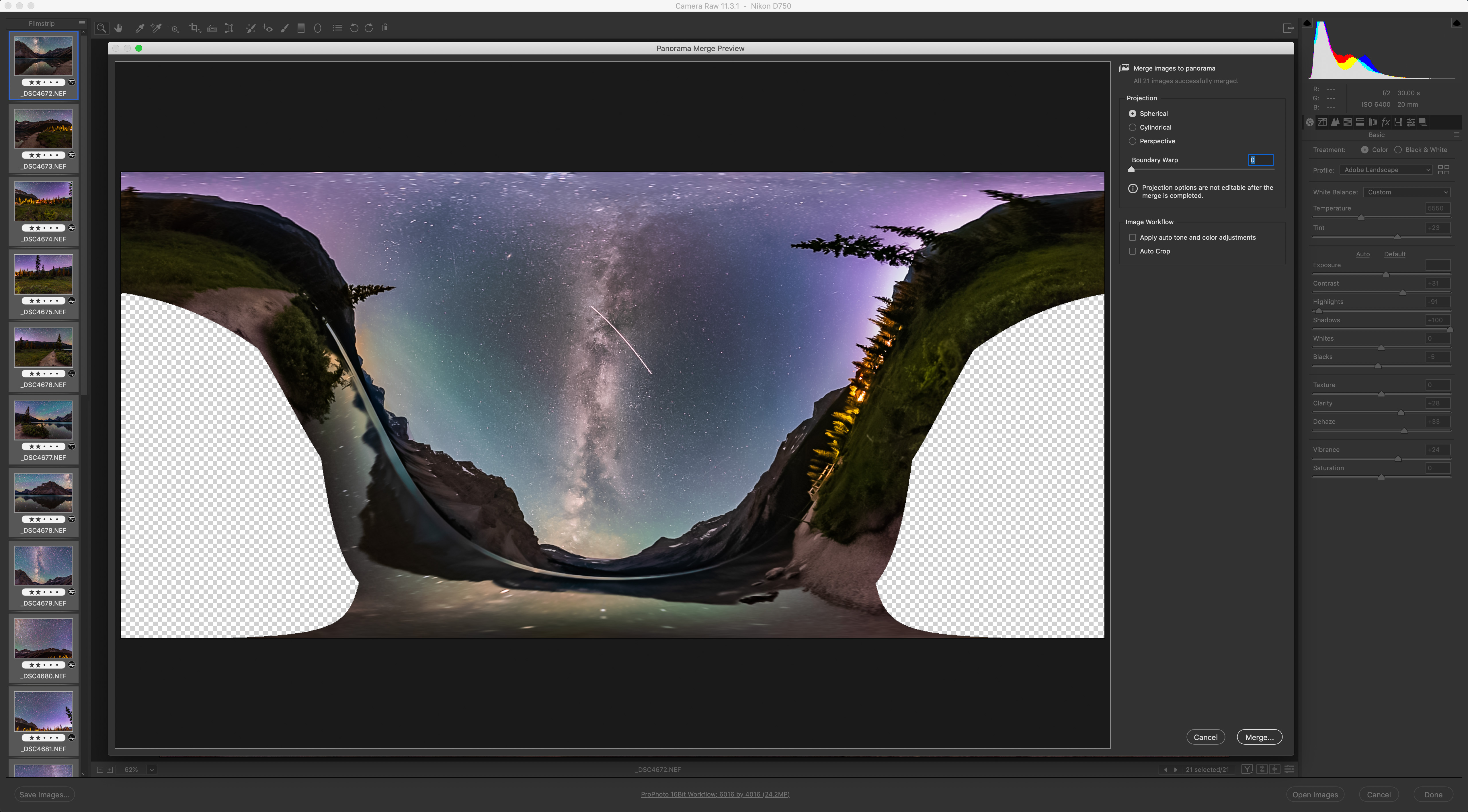
When Stitching Goes Awry Throw a multi-tier pano at Adobe Camera Raw and you might end up with this type of unsalvageable result. Here’s where you have to turn to specialized panorama software
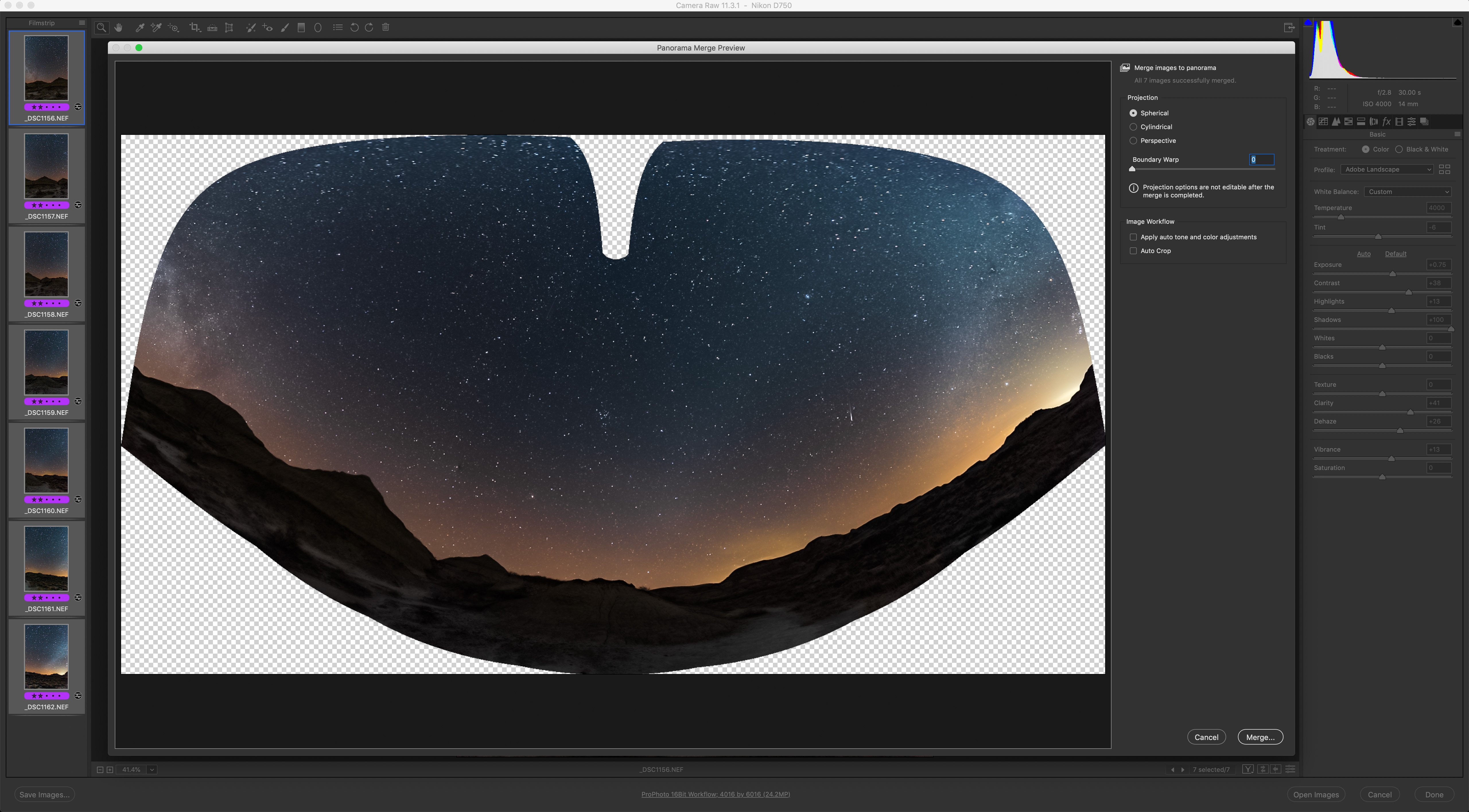
Warp Factor Even single-tier panos but shot with 14mm rectilinear (in this case) or fish-eye lenses will create warped results with ACR, only partly correctable with Boundary Warp.
Far worse is that multi-tier panoramas or, as I show above, even single-tier panos shot with very wide lenses, will often completely befuddle your favourite editing software, with it either refusing to perform the stitch or producing bizarre results.
Some photographers attempt to correct such wild distortions with lots of ad hoc adjustments with image-warping filters. But that’s completely unnecessary if you use the right software to begin with.
Stitching Complex Panoramas
When conventional software fails, I turn to the dedicated stitching program PTGui, $150 for MacOS or Windows. The name comes from “Panorama Tools – Graphical User Interface.”
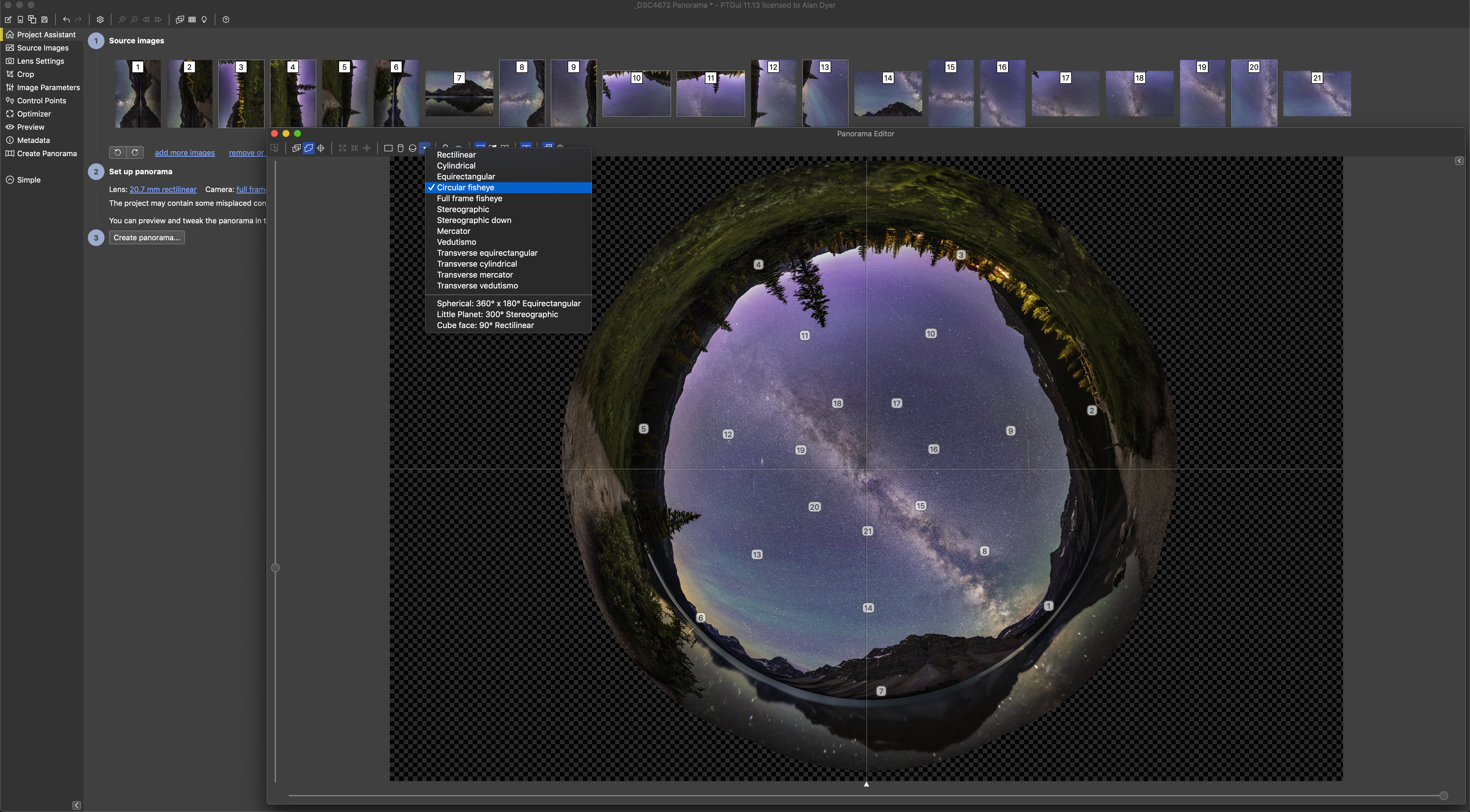
Stitching with PTGui PTGui handles whatever complexity of panorama you can throw at it, either single or multi-tier (in this example), offering an accurate preview, a choice of projection modes (this is “equirectangular”), and the ability to quickly move the pano around to frame it as you like before exporting either a flattened or a layered master.
While PTGui can read raw files from most cameras, it will not read any of the development adjustments you made to those files using Lightroom, Camera Raw, or any other raw developers.
So, my workflow is to develop all the raw segments, export them out as 16-bit TIFFs, then import those into PTGui. It can detect what lens was used to take the images, information PTGui needs to stitch accurately. If you used a manual lens you can enter the lens focal length and type (rectilinear or fish-eye) yourself.
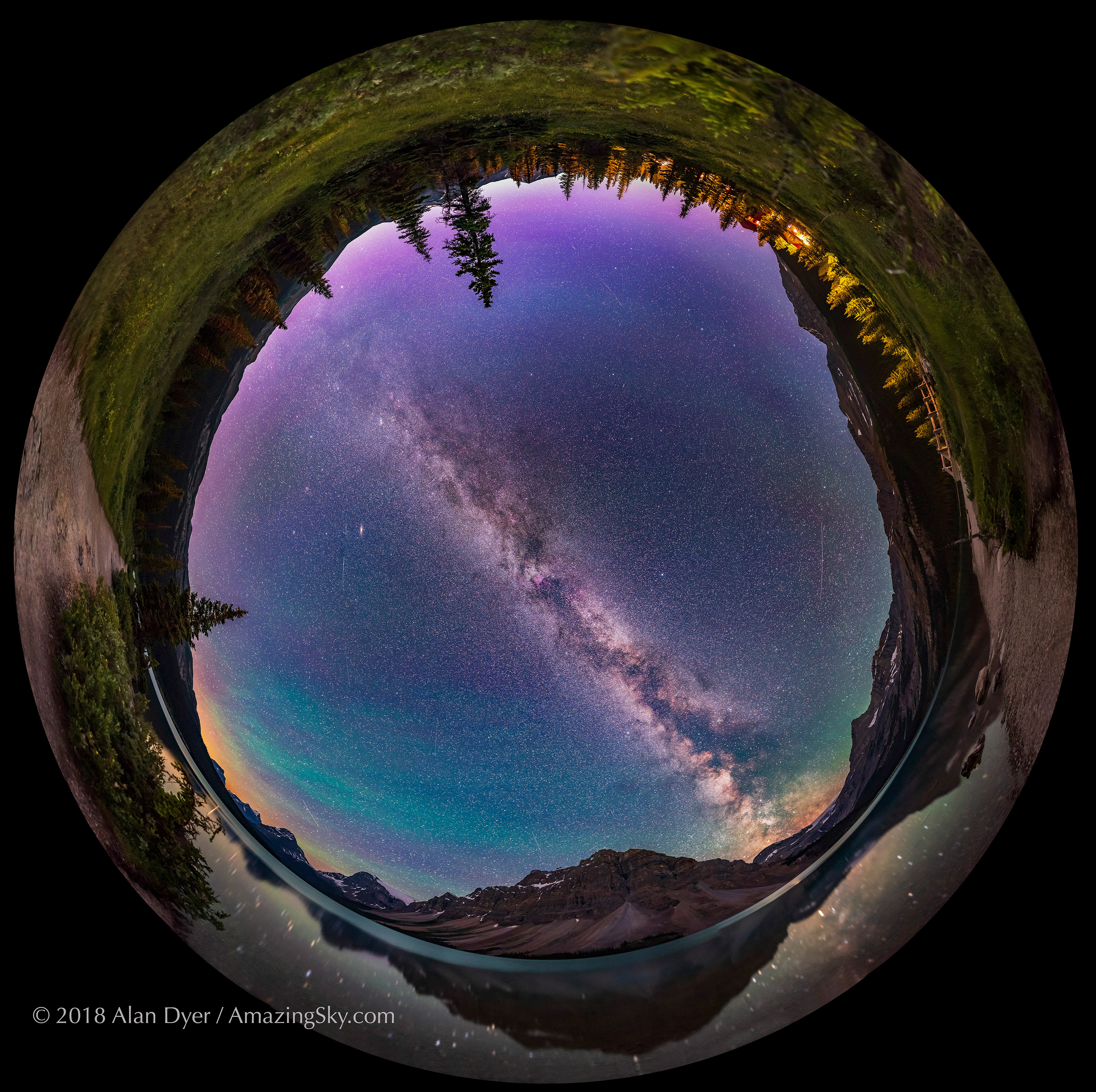
Spherical Scene with PTGui PTGui makes it easy to re-project the same set of images into other map projections, in this case as a circular fish-eye scene which can be rotated as desired.
I include a full tutorial on using PTGui in my eBook linked to above, but suffice to say that the program usually does a superb job first time and very quickly. You can drag the panorama around to frame the scene as you like, and change the projection at will to create rectangular or spherical format images, as above, and even so-called “little planet” projections that appear as if you were looking down at the scene from space.
Occasionally PTGui complains about some frames, requiring you to manually intervene to pick the same stars or horizon features in adjacent frames to provide enough matching alignment points until it is happy. Its interface also leaves something to be desired, with essential floating windows disappearing behind other mostly blank panels.
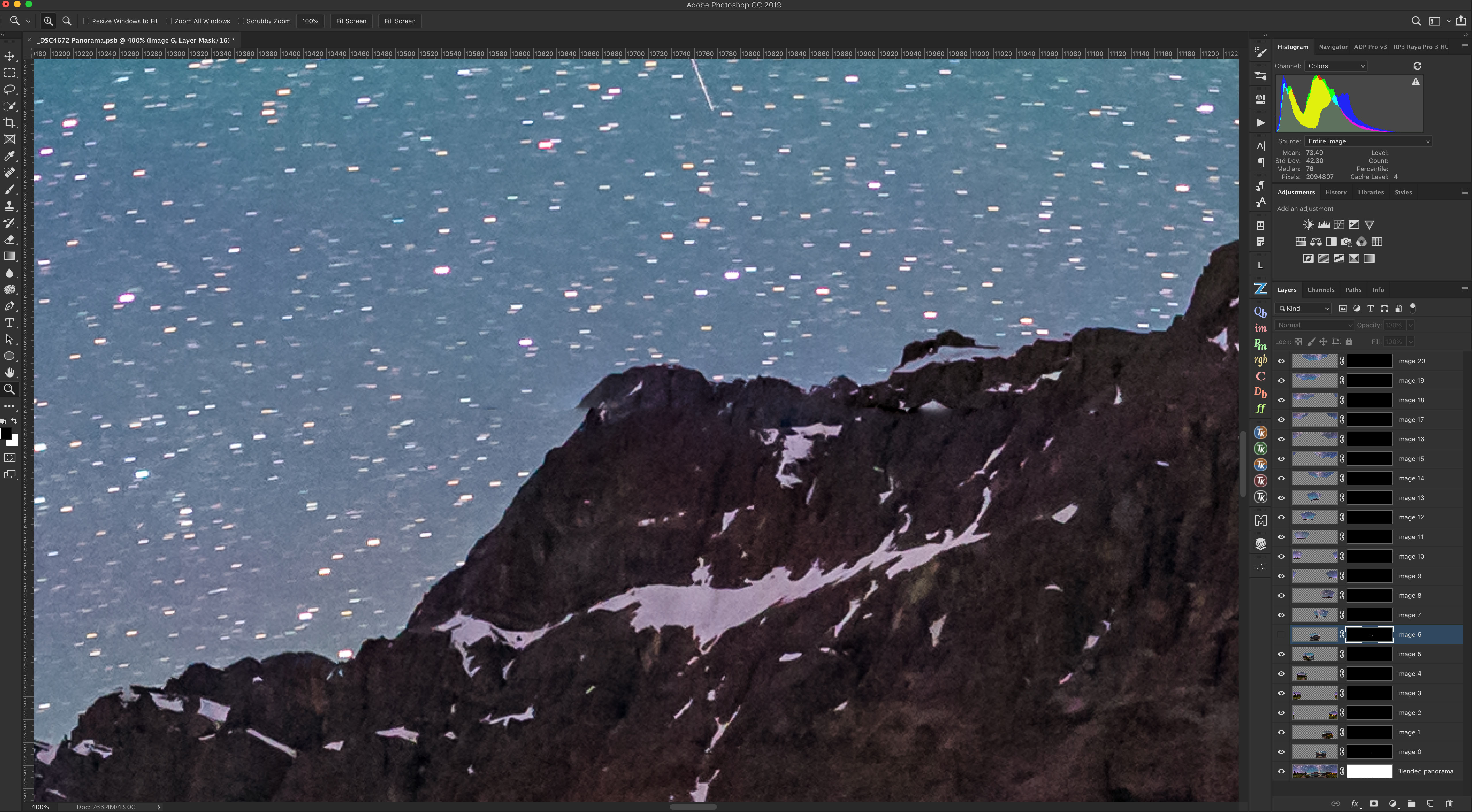
Adjusting Layers The layered output from PTGui produces a massive image but one that allows fine adjustments to the masks (by using a white paint brush) to correct mismatches like we see see here along the mountain peak.
When exporting the finished panorama I usually choose to export it as a layered 16-bit Photoshop .PSD or, with big panos, as a Photoshop .PSB “big” document.
The reason is that in aligning the moving stars PTGui (indeed, all programs) can produce a few “fault lines” along the horizon, requiring a manual touch up to the masks to clean up mismatched horizon content, as I show above. Having a layered and masked master makes this easy to do non-destructively, though that’s best done in Photoshop.
Opening with Affinity Affinity Photo is one of the few non-Adobe programs that can open large Photoshop .PSB files, and honour the layers, keeping them and the masks that PTGui exports intact.
However, Affinity Photo (above) can also read layered .PSD and .PSB Photoshop files, preserving the layers. By comparison, ON1 PhotoRAW flattens layered Photoshop files when it imports them, one deficiency that prevents this program from being a true Photoshop alternative.
Compressing the Milky Way A common final step is to compress the long dimension of the image to change its aspect ratio to one better suited to publication. But doing so highly distorts the grand sweep of the Milky Way.
Once a 360° panorama is in a program like Photoshop, some photographers like to “squish” the panorama horizontally to make it more square, for ease of printing and publication. I prefer not to do that, as it makes the Milky Way look overly tall, distorted, and in my opinion, ugly. But each to their own style.
You can test out a limited trial version of PTGui for free, but I think it is worth the cost as an essential tool for panorama devotees.
Other Stitching Options
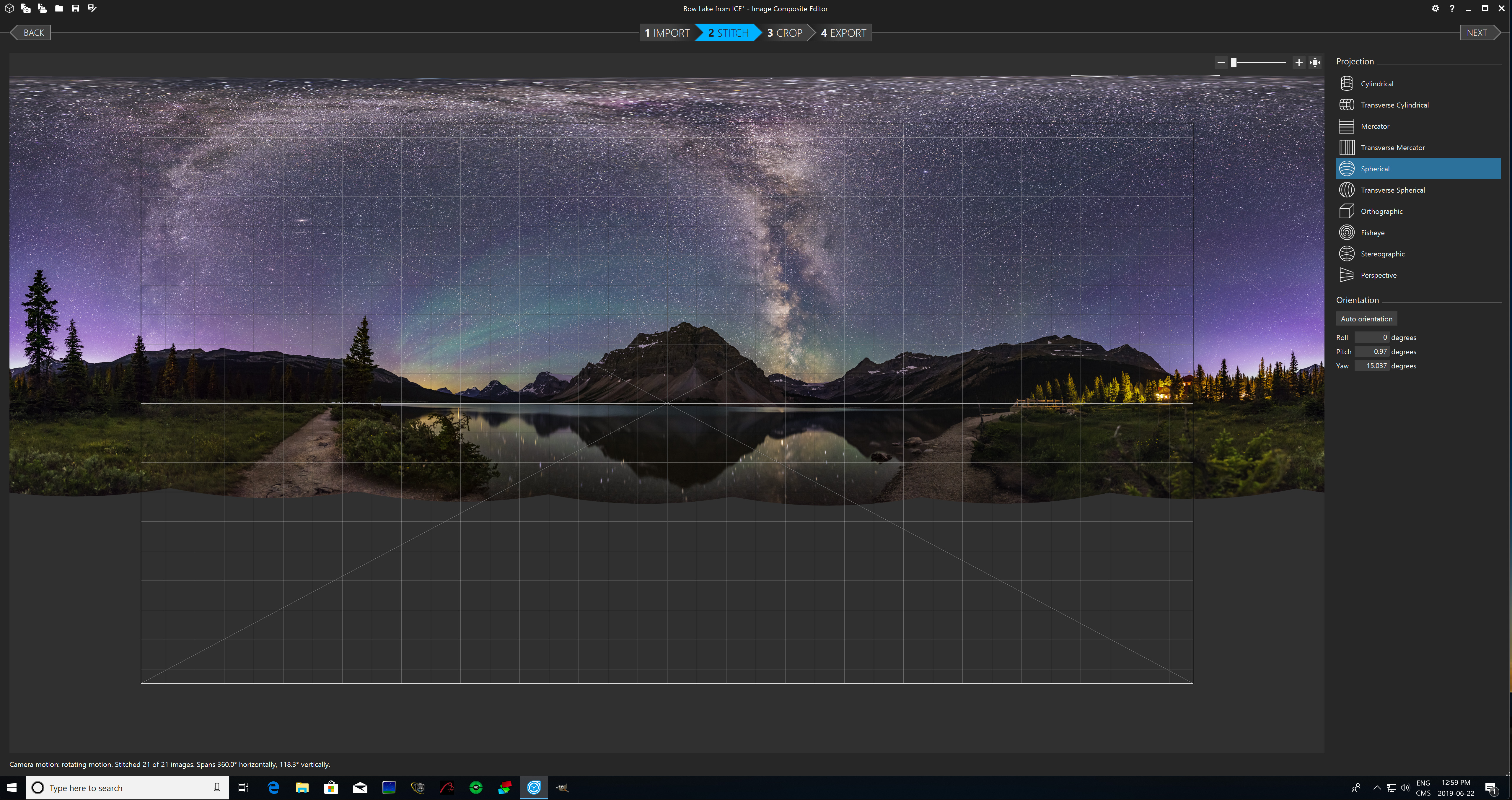
Stitching with Microsoft ICE Image Composite Editor, for Windows only but free from Microsoft Research, also does a superb job on all panoramas (as it did with this test case), with accurate stitching and preview, a choice of projections, cropping, and the option for a layered output.
However, Windows users can also try Image Composite Editor (ICE), free from Microsoft Research. As shown above in my test 3-tier pano, ICE works very well on complex panoramas, has a clean, user-friendly interface, offers a choice of geometric projections, and can export a master file with each segment on its own layer, if desired, for later editing.
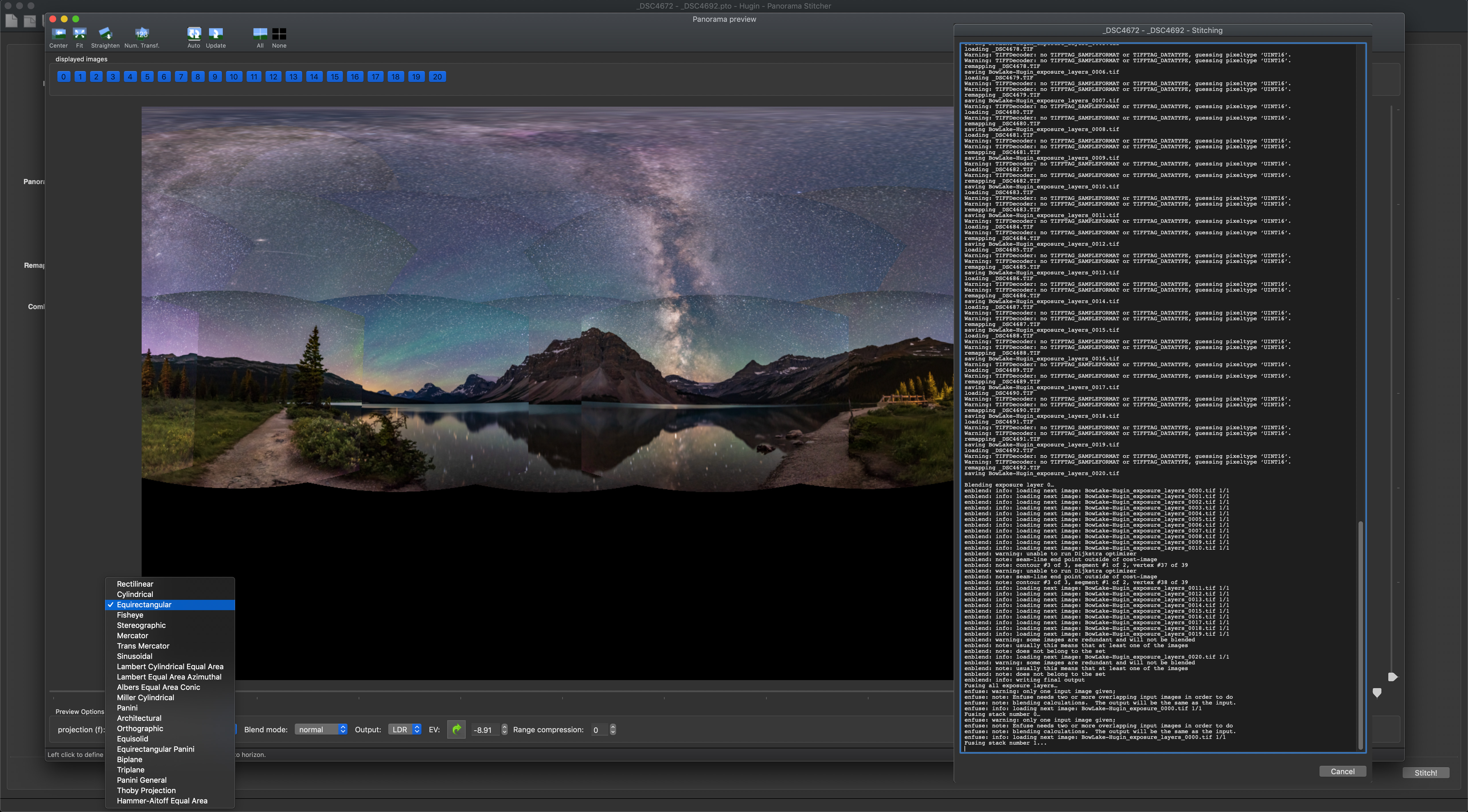
Stitching with HugIn The open-source program HugIn is free, but suffers from an inaccurate preview, complex interface and workflow, and technical displays and functions only a programmer will love.
The free, open source program HugIn is based on the same Panorama Tools root software that PTGui uses. However, I find HugIn’s operation clunky and overly technical. Its export process is arcane yet renders out only a flattened image.
HugIn Fail The export of the same multi-tier pano that worked fine with PTGui and ICE failed with HugIn, with missing content and numerous mis-aligned areas of the landscape, tough to fix in the flattened output.
In testing it with the same three-tier 21-segment pano that PTGui and ICE handled perfectly, HugIn failed to properly include one segment. However, it is free for MacOS and Windows, and so the price is right and is well worth a try.
Fish-Eye Milky Way In summer with the Milky Way overhead, a spherical projection is often best for presenting the Milky Way as your eye saw it, as a majestic band of light from horizon to horizon across the sky passing through the zenith.
With the superb tools now at our disposal, it is possible to create detailed panoramas of the night sky that convey the majesty of the Milky Way – and the night sky – as no single image can. Have fun!

























 The Amazing Sky